Virtual StagingPro
AI virtual staging for real estate listings
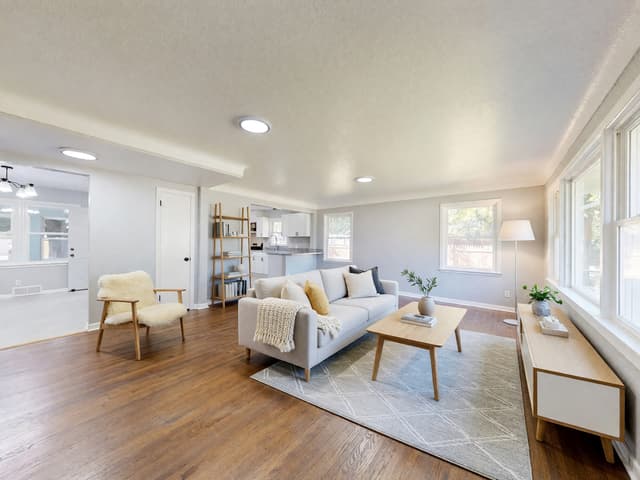
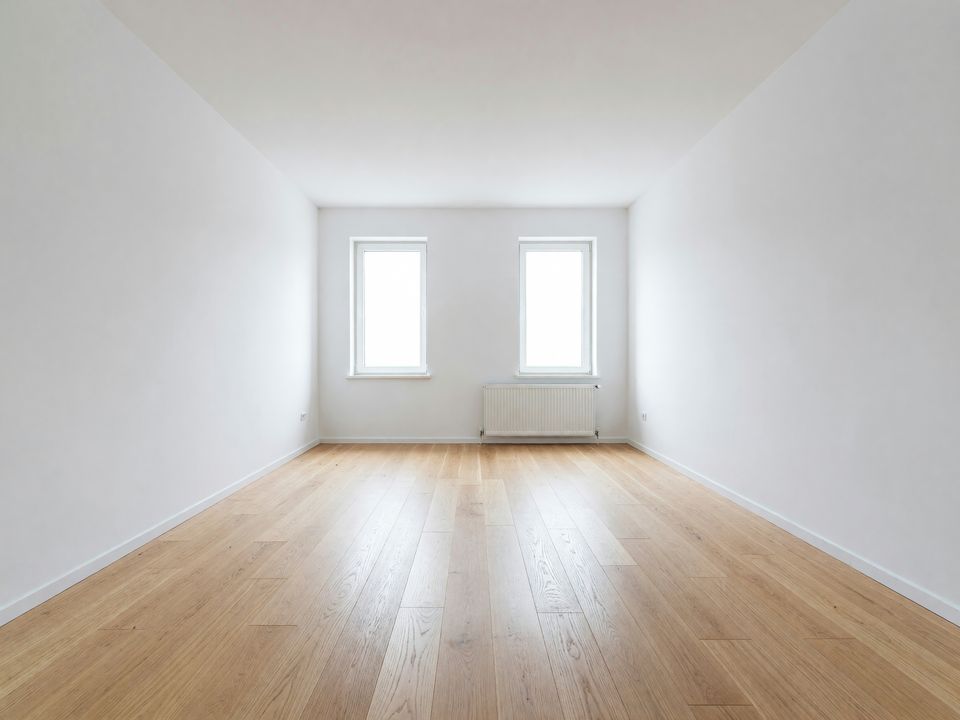
Virtual Staging furnishes an empty room from a photo. Upload the empty space, choose what it should become and a style, and HomeCompose adds furniture, lighting, textiles and decor while the walls, floor, windows and camera angle stay as they are. It works for homes, offices and shops.
Available on the Pro plan.
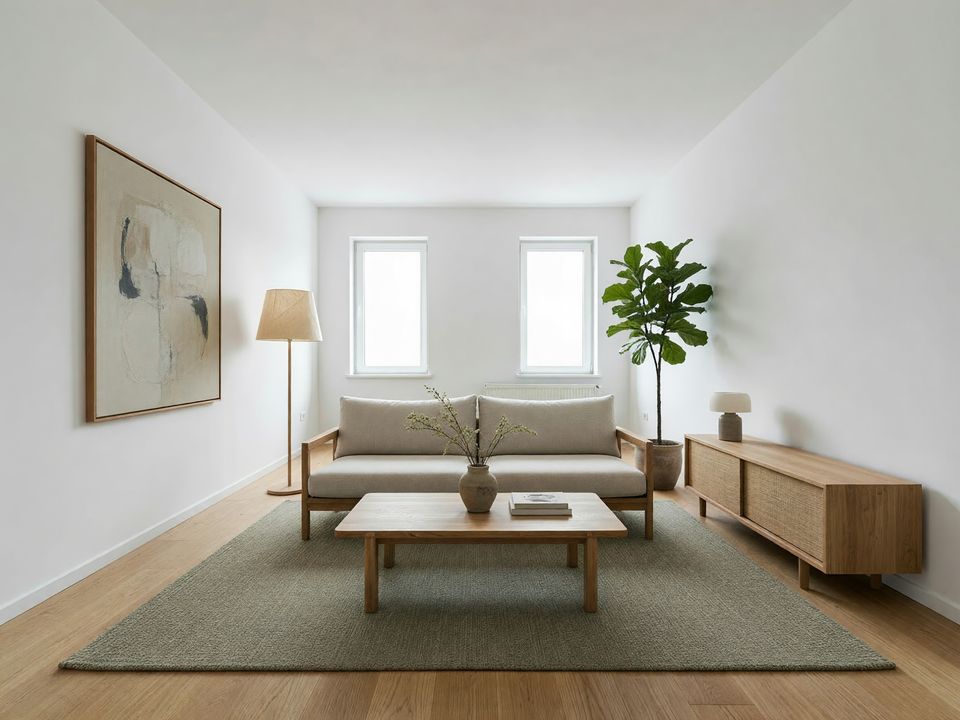
How it works in 3 steps
Upload the empty space
A sharp, well-lit photo of an empty room, office or shop.
Choose the setup
Pick what the space should be, a style, and fully furnished or essentials only.
Compare
See the staged room next to the empty one, then try another style.
What to upload
A photo of an empty room, office or shop
Who it's for
Homeowners
Selling or renting out your home? Show an empty room furnished, or see a spare room as an office or a nursery before you buy anything.
Real-estate agents
Stage vacant listings without moving furniture in. Show the same room in two styles for different buyers, and mark the photos as virtually staged.
Hotels and businesses
Show a vacant office, shop or hotel room furnished, for leasing or for planning a fit-out.
Designers and architects
Give clients a furnished view of an empty or newly built space early, before the full design is drawn up.
Virtual staging from a photo of an empty room
An empty room can be hard to read in a listing photo: it is not always clear where the bed goes or how a sofa would fit. Virtual Staging chooses pieces sized to the room and arranges them in a sensible, walkable layout. The space itself stays: every wall, column, window and door, built-in fittings such as radiators, fireplaces and kitchen units, the floor, the ceiling and the light.
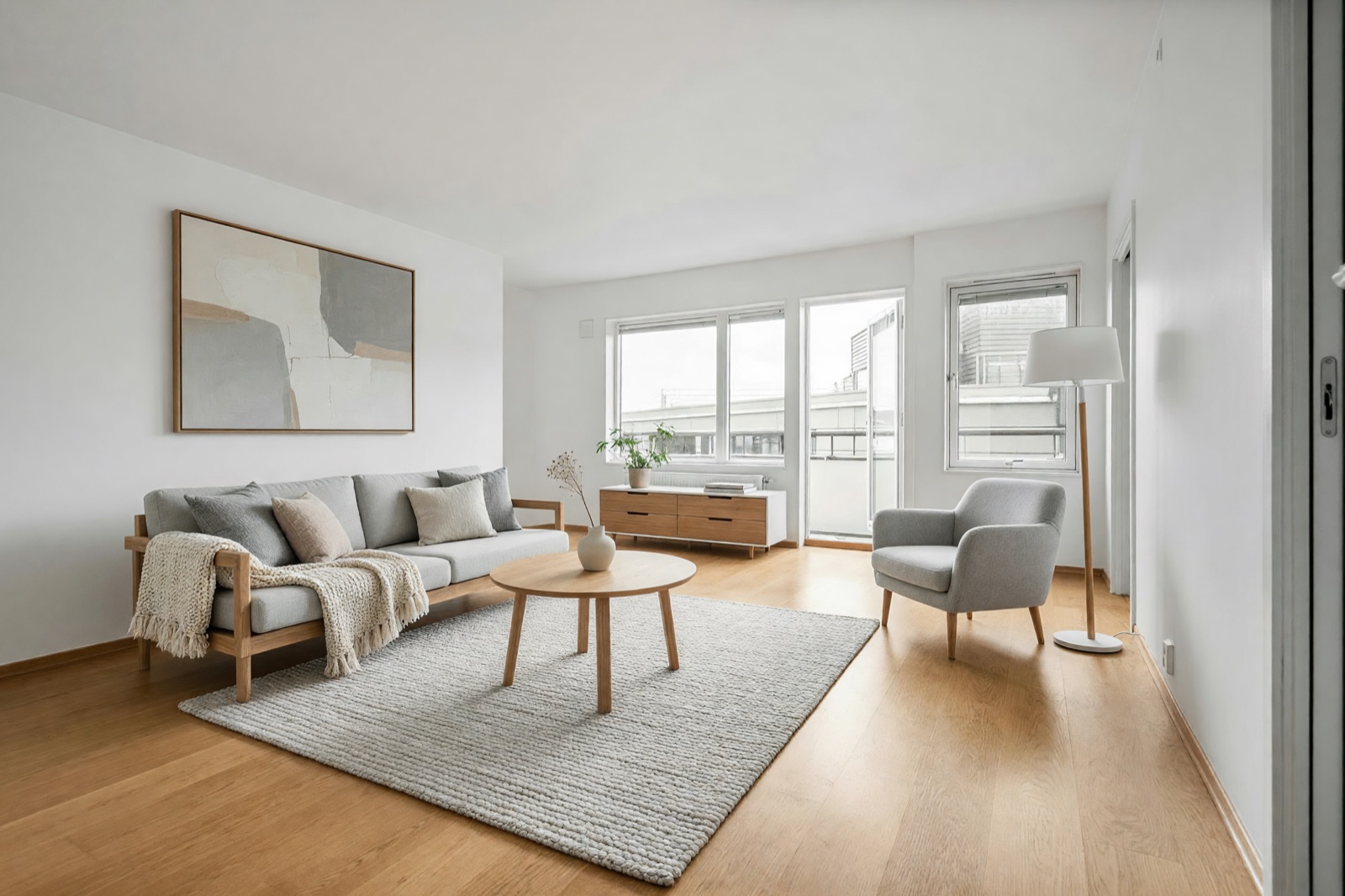
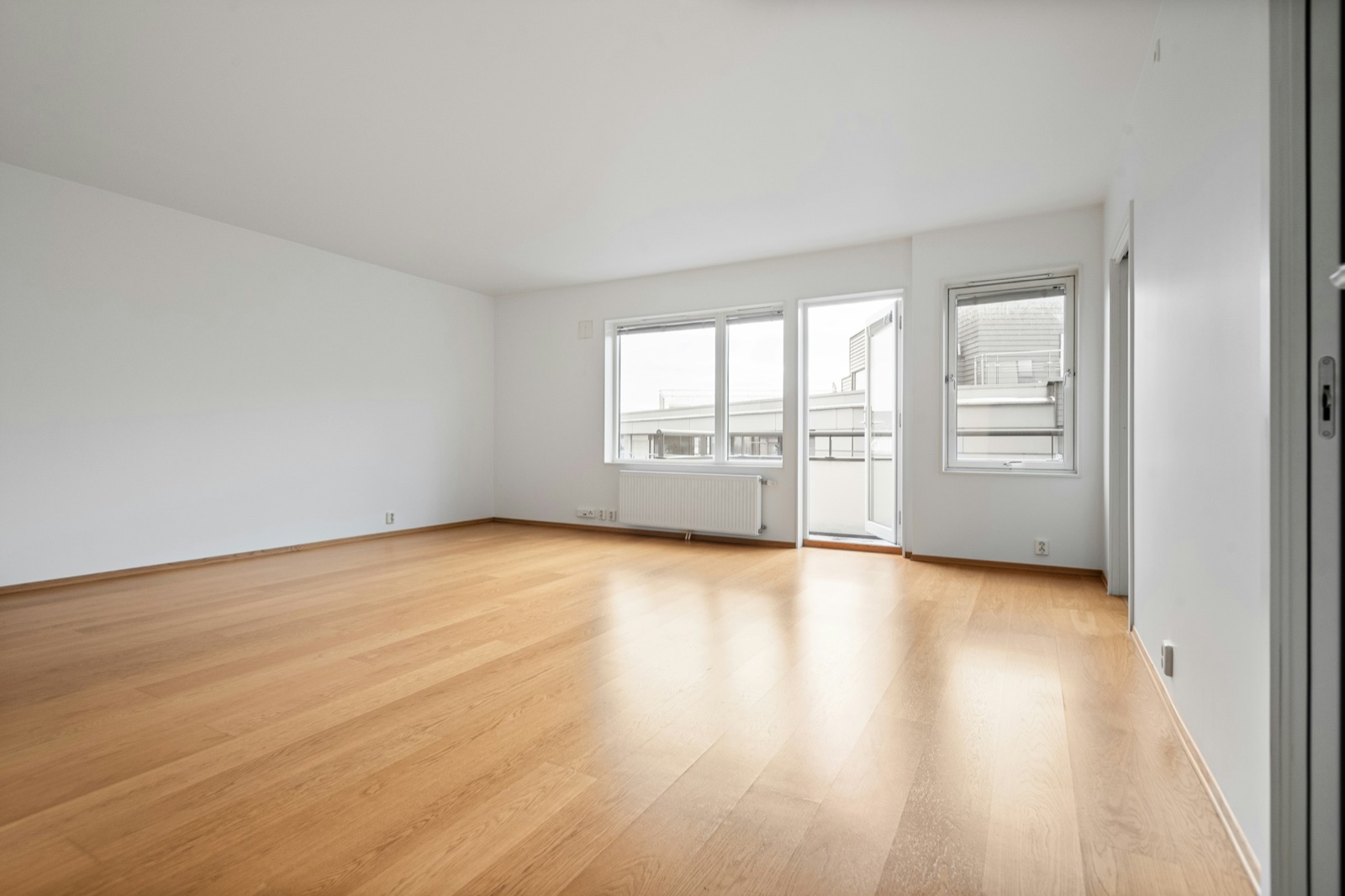
Fully furnished or essentials only
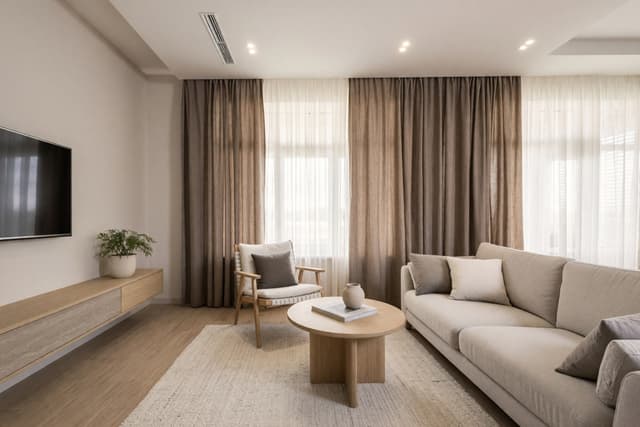
- Fully furnished adds furniture, lighting, textiles and decor, like a finished model home.
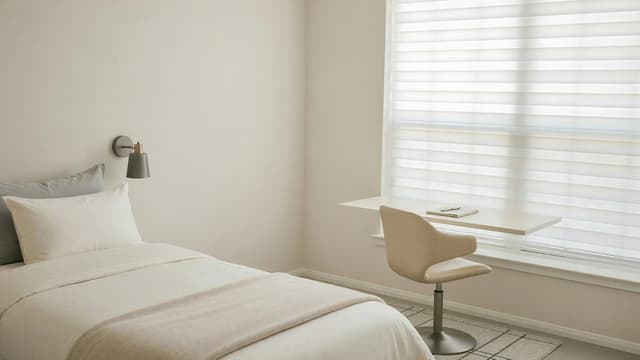
- Essentials only adds just the key pieces with very little decor, for a calm, simple look.
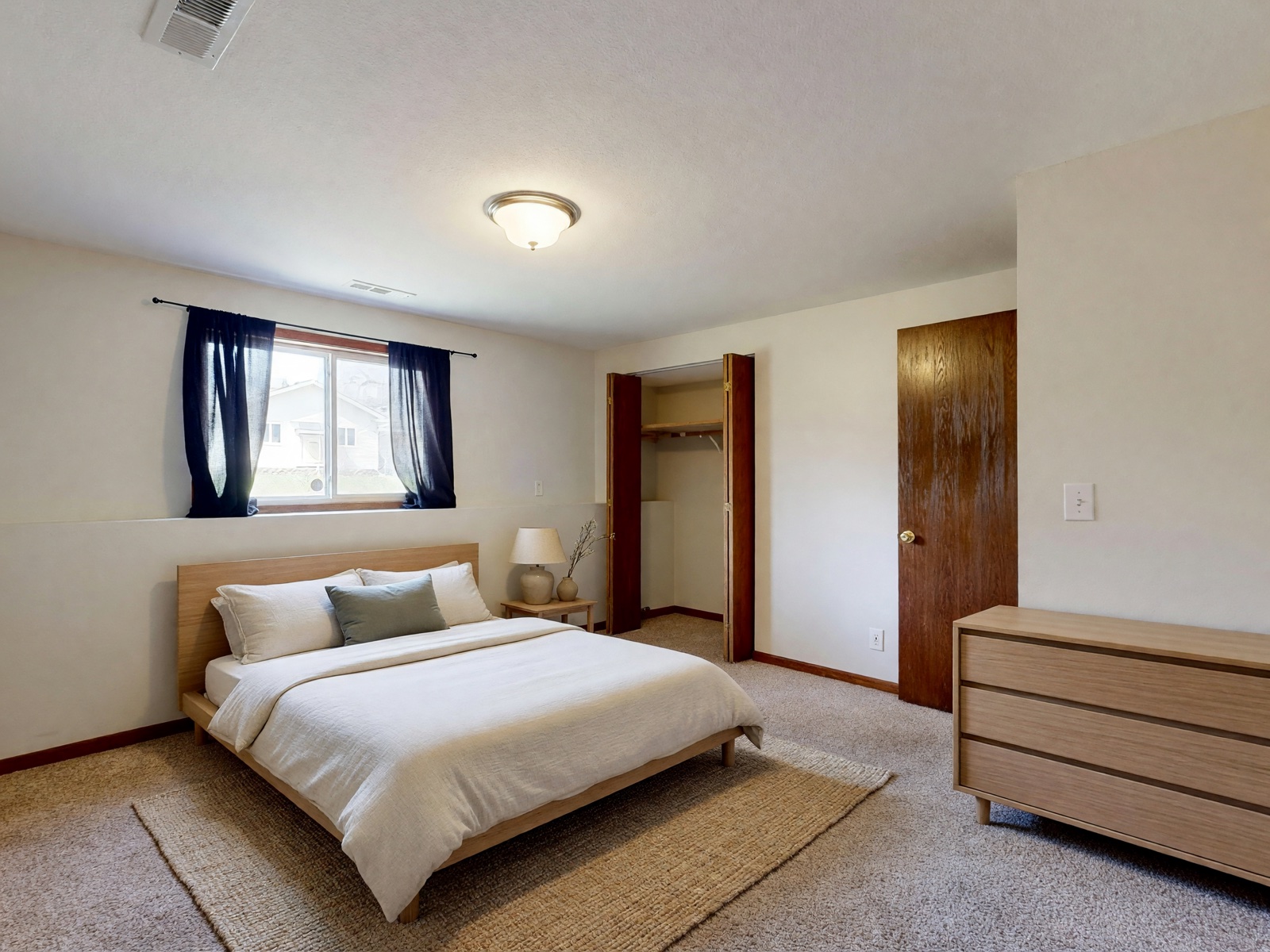
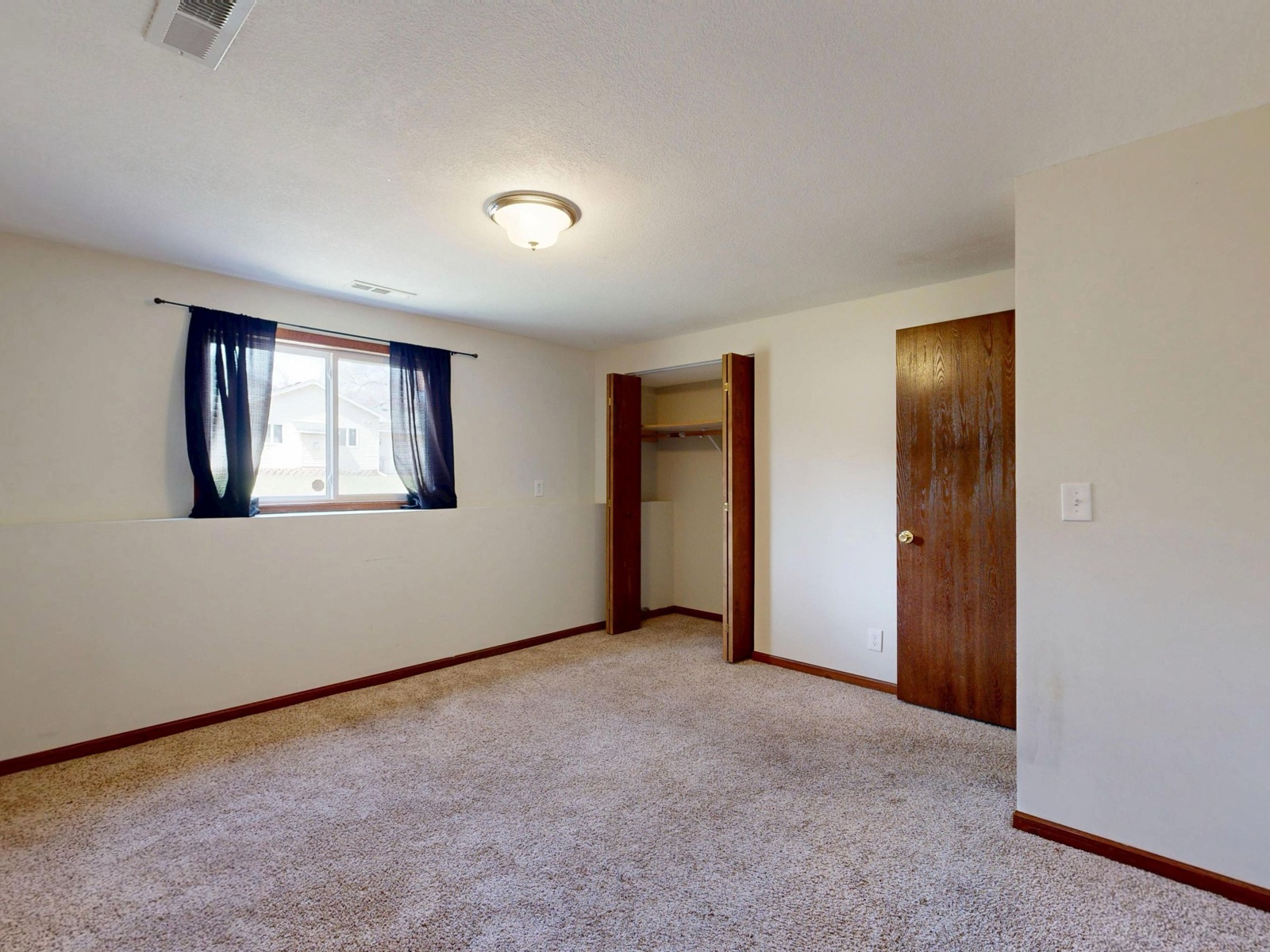
Essentials only keeps the focus on the room itself, for example in a small bedroom or when you want buyers to notice the space more than the styling.
Stage homes, offices, shops and hotel rooms
Choose what the space should become: a living room, bedroom, kitchen, dining room or home office, or an office, meeting room, coffee shop, restaurant, clothing store or hotel room. Then pick a style, such as Scandinavian, modern, Japandi, coastal, mid-century modern or quiet luxury.
Because you choose the room type, the same empty space can be shown in more than one way, for example a spare room as a bedroom and as a home office.
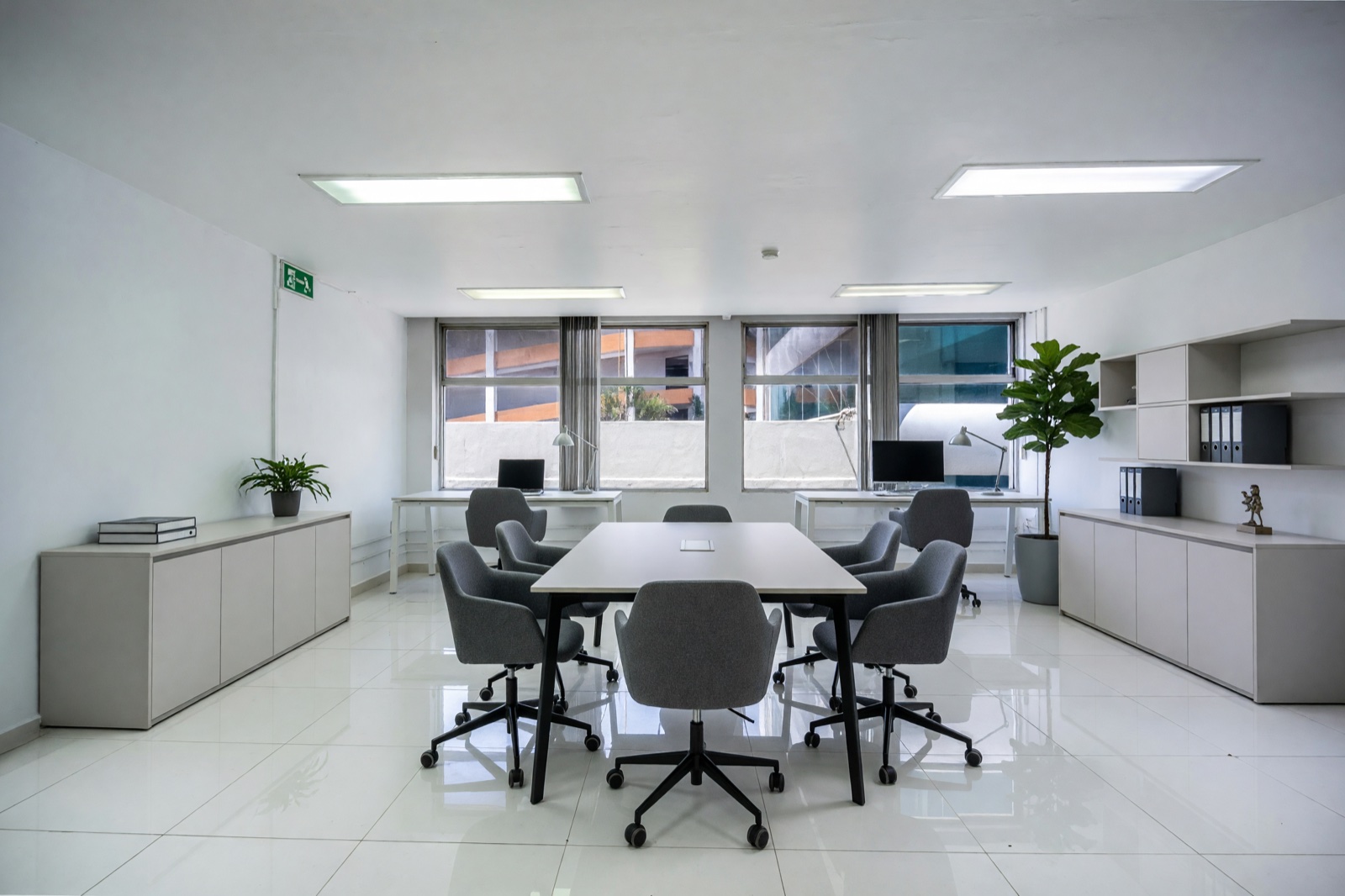
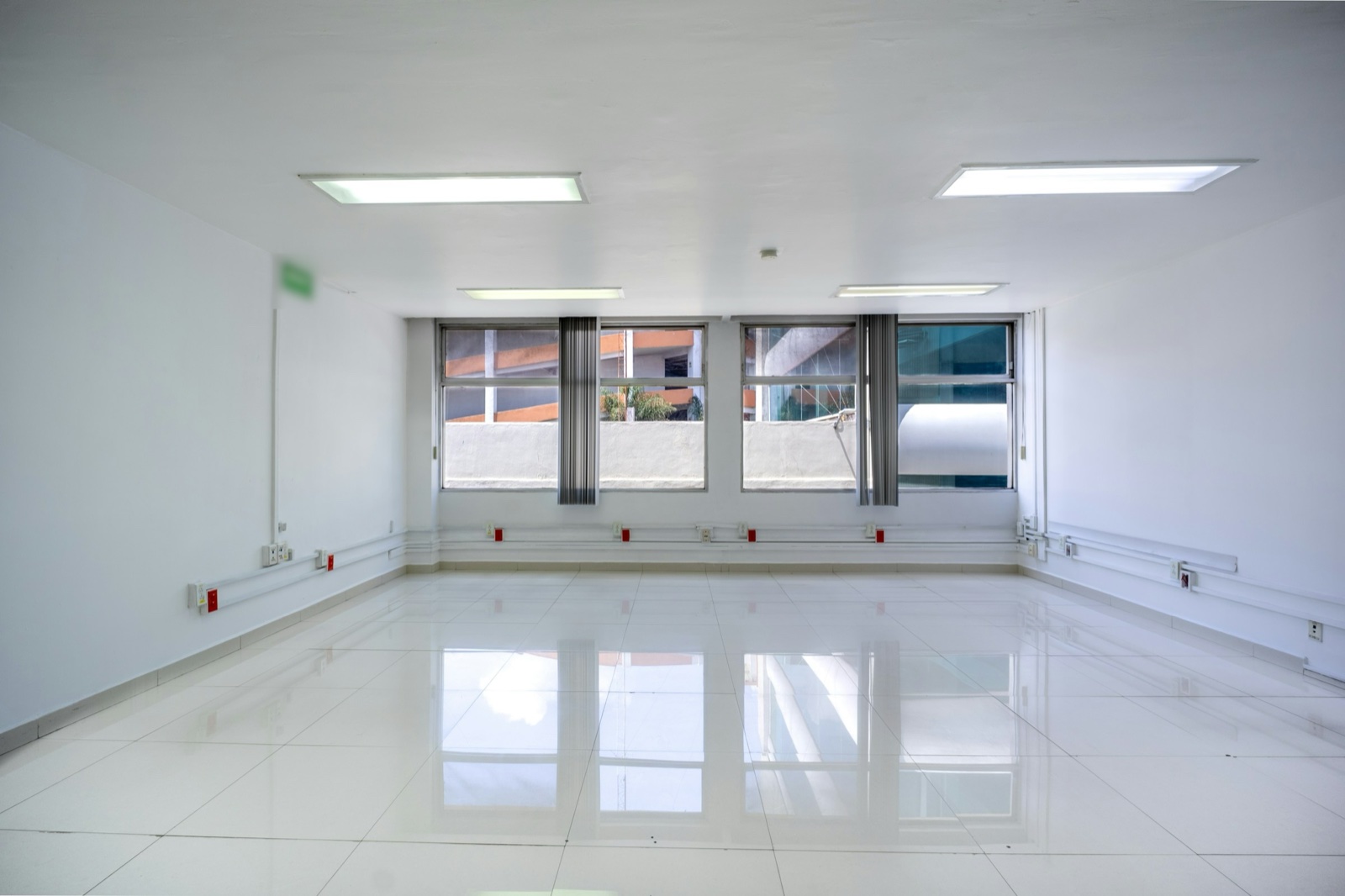
Tips for staging listing photos
- Virtual Staging is made for empty or nearly empty spaces. Use a sharp, well-lit, wide photo of the room.
- If the room is still furnished or cluttered, empty it first with Cleanup and its Empty Room level, then use that design as your photo here.
- Mark staged photos as virtually staged. Some listing sites and local rules require it.
For a step-by-step approach, read our virtual staging guide.
Frequently asked questions
Will virtual staging change the walls or floor?
No. Virtual Staging keeps the walls, windows, doors, built-in fittings, floor and ceiling finishes and the camera angle as they are, and adds furniture, lighting, textiles and decor. AI can still alter small details, so check the image before you publish it.
What if the room is not completely empty?
It is made for empty or nearly empty spaces. For a furnished or cluttered room, use the Empty Room level in Cleanup first, then stage that design.
Can I use staged photos in my listing?
Yes. Designs made on a paid plan have no watermark and can be used commercially, for example in property listings. Mark them as virtually staged, and follow the rules of your listing site and local law.
Are the furniture sizes accurate?
The pieces are chosen to suit the room, but they are a visual suggestion, not a measured plan. Measure the room before you buy real furniture.