Swap the Sky & WeatherIn Essential and Pro
Sky replacement for property photos
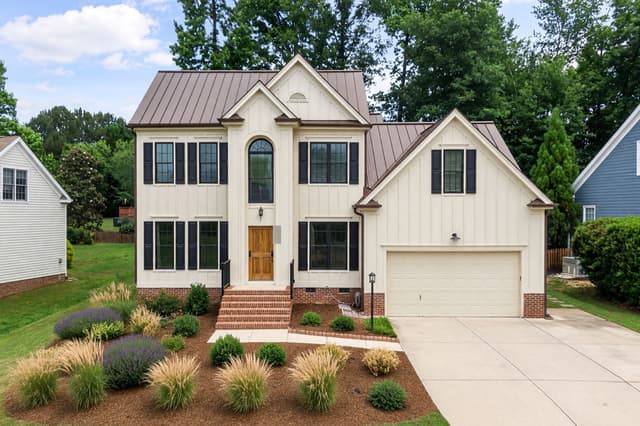
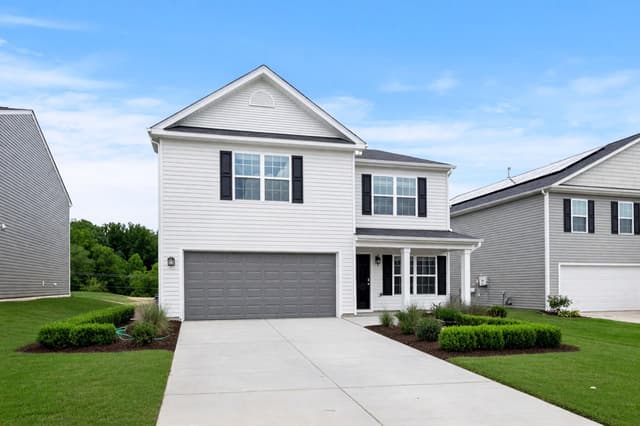
Upload an outdoor photo with the sky in view, choose a new sky and weather, and HomeCompose changes the sky and the outdoor light while the building, garden and camera angle stay as they are. Shadows and reflections are adjusted to match the new light.
Available on the Essential and Pro plans.
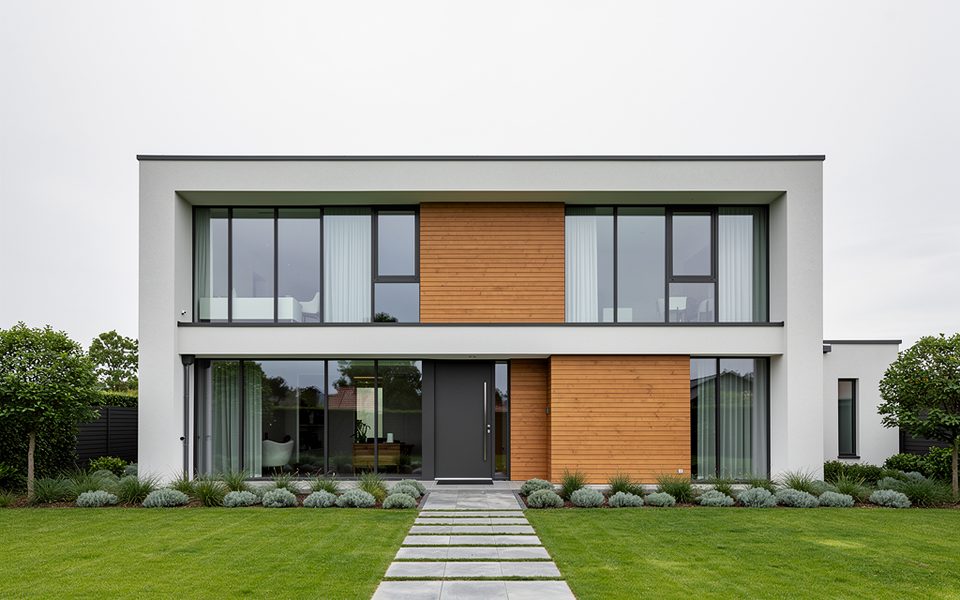
How it works in 3 steps
Upload an outdoor photo
A house, building or garden with the sky in view.
Choose the sky
Pick one of nine skies and weather types, then Subtle, Clear or Bold.
Compare
See the new sky next to your photo, then try another.
What to upload
An outdoor photo with the sky in view
Who it's for
Homeowners
Selling your home or sharing a renovation? Show the house under a clear sky instead of flat gray cloud.
Real-estate agents
Improve listing photos taken on a dull day without a reshoot, while the house itself stays as it is.
Hotels and businesses
Show your hotel, guesthouse, restaurant terrace or shop front at golden hour or dusk on your website.
Designers and architects
Present a facade or garden design under a different sky, for example golden hour or blue hour, to show it in another light.
Replace a gray sky in a property photo
Swap the Sky & Weather edits only the sky, the weather and the outdoor light. The building, roofline, windows, doors, landscaping, furniture and materials stay as they are. The result should read as the same photo, taken on a different day.
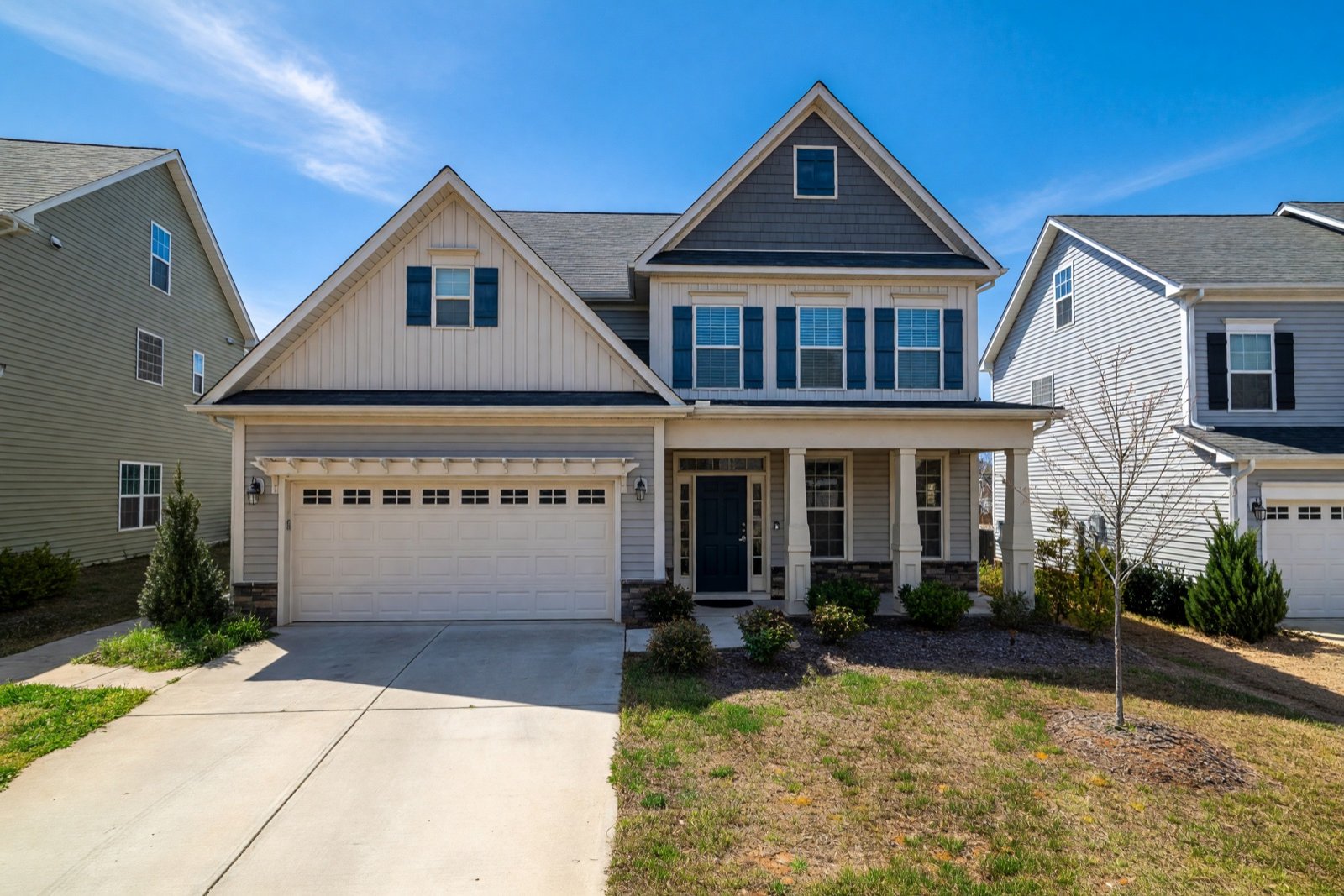
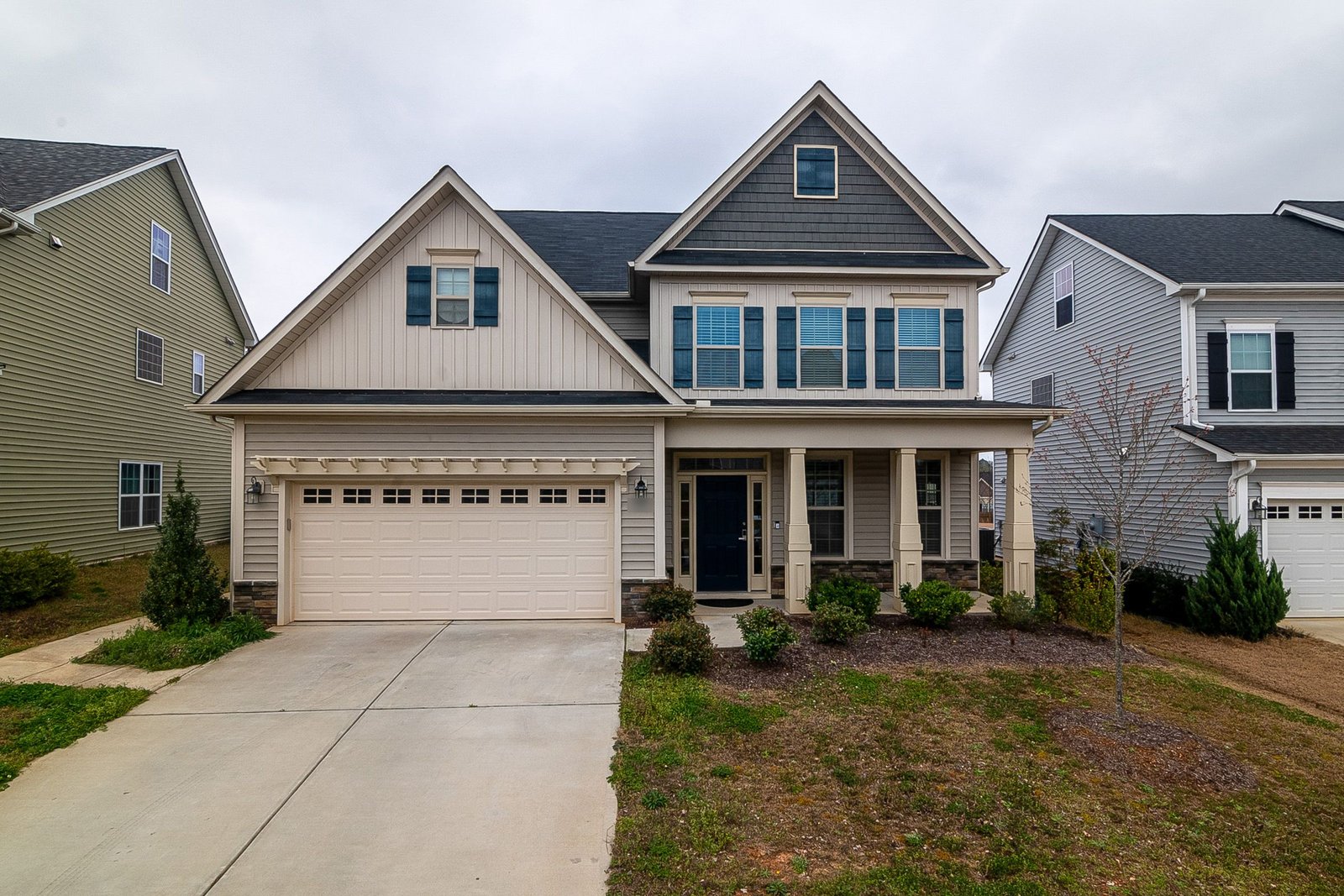
What is sky replacement?
Sky replacement means swapping a dull, flat or gray sky in a photo for a different sky or weather, such as clear blue, golden hour or dusk. It is used most on exterior and listing photos, where the sky fills a large part of the frame and sets the mood. Done well, the building and garden stay as they are and only the sky and the light on them change. Done badly, you get halos around roofs and trees, or shadows that point the wrong way.
Nine skies and weather types
- Clear blue sky, Partly cloudy and Overcast for daytime light, from bright sun to soft, even light.
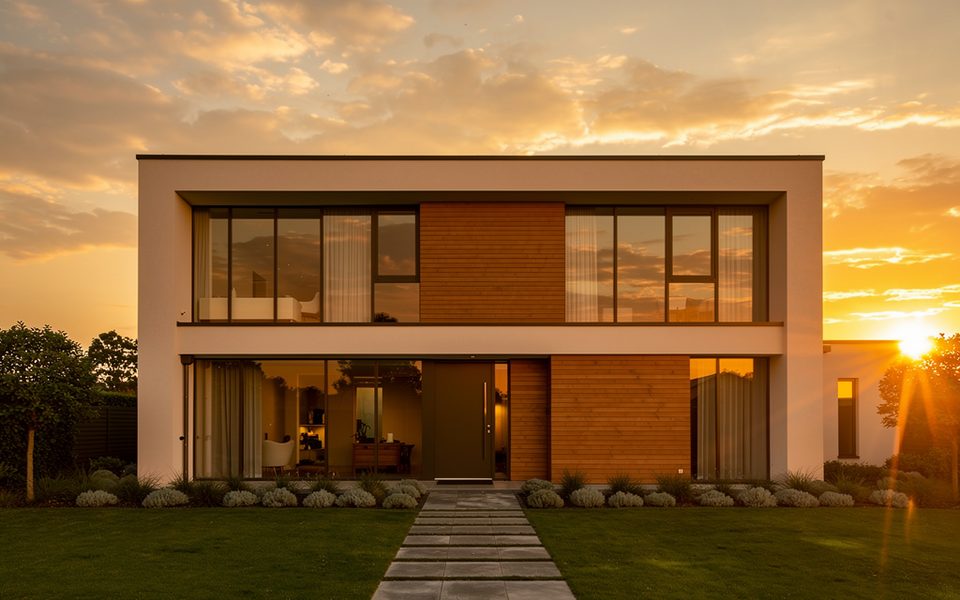
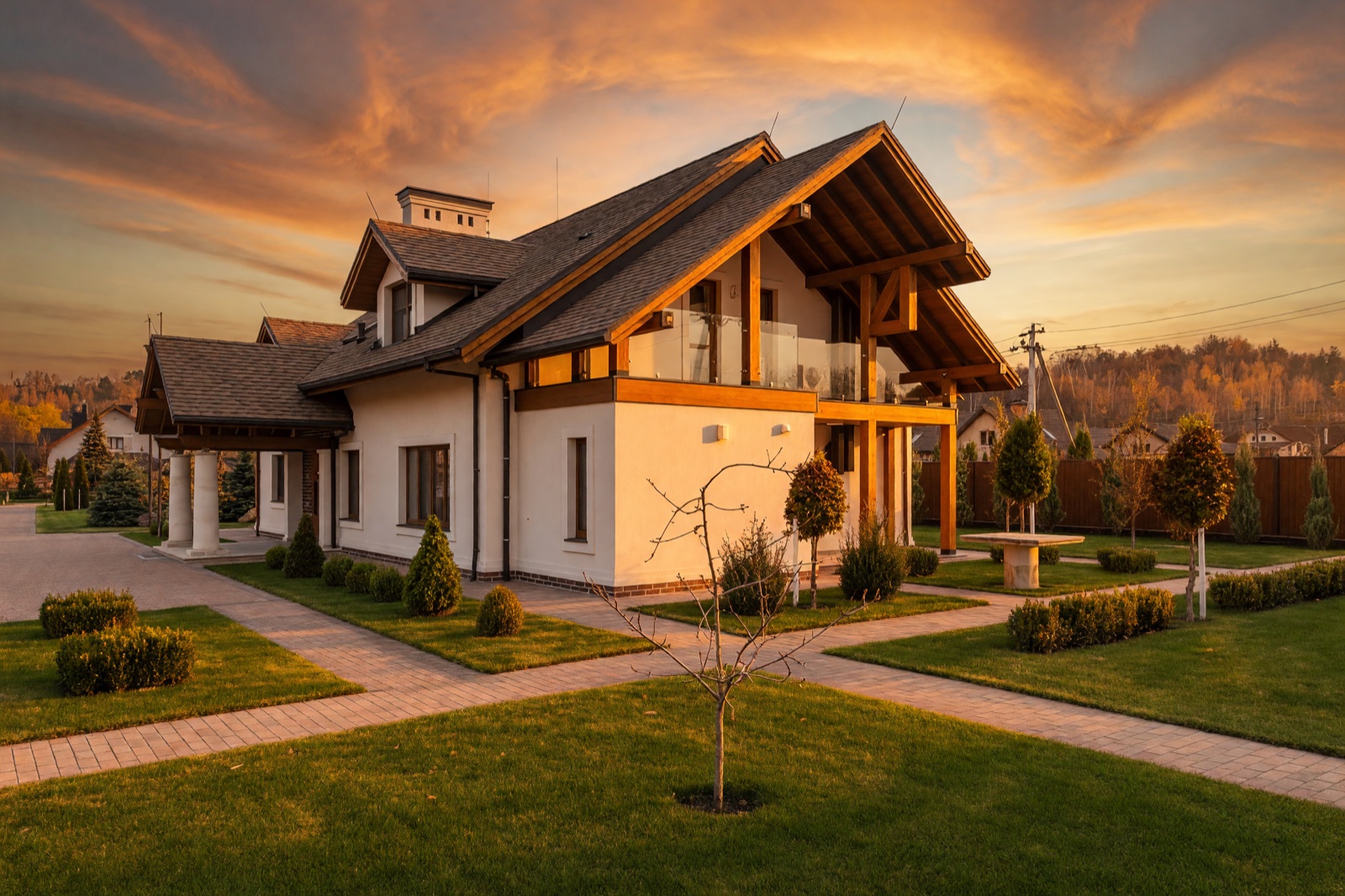
- Golden hour for warm, low sun and long shadows.
- Blue hour and Starry night for dusk and night views.
- Dramatic storm, Foggy and Snowy for moody or seasonal scenes.
Blue hour is worth trying for a twilight-style main photo of a listing. Golden hour suits hotels, restaurants and holiday homes that want a warm evening look.
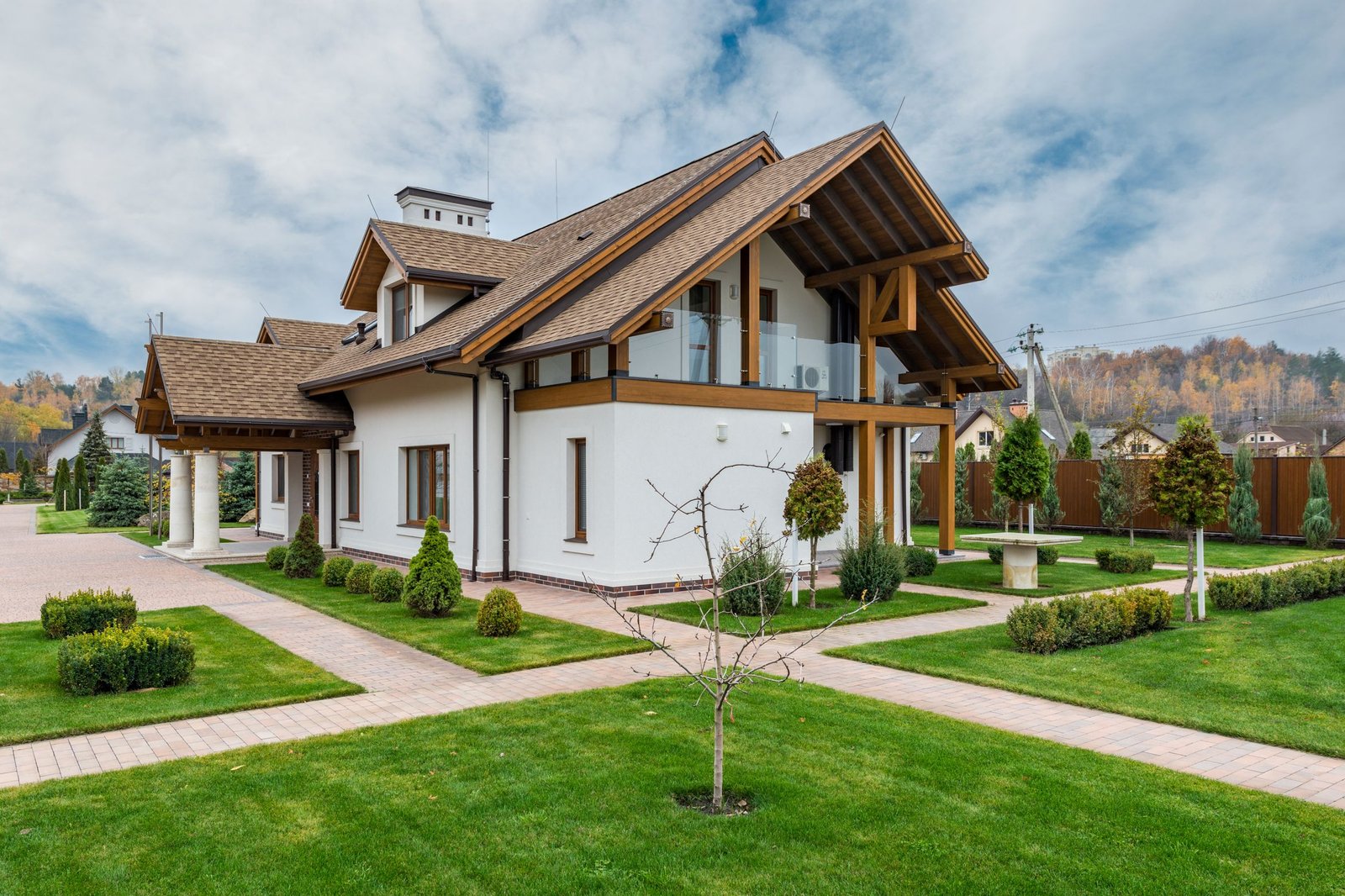
Choose how strong the change is
The Design intensity slider has three stops. Subtle nudges the sky and light toward the new weather and keeps the photo's mood. Clear makes the new weather unmistakable, with a natural-looking change. Bold lets the sky and light fully take on the new weather.
Start with Clear for listing photos, and move to Subtle if the change looks too strong for the scene.
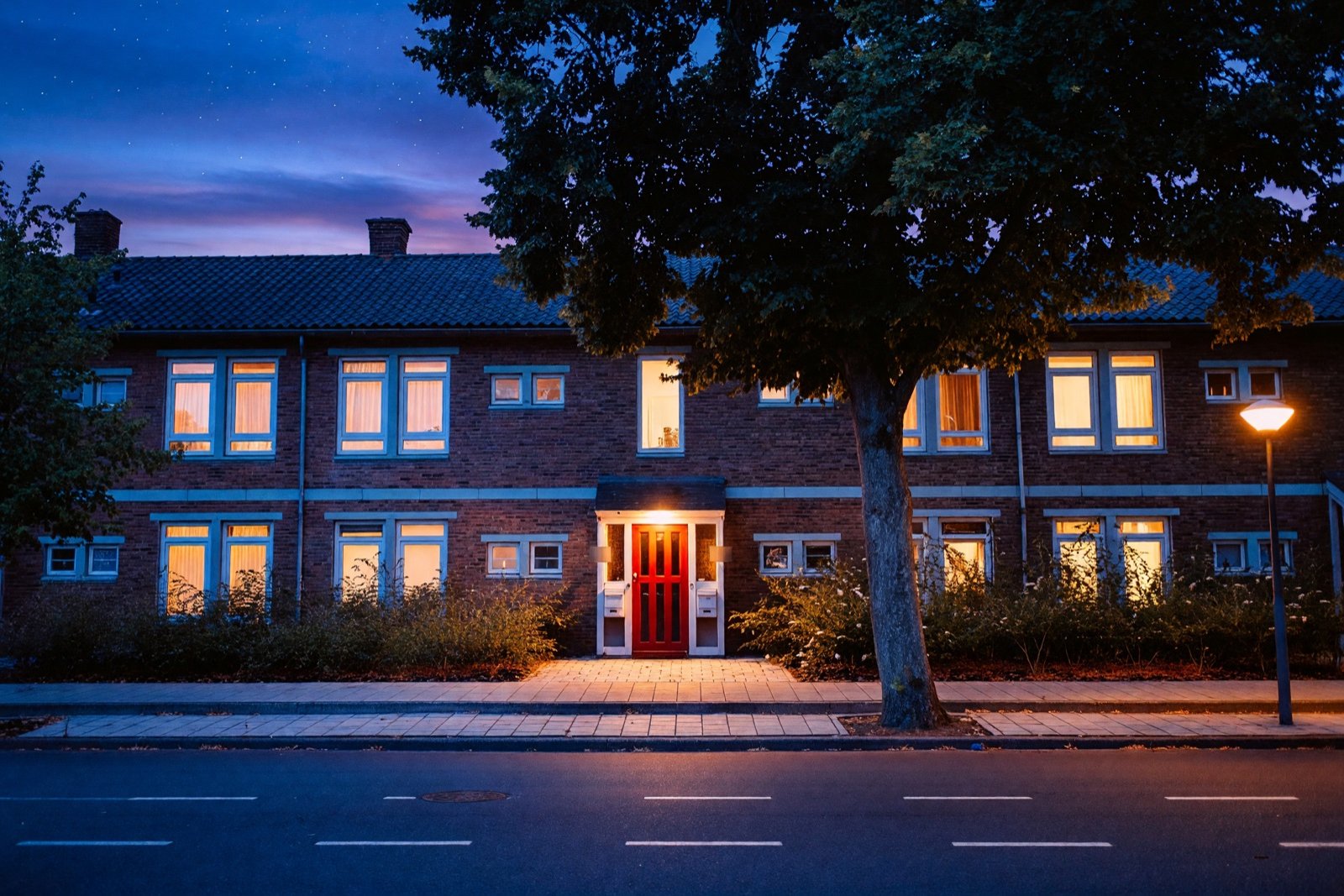
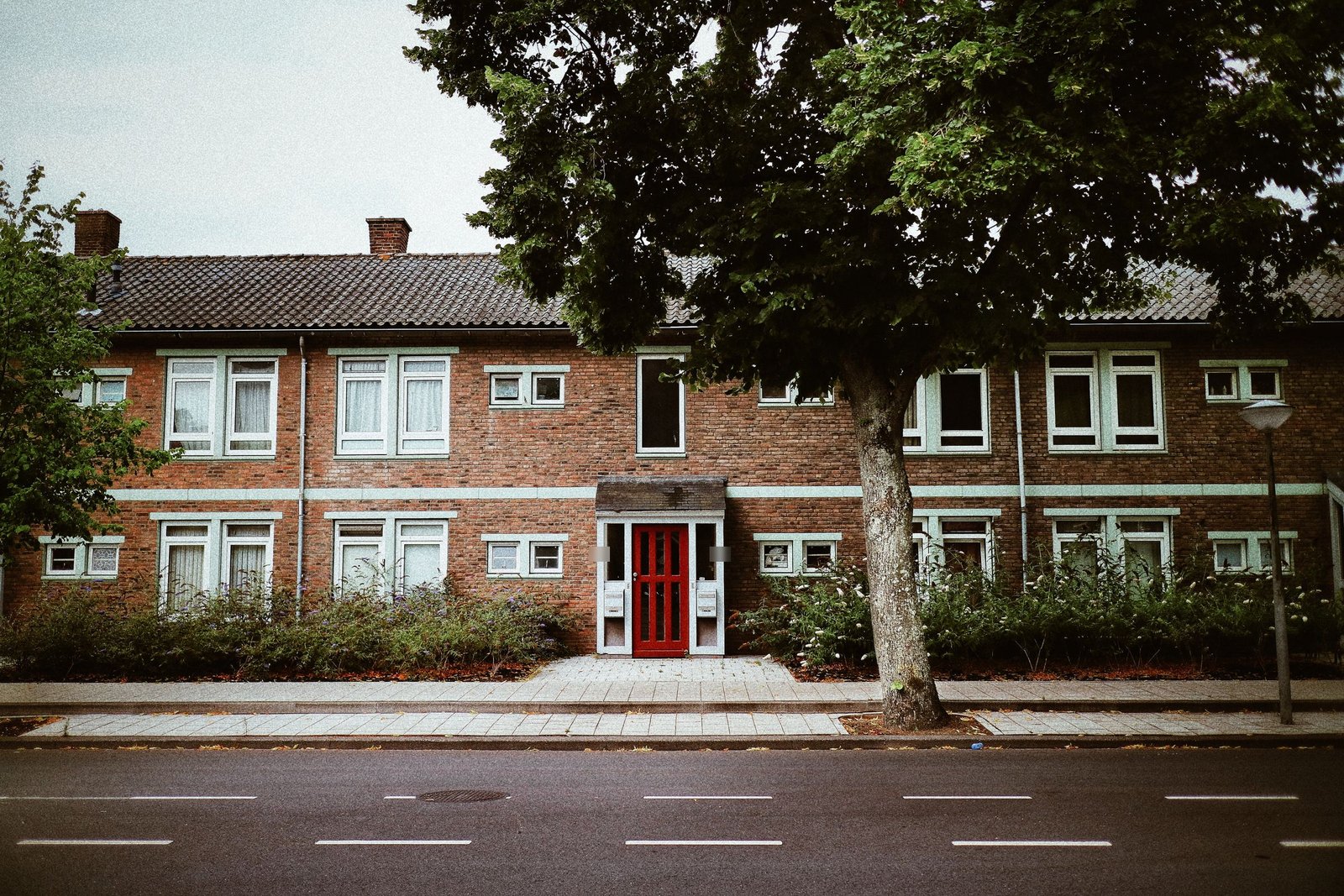
Tips for listing photos
- Use a sharp photo where the roofline stands clearly against the sky, and where trees or wires do not cover most of it.
- Pick a sky that fits the season of the photo, so the trees and garden still make sense.
- Redesign the facade first with Exterior Design, then use that design as your photo here.
- Follow your listing site's rules on edited photos.
For facade ideas to pair with a new sky, see modern farmhouse exterior ideas.
What to check in the result
- Edges: look along the roofline, chimneys, antennas and tree branches for halos, jagged edges or sky showing where it should not.
- Light and color: shadows should fall the way the new sun implies, and the roof and walls should still look like the real materials. Compare with your original.
- Windows and glass: reflections should suggest a sky like the new one. With Blue hour or Starry night, check that glowing windows and outdoor lights make sense for the property.
- Small details: compare signs, railings, wires and parked cars with the original, because AI can change small things.
For a listing, do not show weather the place does not have in that season, and do not use a new sky to hide things that are really there, such as power lines or a neighboring building. Keep the original photo and say in the listing that the sky was changed. The AI real estate photo editing guide covers labeling and the other edits worth checking.
Sky replacement online: free tools, apps and PNG files
Swap the Sky & Weather works online: upload one photo in your browser, choose a sky and weather, and compare the finished photo with your original.
If you are weighing free online sky tools or phone apps, check three things first:
- The size of the result. Small or low-resolution images are hard to use on a listing.
- Whether the result carries a watermark.
- What the terms say about commercial or listing use.
A search for a sky PNG usually means a transparent cut-out of a sky, or a ready-made sky image to place in an editor. This tool does not give you that. You get a finished photo with the new sky and light already in place, not a separate sky file or a mask.
Frequently asked questions
Does it change the house or the garden?
No. It changes the sky, the weather and the outdoor light, and adjusts shadows, reflections and highlights to match. The building, landscaping and materials stay as they are; only the light on them changes. AI can still alter small details, so compare the two images.
Does it work on indoor photos?
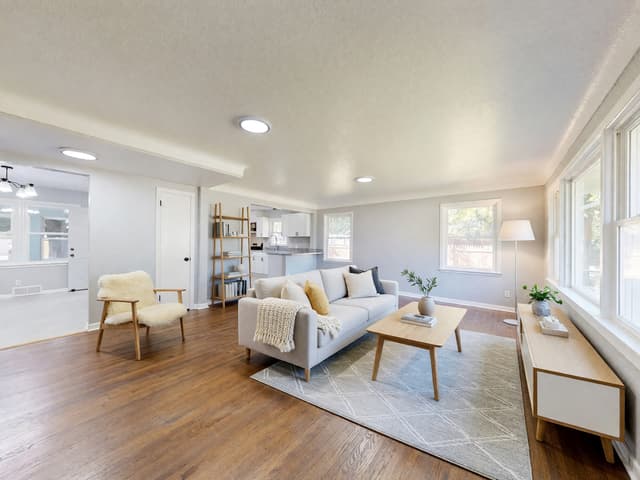
It is made for outdoor photos with the sky in view, such as a house front, a villa, a hotel, a terrace or a garden.
Can I use the new photo in a listing?
Designs made on a paid plan have no watermark and can be used commercially, for example in property listings. Some listing sites and local rules ask you to say a photo was edited, so check before you publish.
Which sky should I choose for a listing?
Clear blue sky, Partly cloudy and Golden hour show the property on a good day. Dramatic storm, Foggy and Snowy suit seasonal or mood images better than listings.
Can I replace a sky in a regular photo editor?
Yes. Many full photo editors have a sky tool, or you can do it by hand: select the sky, place a new one behind it, then match the color and light of the foreground. That gives you full control, but it takes some skill and several steps, and thin branches and roof edges are the hard parts. With Swap the Sky & Weather you upload one photo, choose a sky and weather, and the sky and the light on the building change in one go. Either way, check the edges and the light before you use the photo.