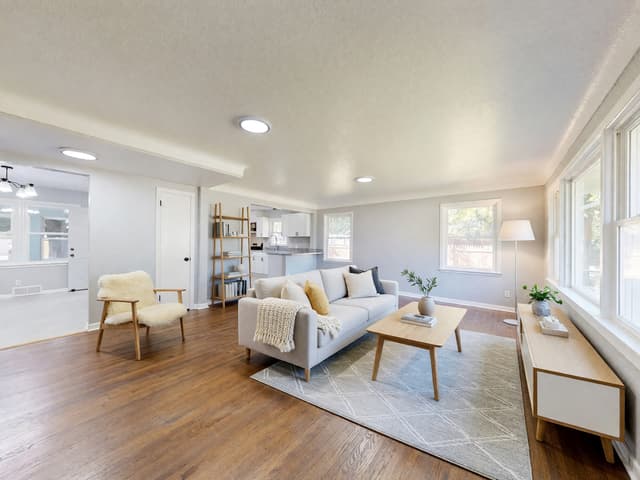
AI real estate photo editing for listing photos
AI real estate photo editing can clear a cluttered room, replace a flat gray sky and furnish an empty room, but it works best when each edit is small, checked and labeled. This guide gives a three-step workflow for listing photos with Cleanup, Swap the Sky & Weather and Virtual Staging, with five real before and after results, what to check each time and how to stay honest with buyers.
What AI real estate photo editing can do for a listing, and what it cannot
AI can help with three things that often hold a listing photo back: a room full of loose belongings, a flat gray sky over the front of the house, and an empty room that looks bare and is hard to judge by eye. Each is a change to what is in the picture, not to how the camera captured it.
It does not replace a good photograph. Exposure, white balance and crooked verticals are best fixed in camera or in your usual photo editor first. And the result is an image, not a record of the property: the AI paints in what it thinks belongs there, and it can redraw small things you never mentioned, such as a window, a door frame, a floor edge or a fixture. Walls, windows, doors and the floor are meant to stay, and structure can still change. That is why every step below ends with a check.
Start with a photo the AI can work from
Most of a disappointing result is decided before you upload.
- Shoot in good light. Turn the room's lights on and shoot in daylight. Dark or blurry photos give odd fills.
- Keep the verticals straight. Hold the camera level, at about chest height, so walls do not lean.
- Use a wide angle, not an extreme one. Stand in a corner or doorway and show most of the room. Very wide lenses bend walls and stretch furniture.
- One idea per photo. Declutter a cluttered room, stage an empty one, and do not ask one picture to do three jobs.
- Upload the largest, sharpest file you have.
AI real estate photo editing: the workflow at a glance
Work on one photo at a time and make the smallest edit that solves the problem. Every pass can redraw details, so when a photo needs two edits, check the first result before you use it for the second.
| Step | Tool | What changes | What to check |
|---|---|---|---|
| 1. Declutter a furnished room | Cleanup (all plans) | Loose clutter, packaging, cables and stray items; at higher levels, surplus decor and an unmade bed | Windows and curtains, desk and counter edges, shelf contents, anything you did not ask for |
| 2. Fix a dull exterior sky | Swap the Sky & Weather (Essential and Pro plans) | The sky, the weather and the light on the building | Roofline, trim, garden and driveway; whether the sky fits the season |
| 3. Furnish an empty room | Virtual Staging (Pro plan) | Furniture, rug, lamp and decor are added | Windows, doors, floor edges, outlets and radiators; whether the furniture is a believable size |
The order is simple: fix the basics first, clear a room only if it needs clearing, stage only a room that is empty, and treat the exterior sky as its own job.
Step 1: Declutter the room photo with Cleanup
Cleanup is on every plan. It removes loose items and keeps the walls, windows and floor; the furniture stays too, except at the Empty Room level. It also works on an outdoor area such as a patio.
Pick the level
- Tidy Up is the lightest and the default. It takes away loose clutter and tidies what stays.
- Declutter also clears surplus decor and crowded shelves, leaving calm surfaces.
- Listing Ready clears personal things, straightens cushions and throws, makes the bed and opens the curtains.
- Empty Room takes out all the movable furniture, rugs, art and belongings.
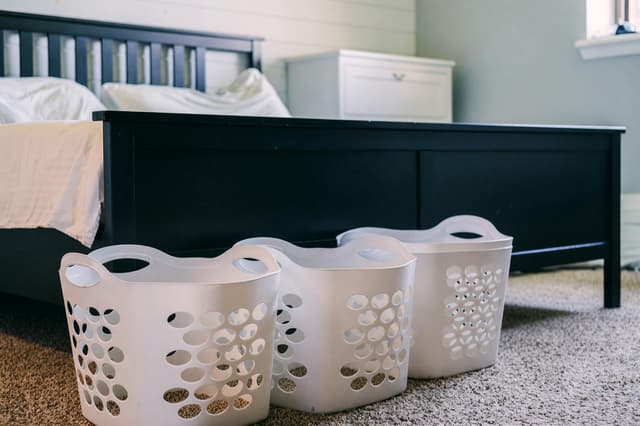
For a lived-in room, Tidy Up or Declutter is usually enough. Listing Ready does more, so it can change more: in one of our tests it redrew a window blind as open curtains and changed the bed, and we threw that result away. Under "Also remove" you can add Cables, Toys, Laundry, Boxes & bags, Rubbish and Personal photos & papers.
Example: Declutter on a messy living room
In the first two examples, a few small readable items, such as a wall notice, a poster, book spines and bottle labels, are blurred for privacy.
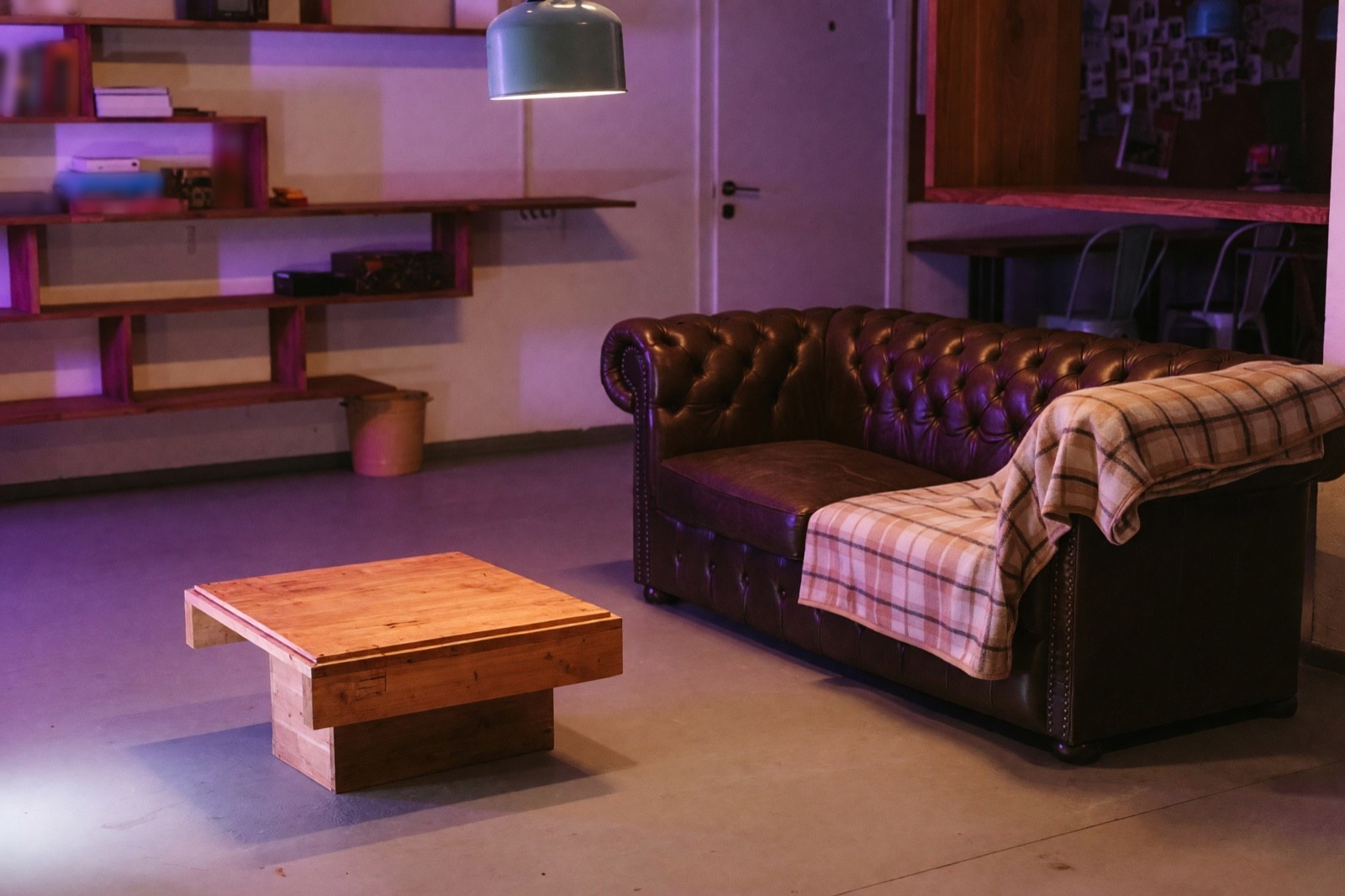

The mess is gone and the room is the same room. But Declutter also took the radio off the shelf and redrew the blanket. A radio is movable; a built-in shelf is not, so check that nothing that comes with the property has disappeared.
Example: Tidy Up on a hotel-style bedroom
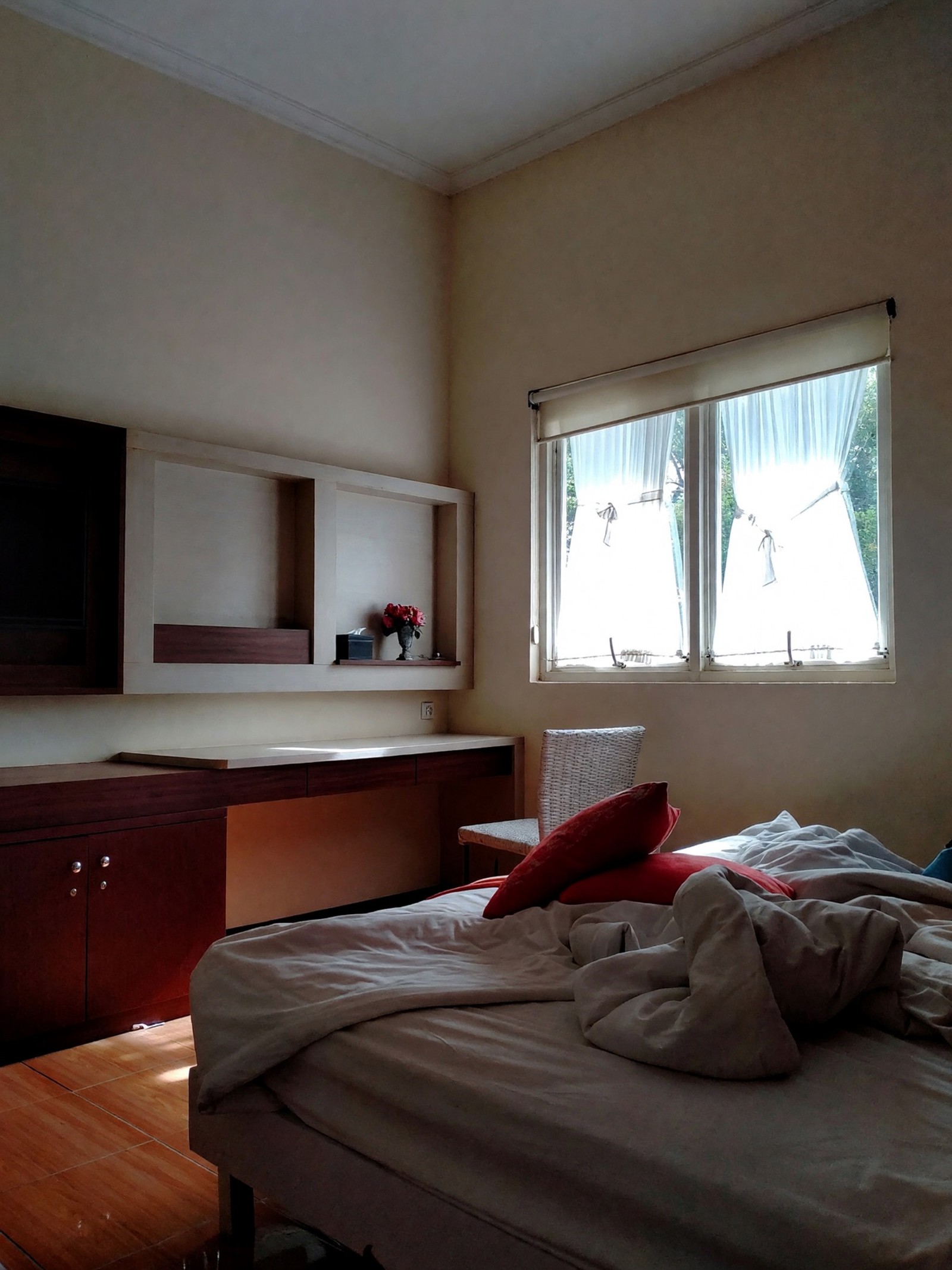
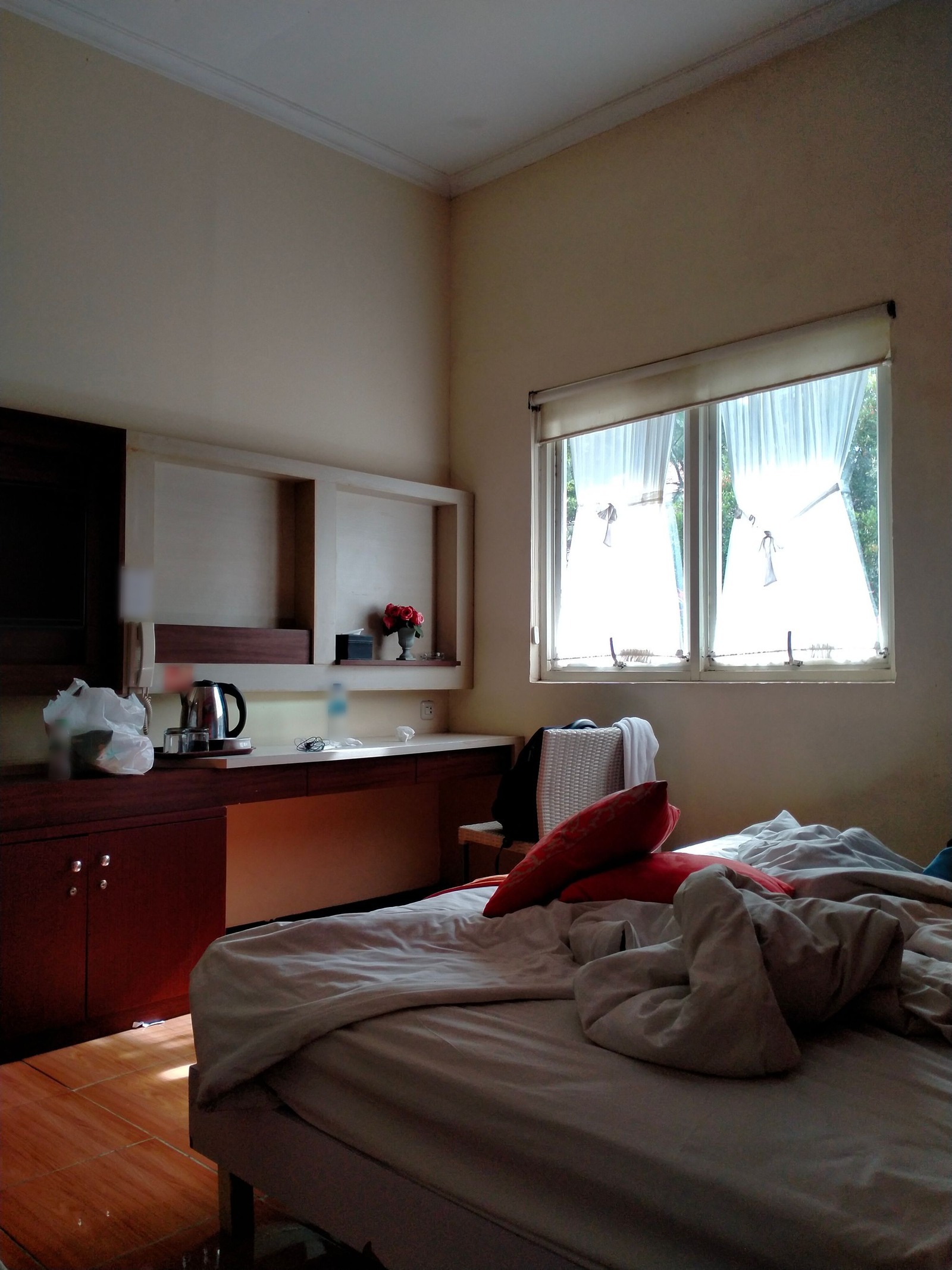
The things on the desk are gone, and the desk itself was quietly redrawn. In a listing, a fixture like this is part of the room, so if it changes, run the edit again.
Step 2: Swap a gray sky on the exterior photo
Swap the Sky & Weather (Essential and Pro plans) changes the sky, the weather and the outdoor light. The building, garden and camera angle are meant to stay. It needs an outdoor photo with the sky in view.
For a listing, Clear blue sky and Partly cloudy are the natural fits, and Golden hour or Blue hour give a warm evening or dusk look. Dramatic storm, Foggy, Snowy and Starry night are for mood. Pick a sky that matches the season in the photo, or the trees and garden will look wrong. The intensity slider has three stops, Subtle, Clear and Bold; Clear is an unmistakable but natural change and a good place to start.


This edit changes how the property looks on the day, so label it. Check the roofline against the new sky, check that the roof and wall colors still look like the real ones, and make sure the shadows make sense. Do not use it to hide things that are really there, such as power lines.
Step 3: Stage an empty room photo with Virtual Staging
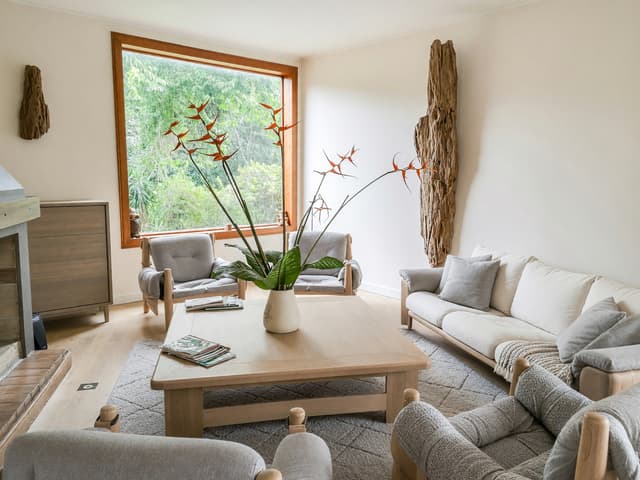
Virtual Staging (Pro plan) furnishes an empty room, office or shop in the style you choose and is meant to keep the walls, windows, doors, floor and ceiling as they are. Choose the space it should become, a style and how much to add: Fully furnished adds furniture, lighting, textiles and decor, and Essentials only adds just the key pieces. Neutral styles such as Scandinavian, Transitional, Modern and Japandi suit most listings.
Essentials only leaves more of the real room visible and gives you less to check. In one of our tests on the living room below, Fully furnished changed the windows, and we discarded that result.
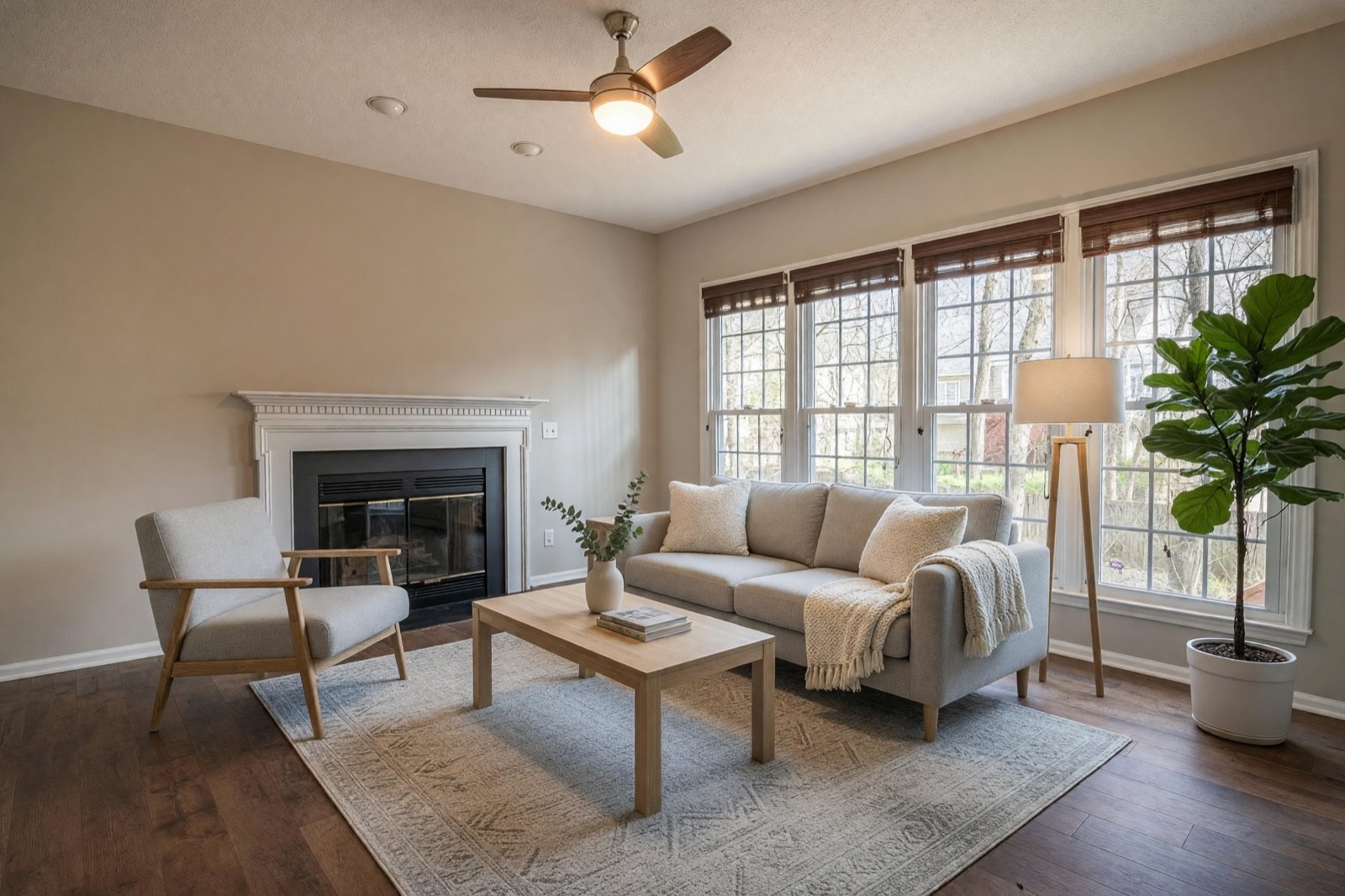
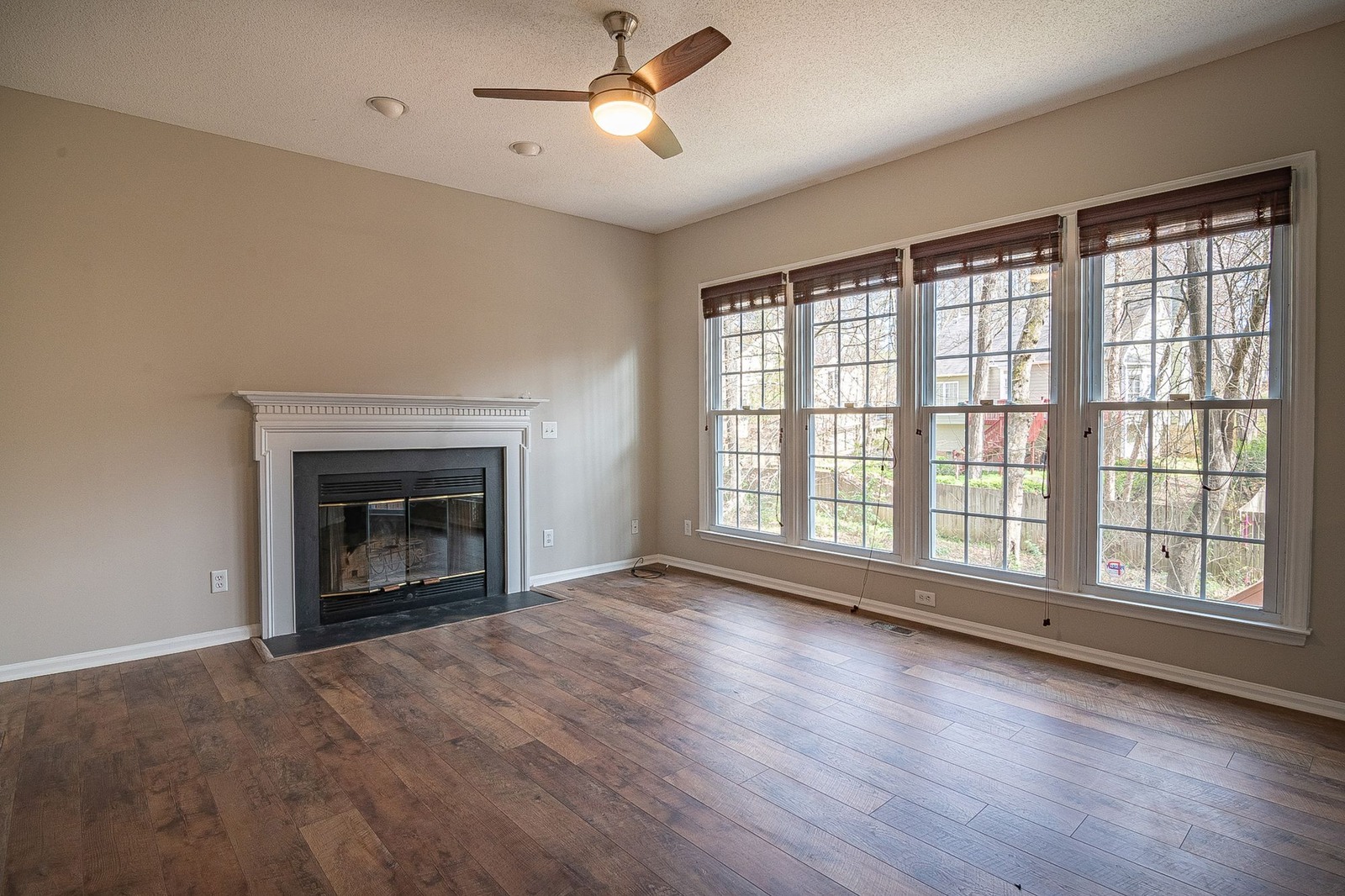
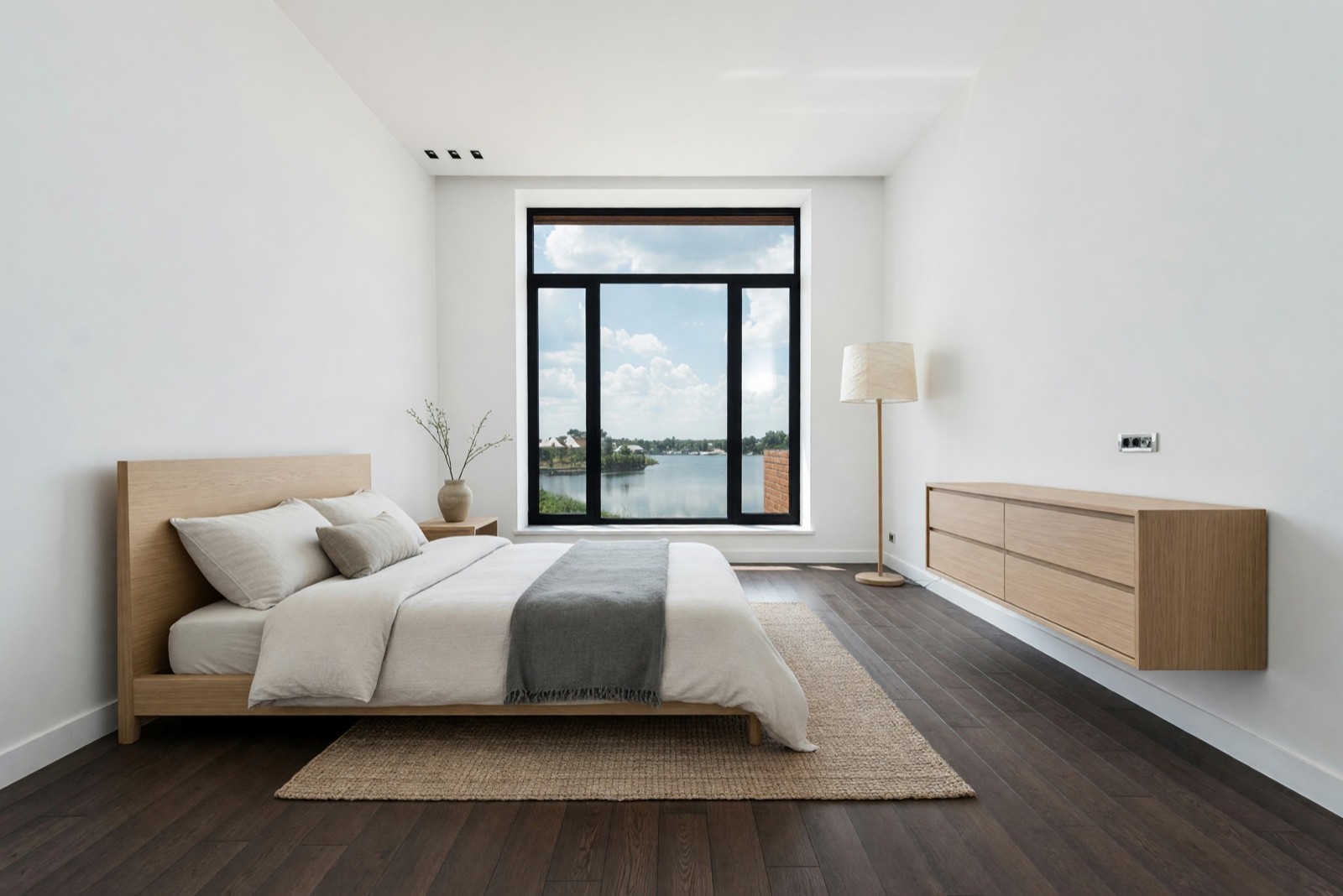
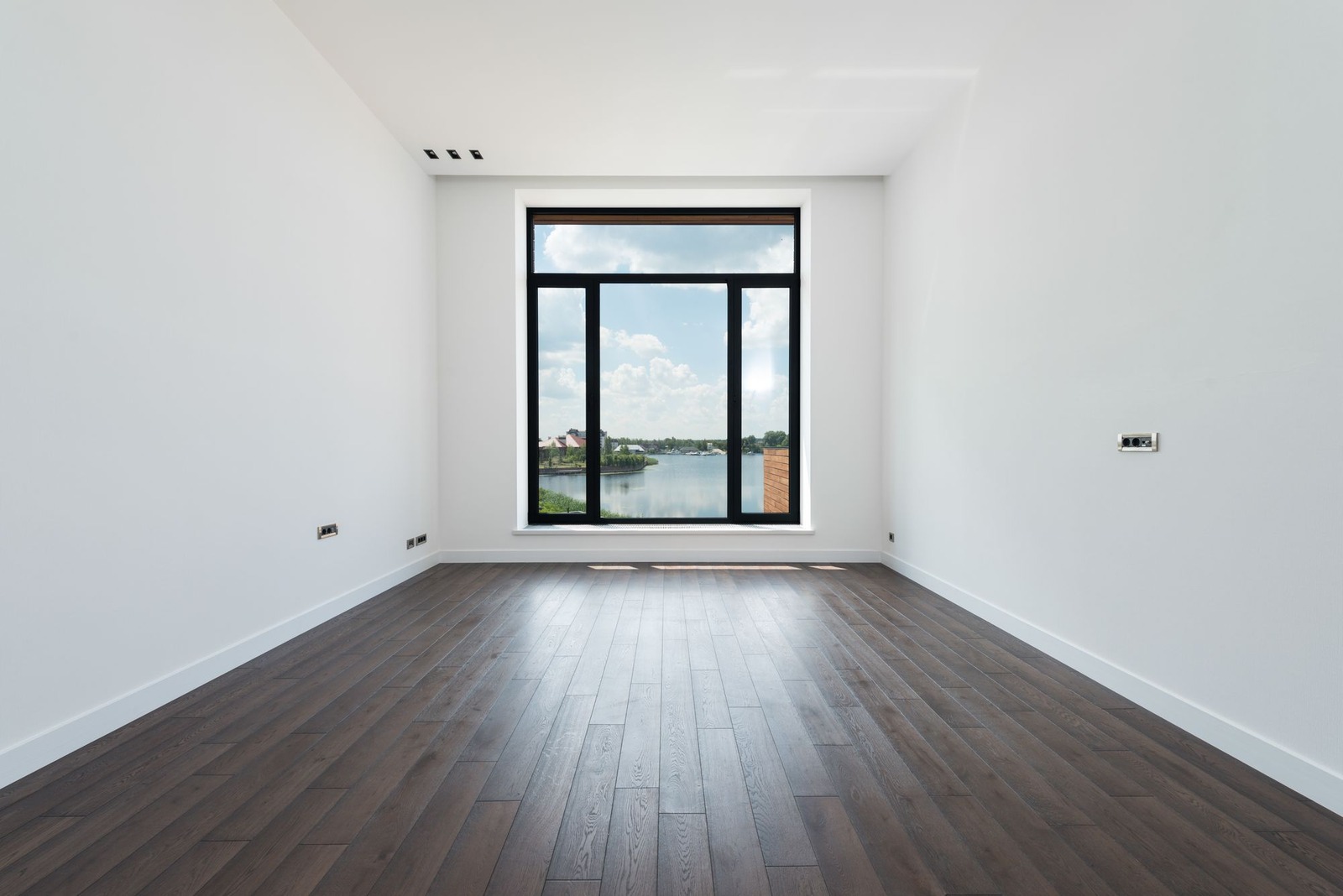
Two checks matter most here. First, scale: a bed that is too small makes a bedroom look bigger than it is. Second, the fixed details of the room, such as outlets, radiators and the shape of a window.
What to check in every result
Put the original and the edit side by side and zoom in before you save anything:
- Windows and doors. Count the panes and check the frames and the view. A changed window is a reason to start again.
- Floor edges and baseboards. Look where the floor meets the wall and where furniture used to stand.
- Fixtures. Outlets, vents, radiators, light fittings and built-ins can change or disappear.
- Surfaces near the edit. Counters and desk tops around a removed item are often redrawn, as in the hotel-style bedroom.
- Things you did not ask for. An object gone, a plant added, a roof or wall color that has shifted.
If something that belongs to the property has changed, generate the edit again. Do not publish it. The most common mistakes are editing a photo that needs a reshoot, stacking edit on edit, and picking a sky that does not fit the season.
How to edit real estate photos, in order
Edit real estate photos in a fixed order: camera basics first, then the room, then the sky, and the label last. The AI steps above sit in the middle.
- Reshoot if you can. A level camera, open curtains and every light on beat any edit.
- Straighten and fix the light in your usual photo editor. Correct leaning verticals, exposure, white balance and the crop. Warm bulbs of about 2700 K next to cool daylight give a yellow and blue mix that is worth balancing.
- Then use the AI steps. Clear what moves, replace a gray sky only if the exterior needs it, and stage only a room that is empty.
- Check, then label. Compare with the original at full zoom, and say in the listing which photos are edited.
An edit should make a photo clearer, not hide a stain, a crack or a busy road. If a buyer would find the property itself different from the photo at a viewing, such as another window, floor or wall color, or a defect that has vanished, the edit has gone too far.
Choosing an AI photo editor for real estate
Photo tools for listings do different jobs, so it helps to know which one you need before you compare them.
What AI photo editor can I use for house design?
For house design, use a tool that restyles a photo of the room or the building, not one that only retouches a listing photo. In HomeCompose, Interior Design restyles a room photo and Exterior Design does the outside of a house. The listing tools in this guide are different: Cleanup clears a room, Swap the Sky & Weather (Essential and Pro plans) changes the sky and Virtual Staging (Pro plan) furnishes an empty room. A restyle is a design idea, not a photo of the real property, so keep it apart from your listing photos. A chat assistant can help write a brief, but the picture it draws is not your room; see ChatGPT interior design.
Is there a free online AI real estate photo editor?
Yes, free online AI photo editors exist, but free usually comes with limits, so read them before you rely on one for a listing. Check for a watermark, a smaller export size, a cap on the number of images and what the terms say about commercial use. HomeCompose has a free plan with a limited number of designs, and Cleanup, Interior Design and Exterior Design are on it. Swap the Sky & Weather needs the Essential or Pro plan and Virtual Staging needs the Pro plan, so not everything is free. Try one of your own photos before you plan a whole listing.
What to look for in real estate photo editing software
The best photo editor for real estate photography is one that keeps the property true and leaves you in control, and no AI tool replaces a good photographer. Reviews and forum threads can point you to options, but test any tool on your own photos before you commit.
- Honest results. Walls, windows, doors and fixtures should stay as they are. Compare before and after at full zoom.
- Control. You choose how much changes, and you can redo one photo without redoing the set.
- Resolution. The export should be large enough for your listing service's photo rules.
- Terms. Check that you may use the edited image in a listing and who holds the rights.
- Privacy. Find out what happens to uploaded photos of an occupied home and whether you can delete them.
- Disclosure. It should be easy to keep the original and label the edit.
- Setup. Whether it runs in the browser or needs a download, and whether it suits your phone or your desktop.
Straight lines, good light and a tidy room still do most of the work. Be most wary of any tool that promises to rescue a bad photo.
Edit honestly: disclosure, defects and real features
Edited and staged photos should be labeled as such, and the original should be available where local rules or your listing service ask for it. Rules differ by place and change often, so check your listing service, your broker and local law. This is general information, not legal advice. For the overview of the rules, read the virtual staging guide.
- Do not remove or hide real defects. Stains, damage, a leaking ceiling or a cracked window are not clutter. Fix them or show them.
- Do not change real features of the property. Walls, flooring, cabinets and landscaping are what a buyer buys. New wall color, floors or a redesigned garden are renovation ideas: show them separately and call them design ideas.
- Do not present an edited photo as unedited. Label it, and put the original next to it where you can.
- Say it in the description too. For example: "Some photos are virtually staged or digitally edited."
To remove one specific item, a car or a person, see removing objects and people from a photo. To show what a furnished room could become after a redesign, see how to redesign a room from a photo. To compare staging tools before you choose one, see virtual staging software.
Frequently asked questions
Is AI photo editing allowed for real estate listings?
In general yes, if the edit is disclosed and does not mislead buyers. Rules depend on your listing service and where you sell, and they change, so check them before you publish. This guide is general information, not legal advice.
Do I need to label AI-edited listing photos?
Many places and listing services ask for it, for example a label such as "virtually staged" or "digitally altered" and access to the original photo. Where it is not required, labeling is still good practice and builds trust with buyers.
What can I change in a listing photo, and what should I leave alone?
Movable things are fair to edit when you label them: loose clutter, furniture in an empty room and the sky behind the house. Do not hide defects or change real features of the property, such as walls, flooring or landscaping, and do not present an edited photo as unedited.
Can I use Cleanup and Virtual Staging on the same photo?
Yes, for example Cleanup with Empty Room on a furnished room and then Virtual Staging on the result. Each pass can redraw small details, so check the first result before you use it as the input for the second, and disclose both edits.
Is it free to try?
Yes. You can start on the free plan, and it includes a limited number of designs.