Paint
Paint color visualizer: try colors on your own photo
Upload a photo of a room, a house or a garden wall, choose Interior, Exterior or Garden, and pick one of 38 colors or enter your own HEX code. Paint repaints most of the plain walls it can see, though it can skip one, and shows them next to your original, while the ceiling, trim, doors, furniture and floor are meant to stay. The result is an idea to compare, not a color match, so test a sample on the real wall before you buy paint.
Free to try.
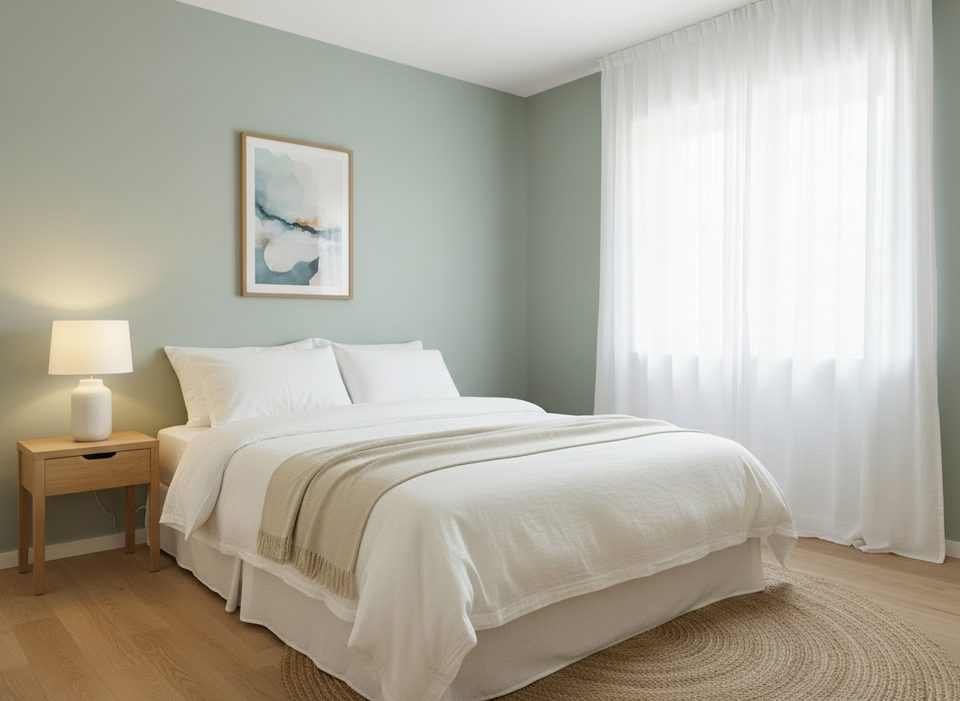
How it works in 3 steps
Upload a photo
A room, the outside of a house or a garden wall, with the walls in view.
Choose the area and a color
Pick Interior, Exterior or Garden, then one of 38 colors or your own HEX code.
Compare
See the repainted photo next to your original, check the edges, then try another color.
What to upload
A photo showing walls or a facade
Who it's for
Homeowners
Try a few wall or facade colors on your own photo before you pick samples. Treat the screen color as an idea and test the real paint on the wall.
Real-estate agents
Show a seller or a buyer how a dated wall or facade could look in a new color. Say that it is an illustration, and do not present it as the property's real condition.
Hotels and businesses
Compare wall colors for a guest room, a lobby or a shop front on a photo before you ask a painter for a quote. Check the final choice with a sample in the real light.
Designers and architects
Put two or three wall colors in front of a client on their own photo, quickly. It is a first look, not a color specification, so confirm the final color with real samples.
How does a paint visualizer work?
A paint visualizer shows a color on a wall before you open a can. Paint does it on your own photo: you choose where the color goes and which color, and the AI repaints most of the plain wall surfaces in the picture. Shadows and light are meant to carry through, so the result looks like a photo of a painted wall, not a flat color laid on top.
Exterior paint visualizer: try house colors
Choose Exterior and Paint repaints the facade walls, the siding or render between the ground and the roof line. The roof, fascia, window and door frames, front door, garage doors, shutters, gutters, railings, steps, plants, ground and sky are meant to stay as they are.
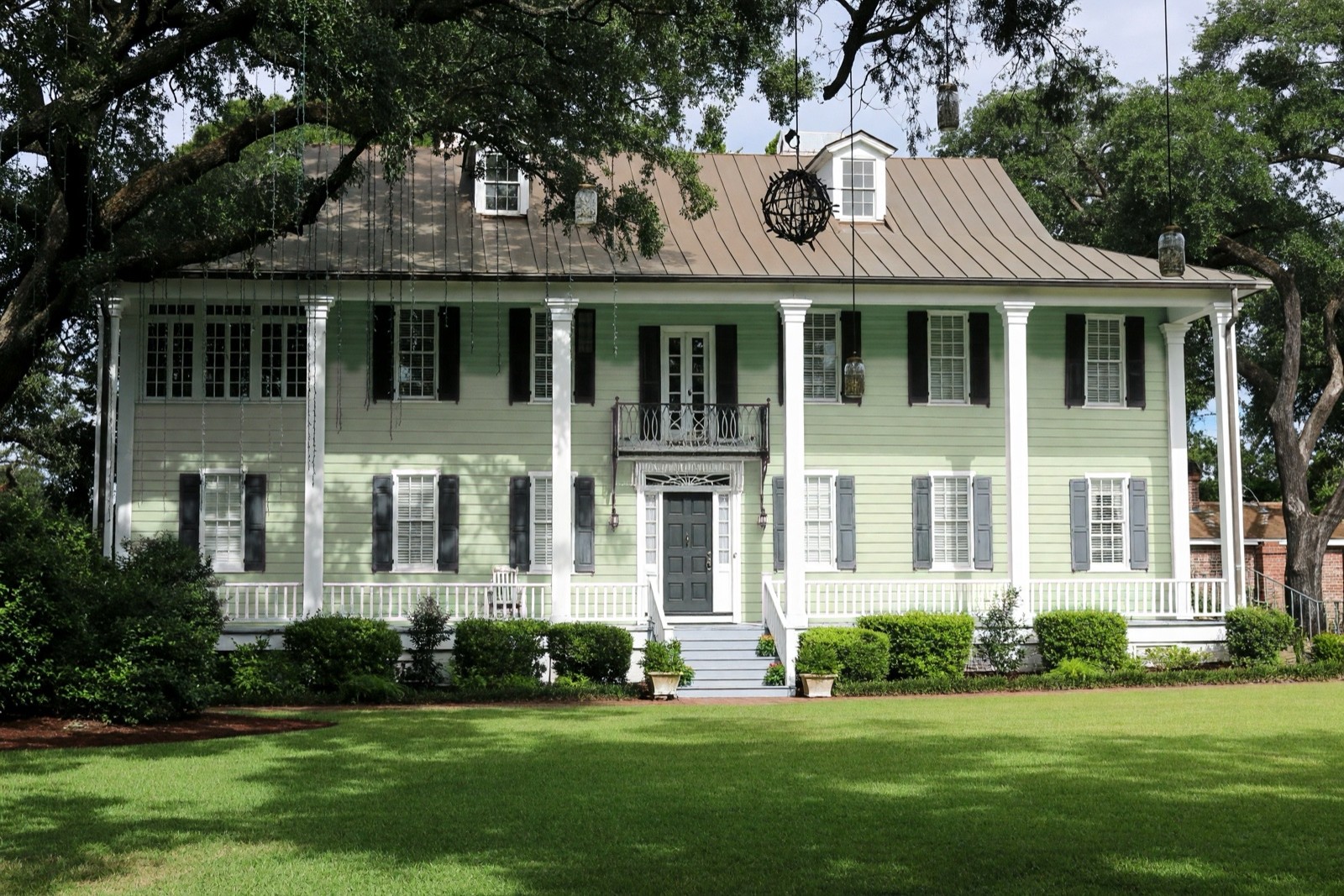
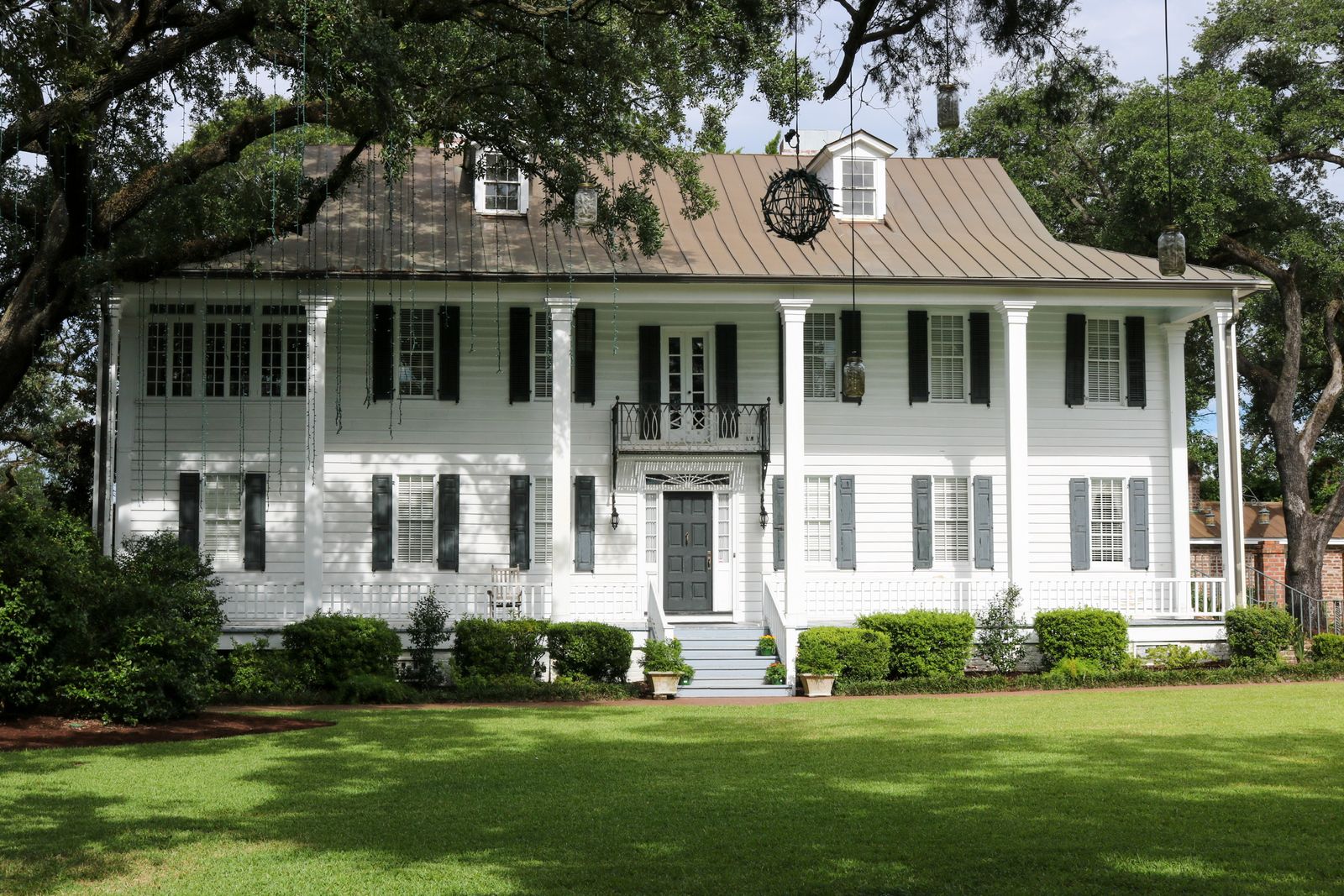
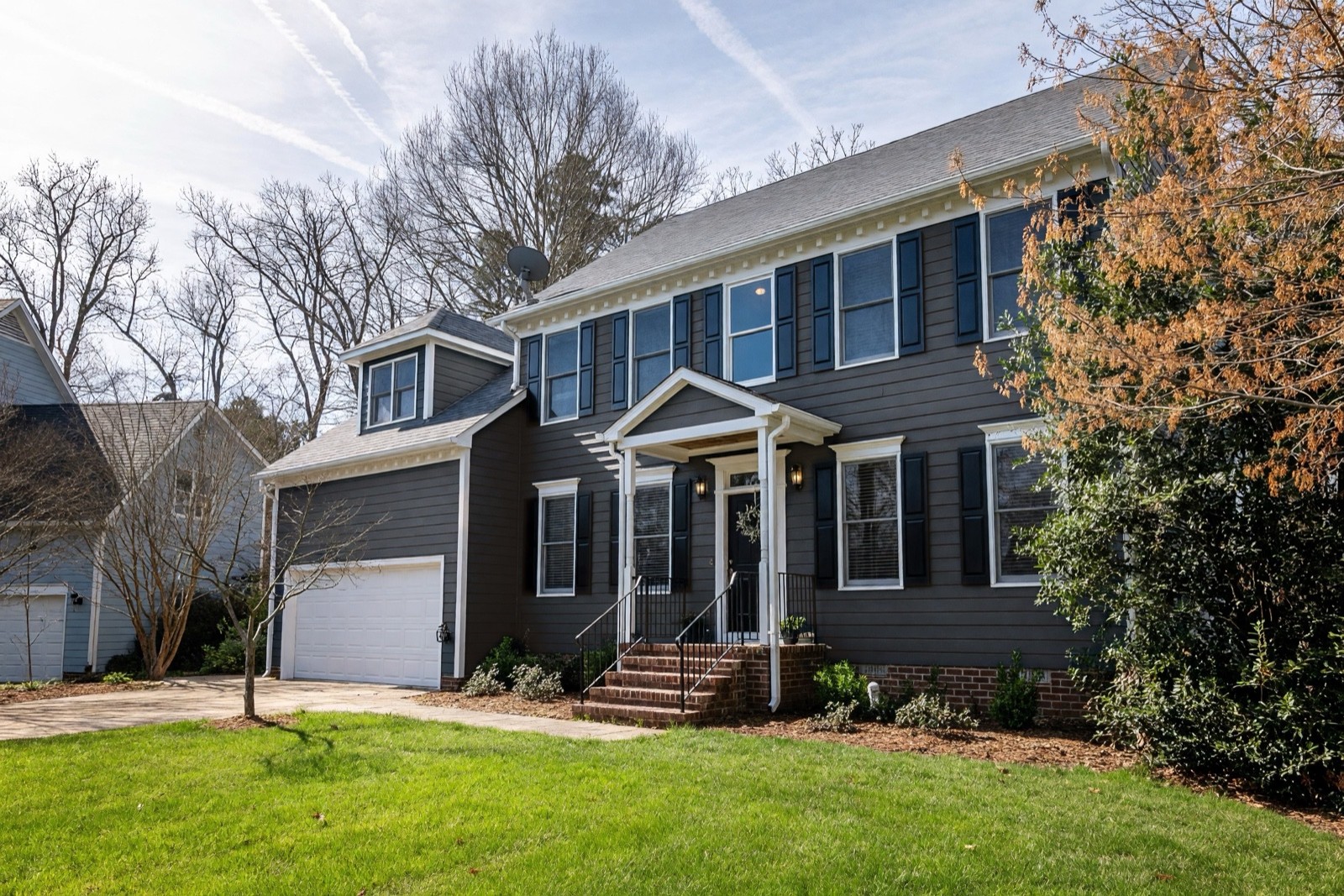
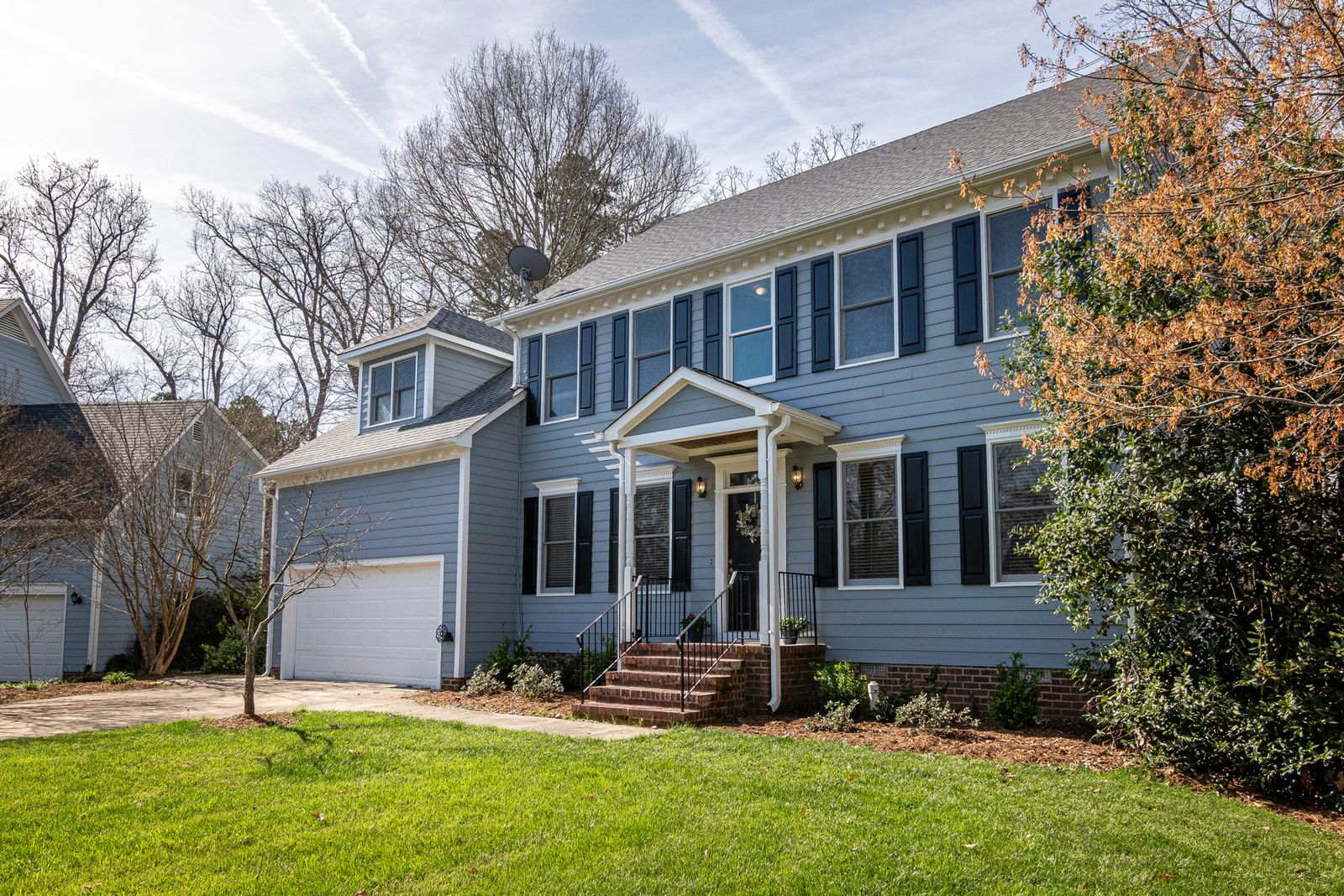
Because trim, shutters and doors stay, Paint tries one color on the main walls at a time. To try another color on a shutter or door, you can tap that part in Color & Texture (Essential and Pro plans) and check how it comes out. For whole-house combinations, see our house exterior color ideas and Mediterranean house exterior ideas.
Interior paint visualizer: try wall colors
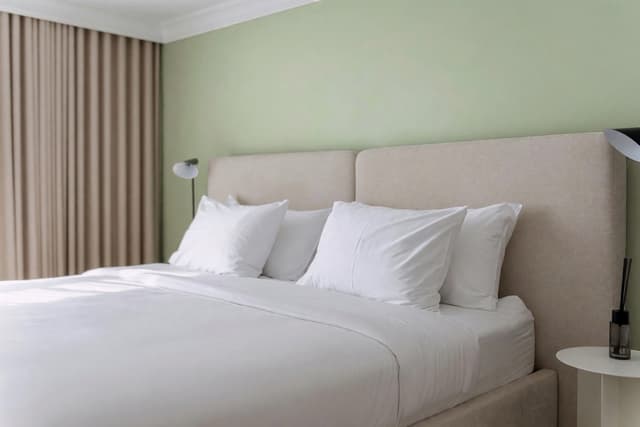
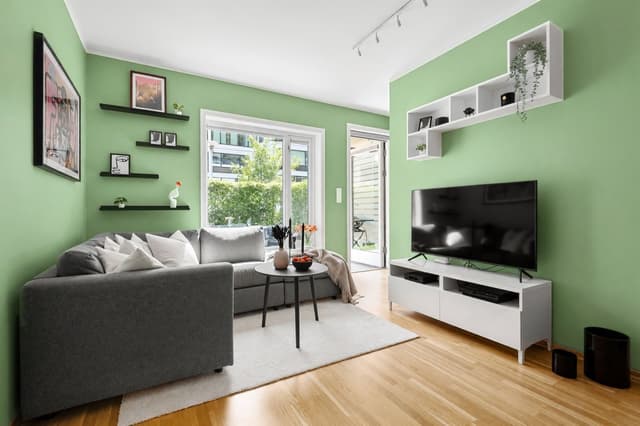
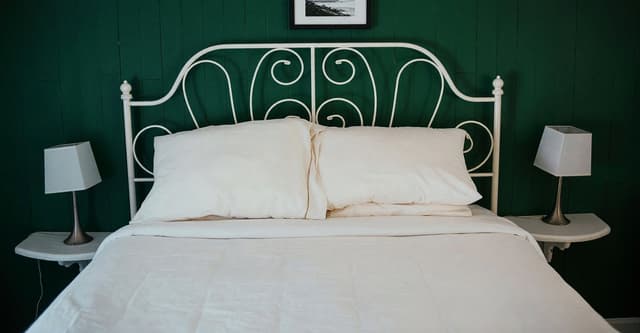
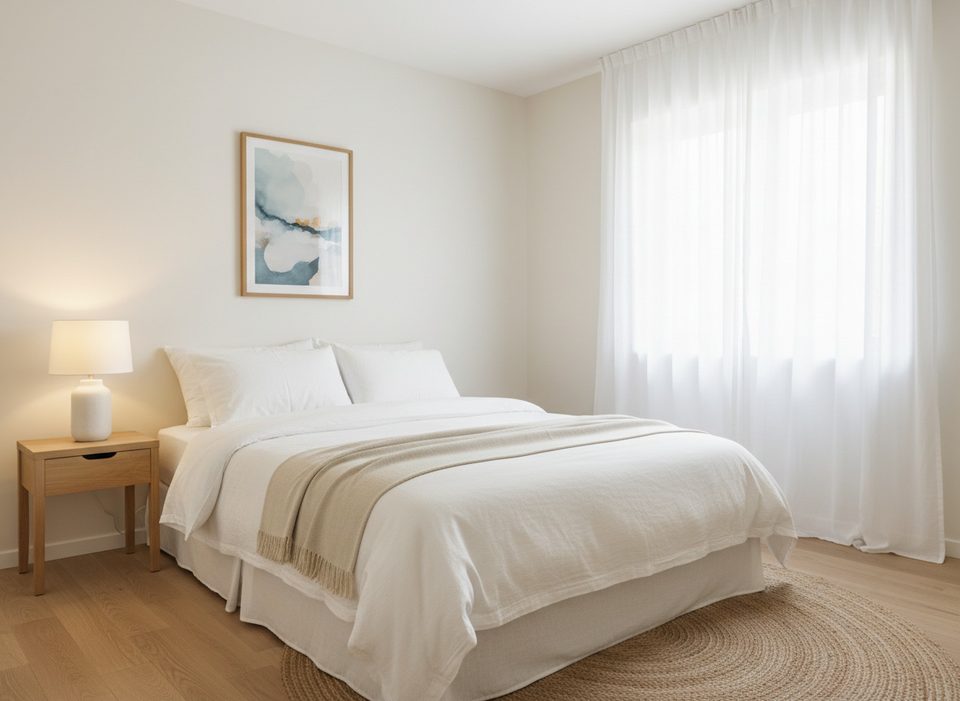
Choose Interior and Paint repaints most of the plain walls of the room. The ceiling, crown molding, baseboards, door and window frames, fireplace, built-in cabinets, curtains, art, furniture and floor are meant to stay in their own colors. The pairs below use two different colors on two different rooms.
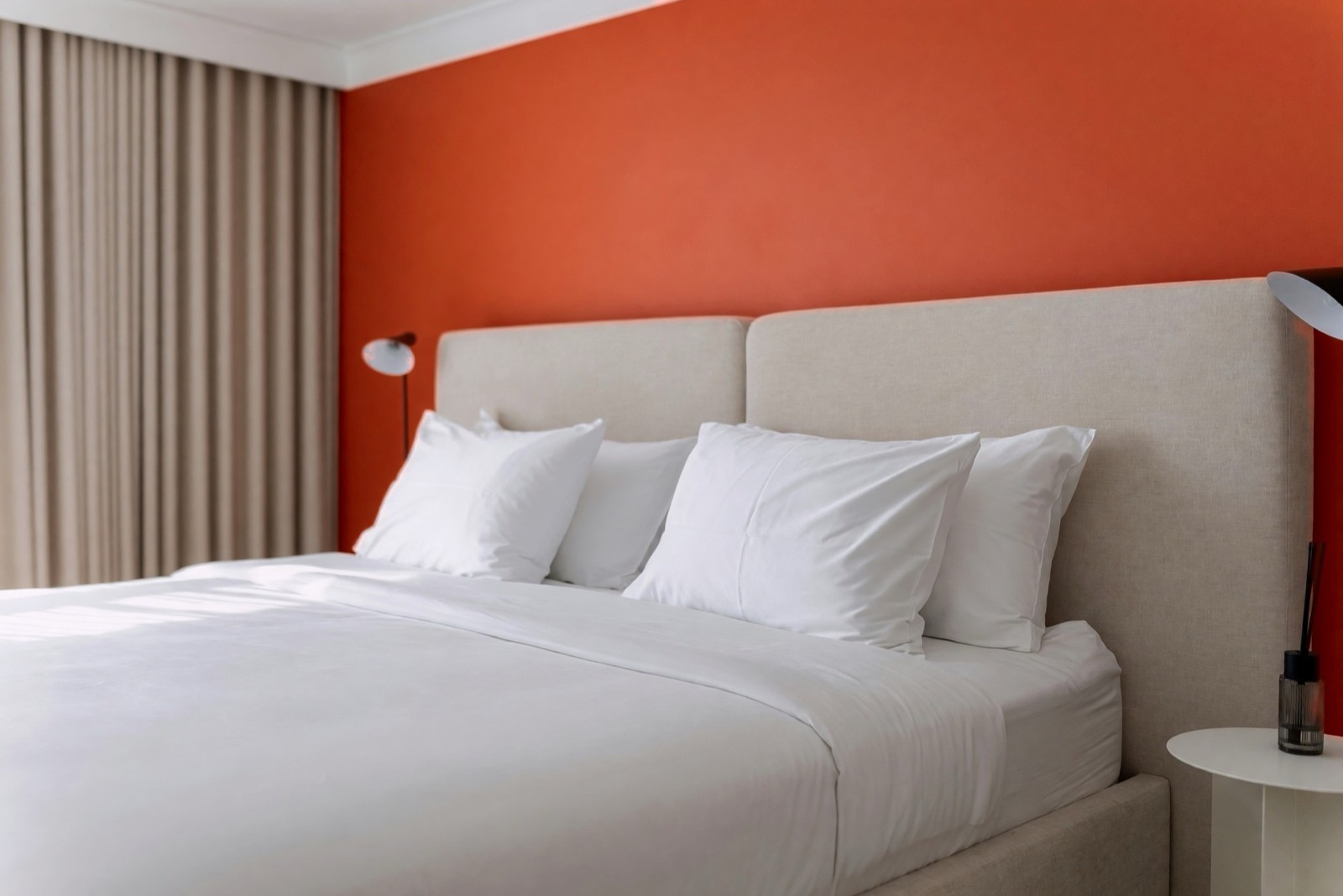
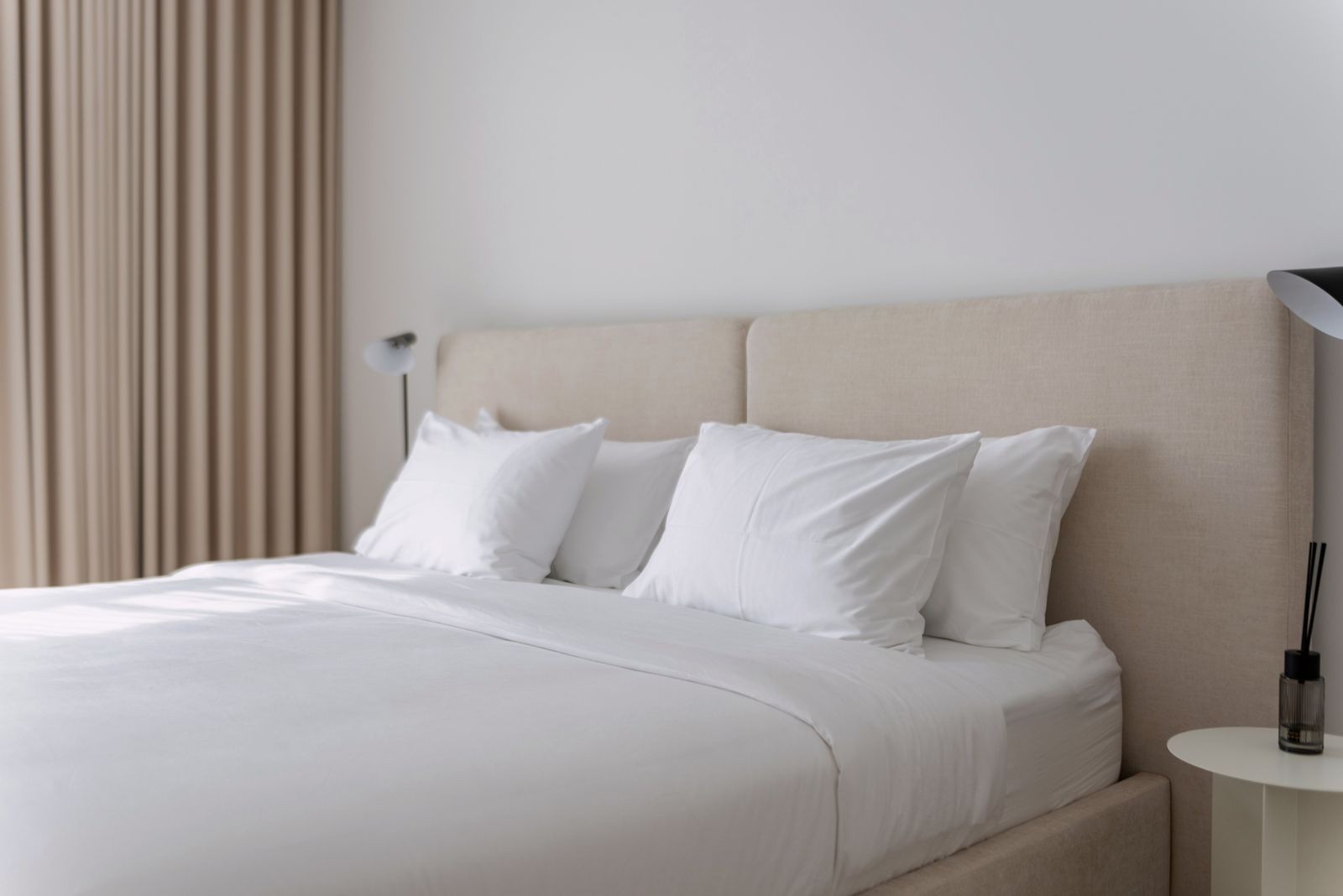
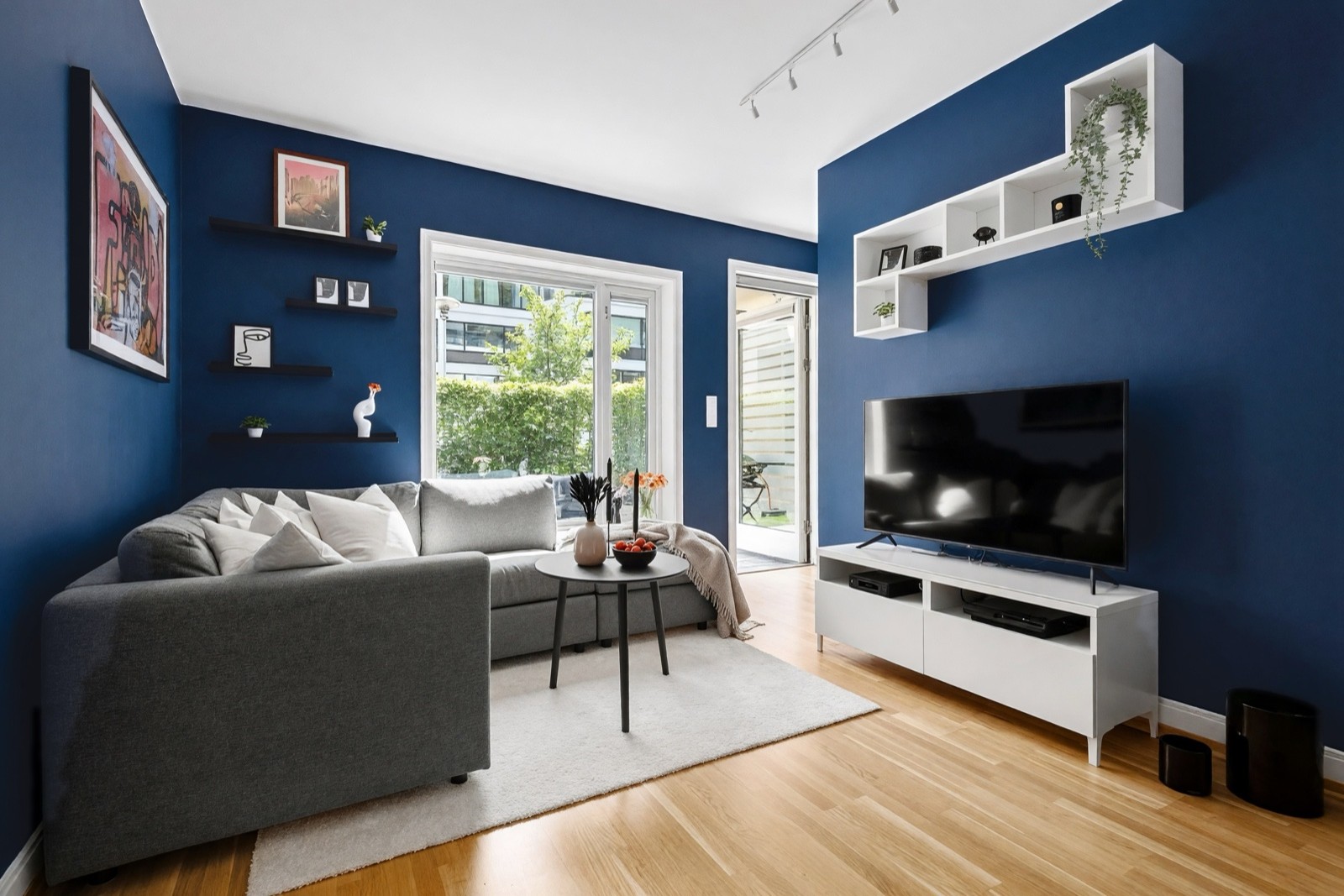
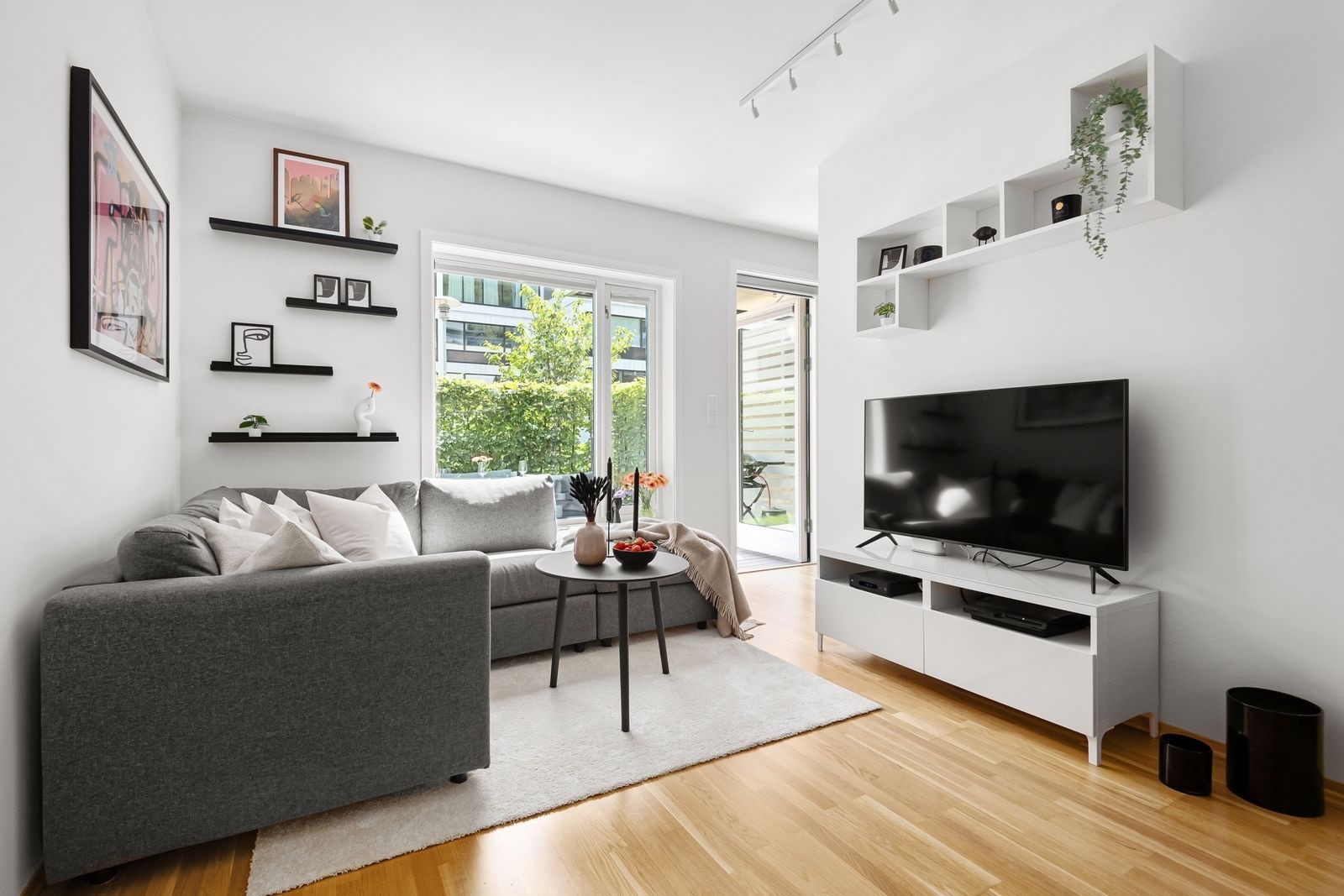
Paint repaints most of the plain walls it can see in the photo, but it can skip one, and you cannot pick a single wall in it. For one accent wall, you can photograph that wall on its own or describe the change in Magic Edit (Pro plan), and check the result. More colors in real rooms: bedroom paint colors, living room paint colors and accent wall ideas.
Garden walls, fences and sheds
Choose Garden and Paint changes the built structures only: garden walls, fences, gates, pergolas and sheds. The house, the paving, the plants and the garden furniture are meant to stay unpainted. None of the examples above is a garden, so check each painted piece on your own result.
Choose from 38 colors or enter your own
Pick one of 38 prepared colors, from Chalk white, Soft sand and Stone to Terracotta, Sage, Navy, Charcoal and Black, or use the color picker or type a HEX code for any other shade. On interior and exterior photos Paint asks for a matte, painted look, and there is no sheen option. The exterior examples used Sage and Charcoal, and the interior examples used Terracotta and Navy.
What Paint changes, and what to check
| Area | What changes | What to check |
|---|---|---|
| Interior | Most of the plain wall surfaces of the room | Whether every wall you wanted was painted, the ceiling edge and the wall edges. A thin molding line can appear at the top of a wall, and objects next to the wall can pick up a tint. |
| Exterior | The siding or render of the facade | Trim, shutters, doors and the roof should keep their colors. Look at the edges around windows and where shadows fall. |
| Garden | Visible walls, fences, gates, pergolas and sheds | The house, the ground and the plants should stay as they were, and every fence panel should be painted. |
Can I trust the color on screen?
Treat it as an idea, not a finished choice. The picture helps you compare colors and rule some out quickly, but a screen cannot promise how paint will look on your wall.
- Light and screen change the color. The same paint looks different in morning sun, in evening lamp light and on another screen, and the photo's own light shifts it again.
- Test a sample. Put a sample on the real wall and look at it at different times of day before you buy.
- No paint codes. Paint works from a color name or a HEX code. It does not know any paint brand or code, so it cannot tell you which can to buy.
- Small extras can appear. The AI can add a thin molding line, tint things near the wall or redraw a small object, as in the examples above. Compare the result with your original photo.
- It paints walls, not the whole room design. Furniture, floors and decor stay as they are.
How can I visualize a paint color in my room?
Take one photo of the room, upload it, choose Interior and a color, then compare the repainted walls with your original. Stand back far enough to see the whole wall, hold the camera straight on instead of tilted, and shoot in daylight if you can. One wall in full view is enough. A photo taken under warm lamps tends to carry that yellow cast into the result, so a daylight photo gives a fairer first look. Try a second color on the same photo, and look at both again later, because a first impression fades.
Tips for a good result
- Use a sharp photo in even daylight, with the walls you want to repaint fully in view.
- Take the photo from further back for a whole facade, and avoid heavy shadows across the wall.
- Try two or three colors on the same photo and compare them side by side.
Is there a free paint visualizer?
Yes, several paint visualizers can be tried for free, but the free part usually comes with limits, so check these before you rely on one:
- How many designs you get. Free versions often cap the number of images or colors you can try.
- Watermarks. Some free results are marked, which matters if you want to share or print them.
- Whose room you see. Some tools only show sample rooms, while others repaint your own photo, which is far more useful for a real decision.
- The terms for your photo. Read what happens to an uploaded picture and whether you can remove it.
Can I use a paint visualizer on my phone?
Yes. Paint runs in the browser on your phone, so there is no app to install: open the site, sign in, pick a photo from your phone and choose a color. You need an account to run it. A well-lit photo gives a cleaner result than a dim one. Open the finished picture on a larger screen as well, since a small phone display can make colors look different.
When to use another tool
Paint changes wall color. Color & Texture (Essential and Pro plans) lets you tap an object or surface in the photo and change its color or its material, so it can fit when one flat wall color is not the question. Check small parts such as shutters closely.
Frequently asked questions
Can I try paint colors on my own photo?
Yes. Upload a photo that shows walls, a facade or garden walls, choose Interior, Exterior or Garden, then pick a color or enter a HEX code. You get a repainted version of your own photo next to the original.
Is the color on screen the color the paint will be?
It can differ. The result is a visual idea, and light, your screen and the sheen of the paint all change how a color looks. Put a sample on the real wall before you buy.
Can it match a paint brand or a paint code?
No. Paint uses a color name or a HEX code and knows nothing about any brand's paint codes. Use the picture to choose a direction, then pick the paint in a shop with a sample.
Can I paint just one wall, or the trim and doors?
Paint repaints most of the plain walls it sees, though it can skip one, and it keeps trim, doors, ceilings and furniture as they are. For one wall, you can photograph that wall or describe the change in Magic Edit (Pro plan) and check the result. For a single door, shutter or piece of furniture, try Color & Texture (Essential and Pro plans), which changes the object you tap.
Does it work for the outside of a house?
Yes. Choose Exterior and it repaints the facade walls and keeps the roof, trim, shutters, doors and plants. Check the edges around windows and trim, and remember that sun and shade change how a color looks outdoors.