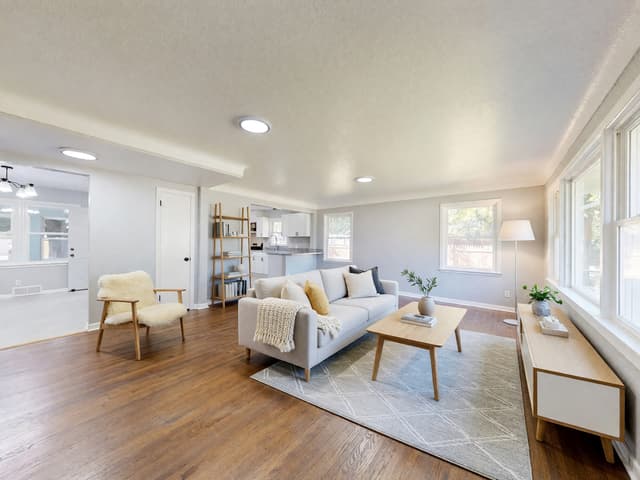
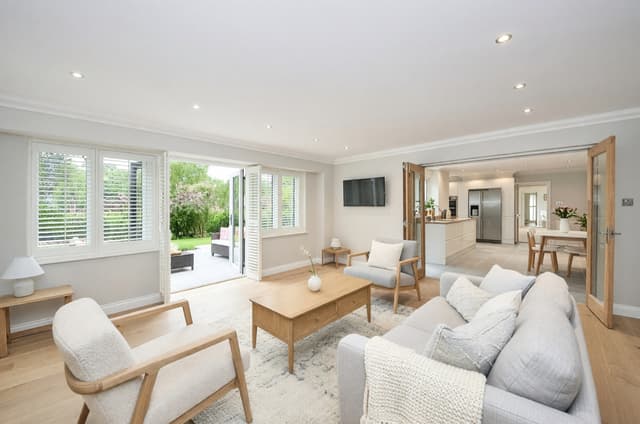
Virtual staging software: how to choose one
Virtual staging software adds furniture and decor to a photo of an empty room. To choose one, run a test photo through a checklist: does it keep the real walls, floor, windows and camera angle, let you control the room type, style and amount added, draw furniture at a believable size and light, cope with a room that is not fully empty, and come with clear terms and a fair cost per usable photo? This guide gives you that checklist, five real before and after examples and the honest limits.
What virtual staging software does, and what it does not
Virtual staging software takes a photo of an empty room and adds furniture and decor to it. The room itself should stay as it was photographed: the same walls, floor, windows and camera angle. What you get is a picture of how the space could be used. It is not a renovation, a 3D model or proof that a real sofa would fit.
That difference decides what to look for. An AI app or website that redraws the whole room can produce a pretty picture that no longer shows the home you are selling. For what virtual staging is and how to do each step, read the virtual staging guide. This page is about choosing the software.
How to choose virtual staging software: a checklist
Run the same checks on every tool you consider, with the same photo. One sharp picture of a plain empty room shows most of it. The examples below come from Virtual Staging (Pro plan) in HomeCompose, so you can see what each check looks like on a real result. The before photos are licensed stock photos of empty or nearly empty rooms. A tiny mark under the laptop screen in the home office example was blurred because it could have read as a logo; no other part of any image was blurred or retouched.
1. It keeps the real room
This is the first test, because a listing photo has to show the property that exists. Put the result next to the original and compare the walls, windows, doors, outlets, molding, floor and camera angle. Furniture should sit in the room without changing it.
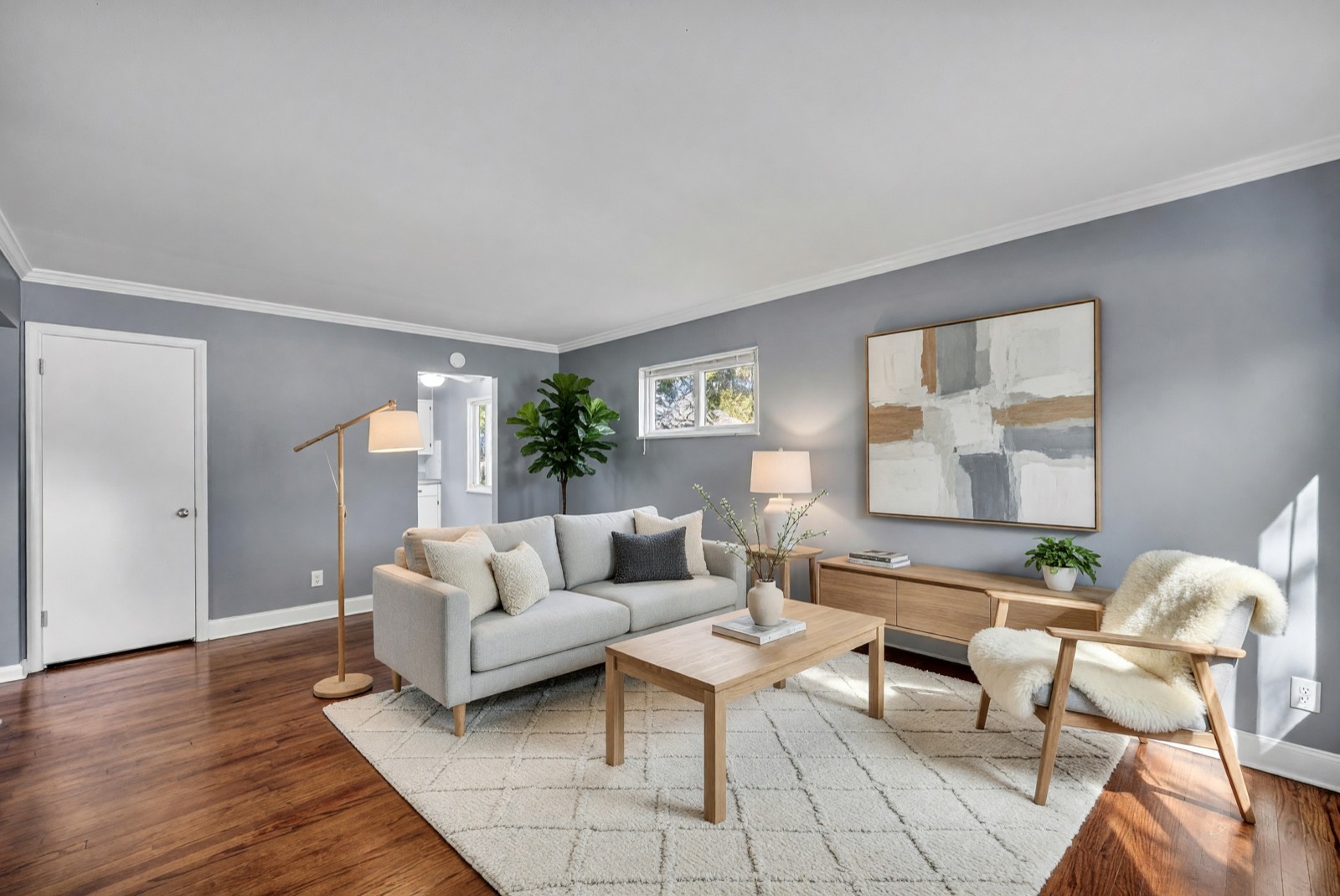
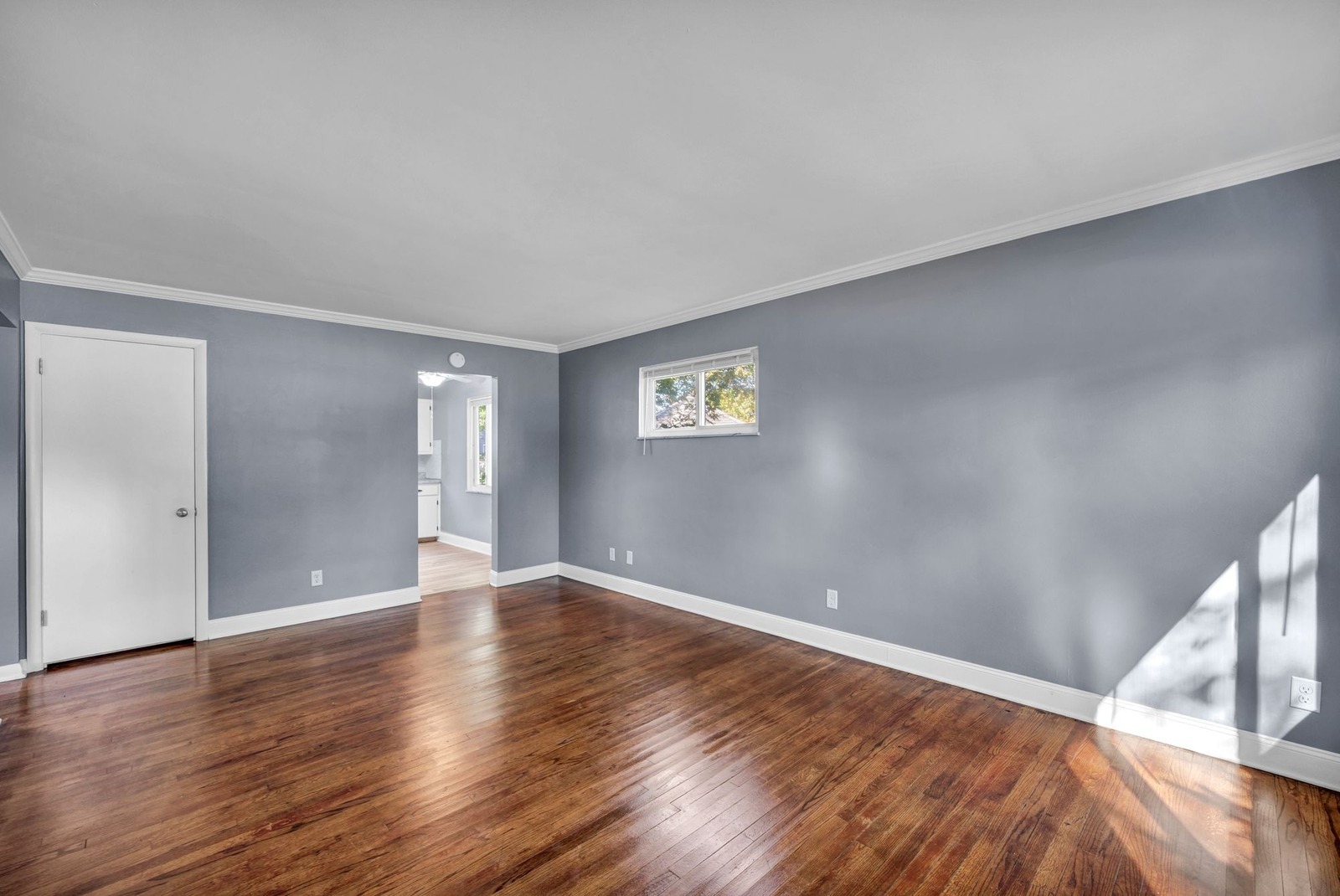
Look past the furniture to what else moved. Here a wall tone shifted slightly and the outlets on the right wall are now hidden behind the furniture, which is the kind of small change to expect and note. A window in a new place or a door that has gone would mean the tool is not staging any more.
2. You control the room type, style and how much is added
A good tool lets you say what the space is, such as a bedroom, an office or a dining room, and which style to use. It should also let you choose how much goes in. A small room often reads better with a few key pieces than with a full set of decor, and a lighter result leaves less for you to check.
In HomeCompose you pick the room, the style, and either Fully furnished or Essentials only. Try the same photo with two different choices and see whether the results differ in a way you can use.
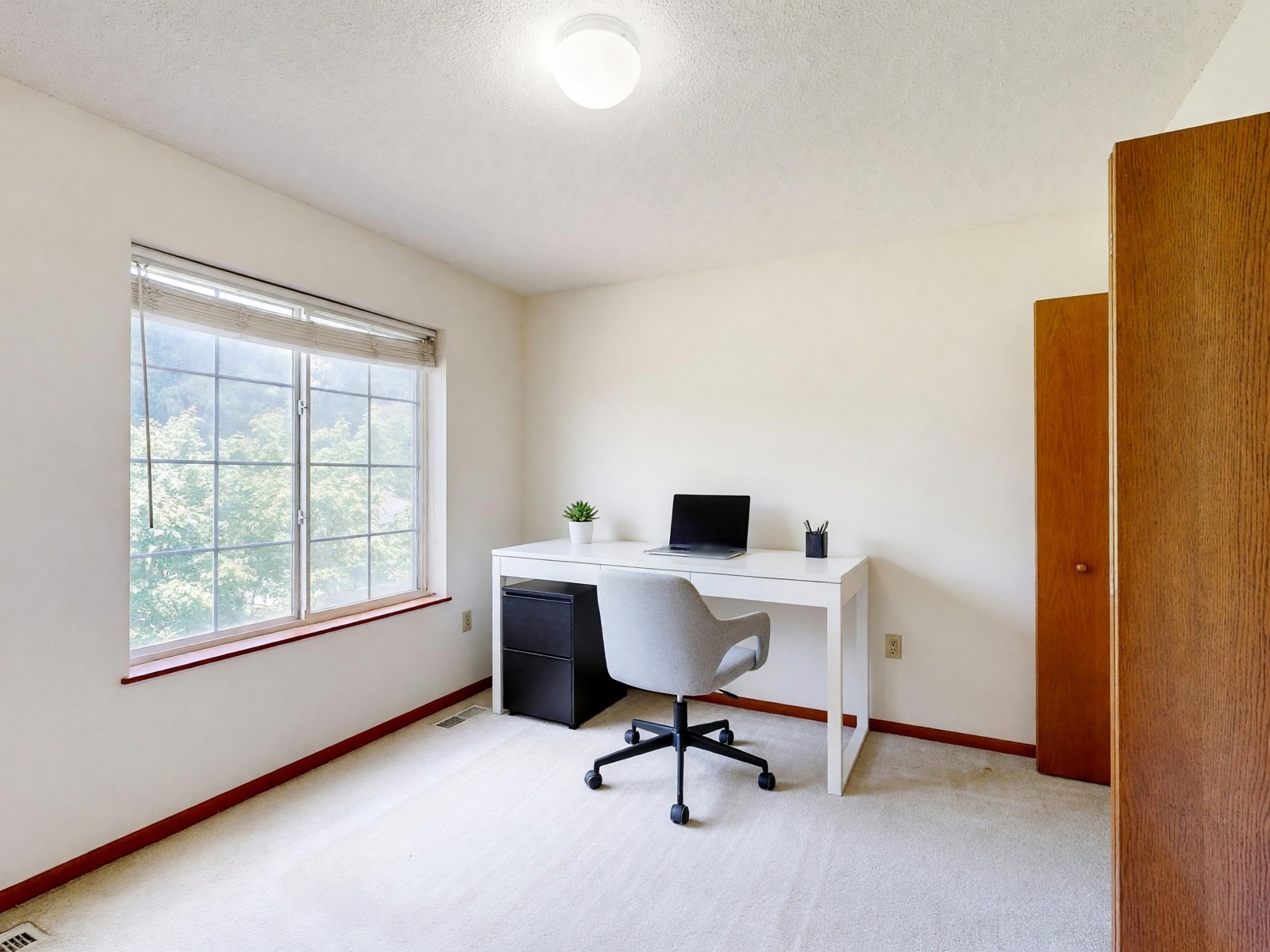
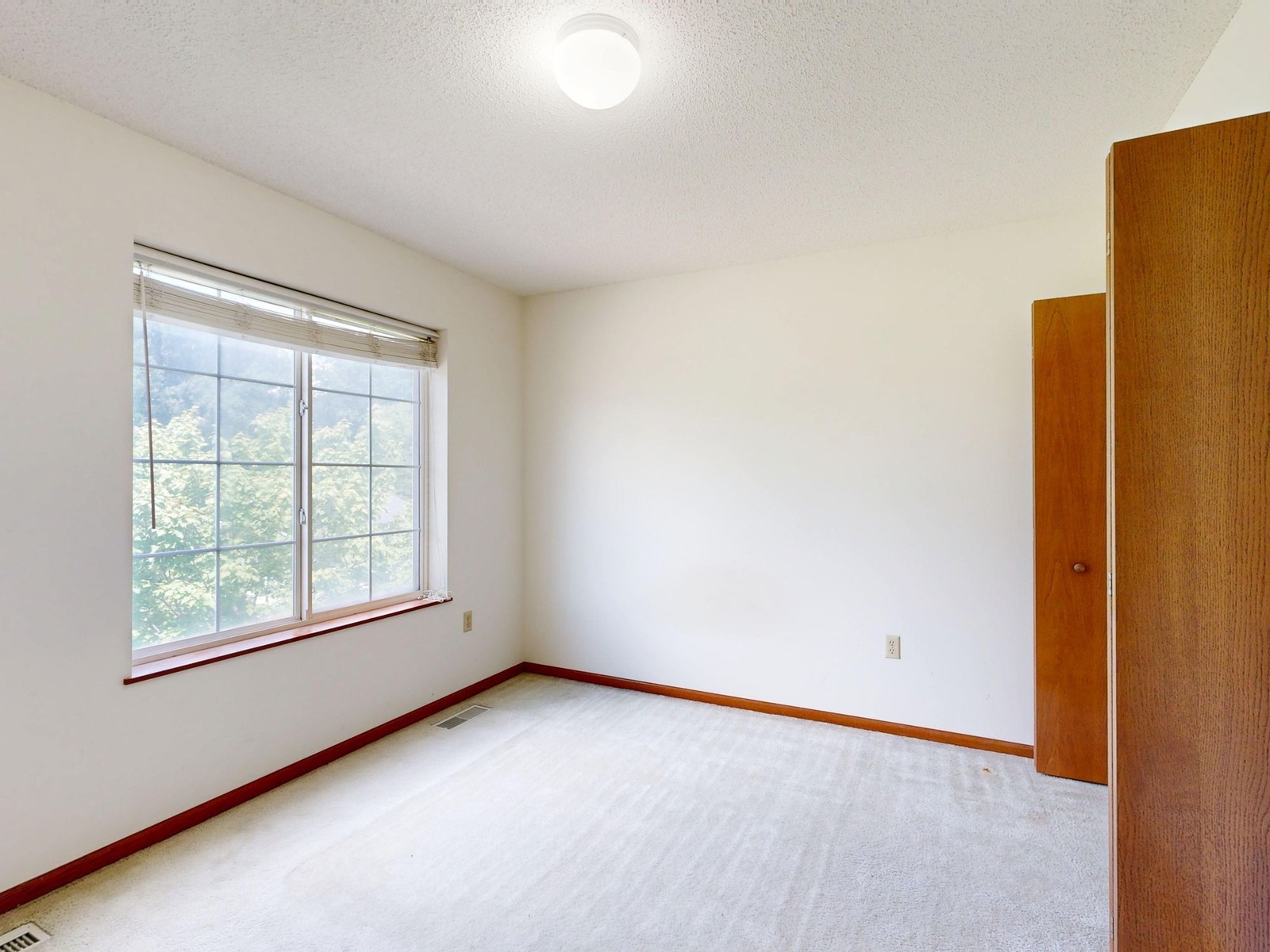
The room in this example is small and plain, which is where Essentials only helps: it adds what an office needs and leaves the walls and the carpet bare.
3. Furniture is the right size, stands on the floor and catches the light
Compare each piece with a door or window you can see. Look at the shadows under the legs and at the edges of the rug, and ask whether a person could walk around the bed. The light on the furniture should come from the same side as the daylight in the photo.
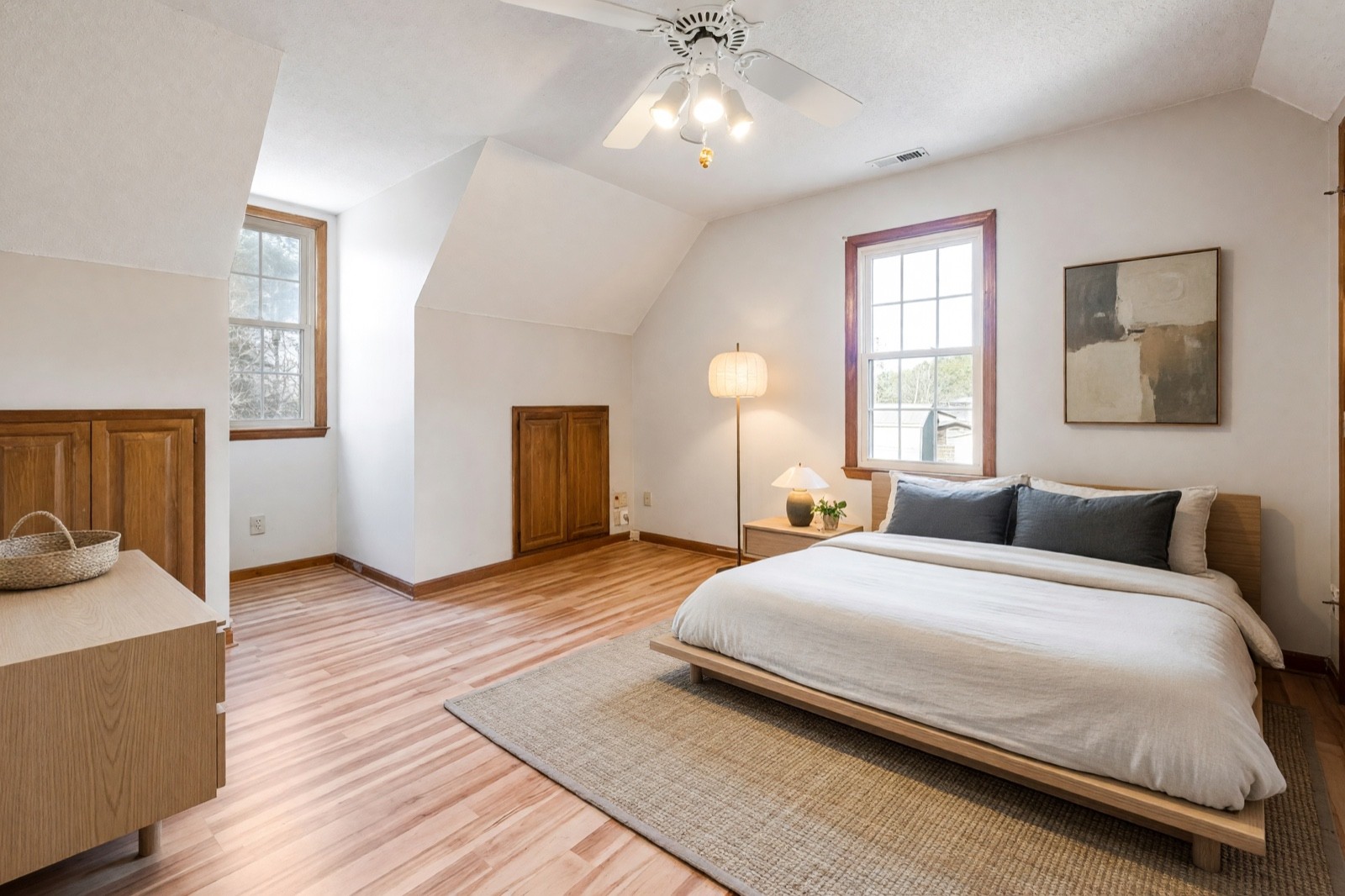
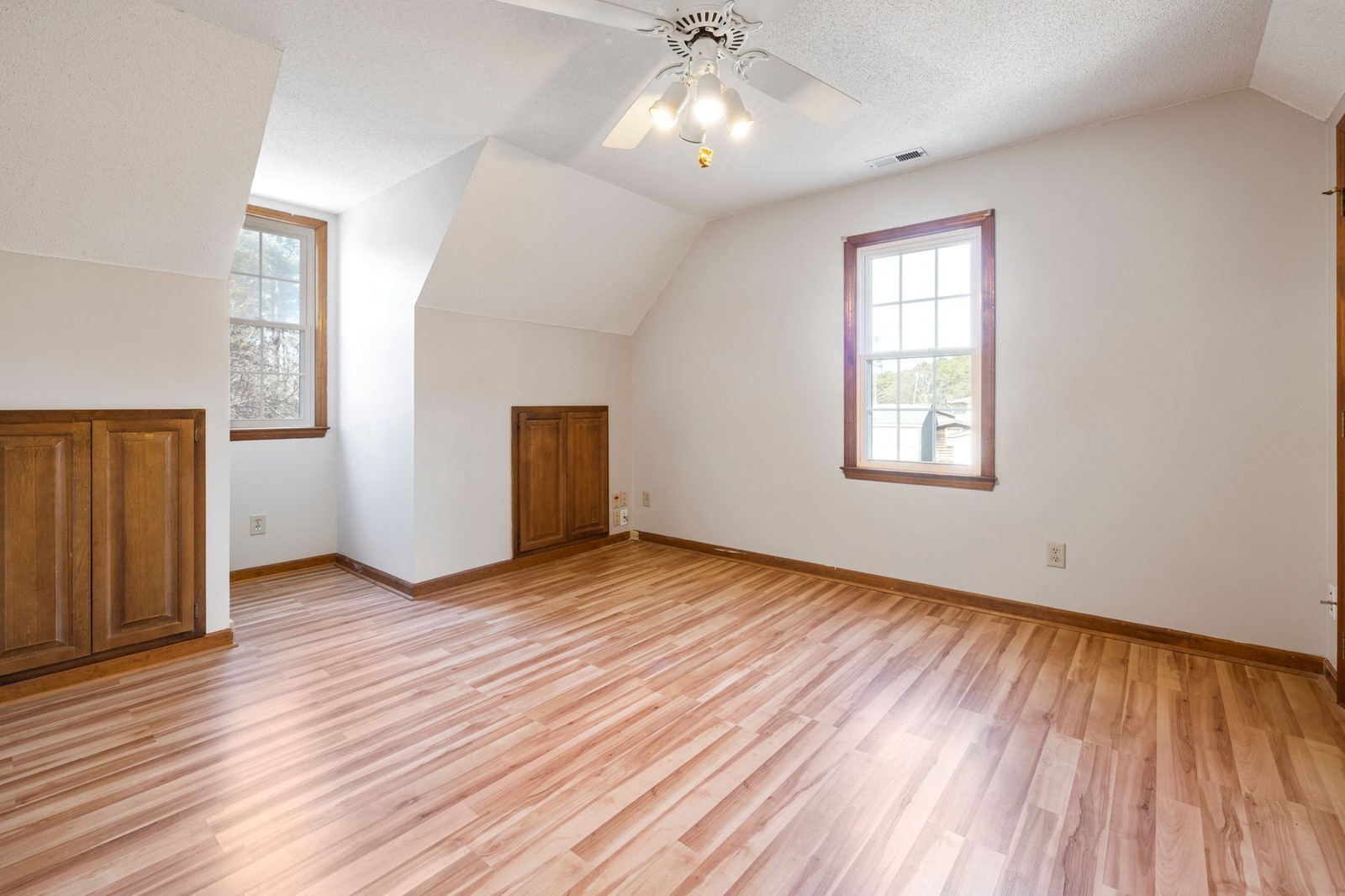
Placement is where small mistakes show. The dresser covers part of a built-in cabinet, and the bed sits right under the window and hides an outlet and part of the baseboard, so the picture hides things you may want a buyer to notice. If that happens, run it again or change the room type until the layout suits the real room.
4. The finish and the small fixtures hold up when you zoom in
Open the result at full size and check edges, switches, outlets, vents, handles, blinds and molding. Tools tend to get the big shapes right and the small ones wrong. Also look for anything the furniture now hides, because a hidden feature is a change too.
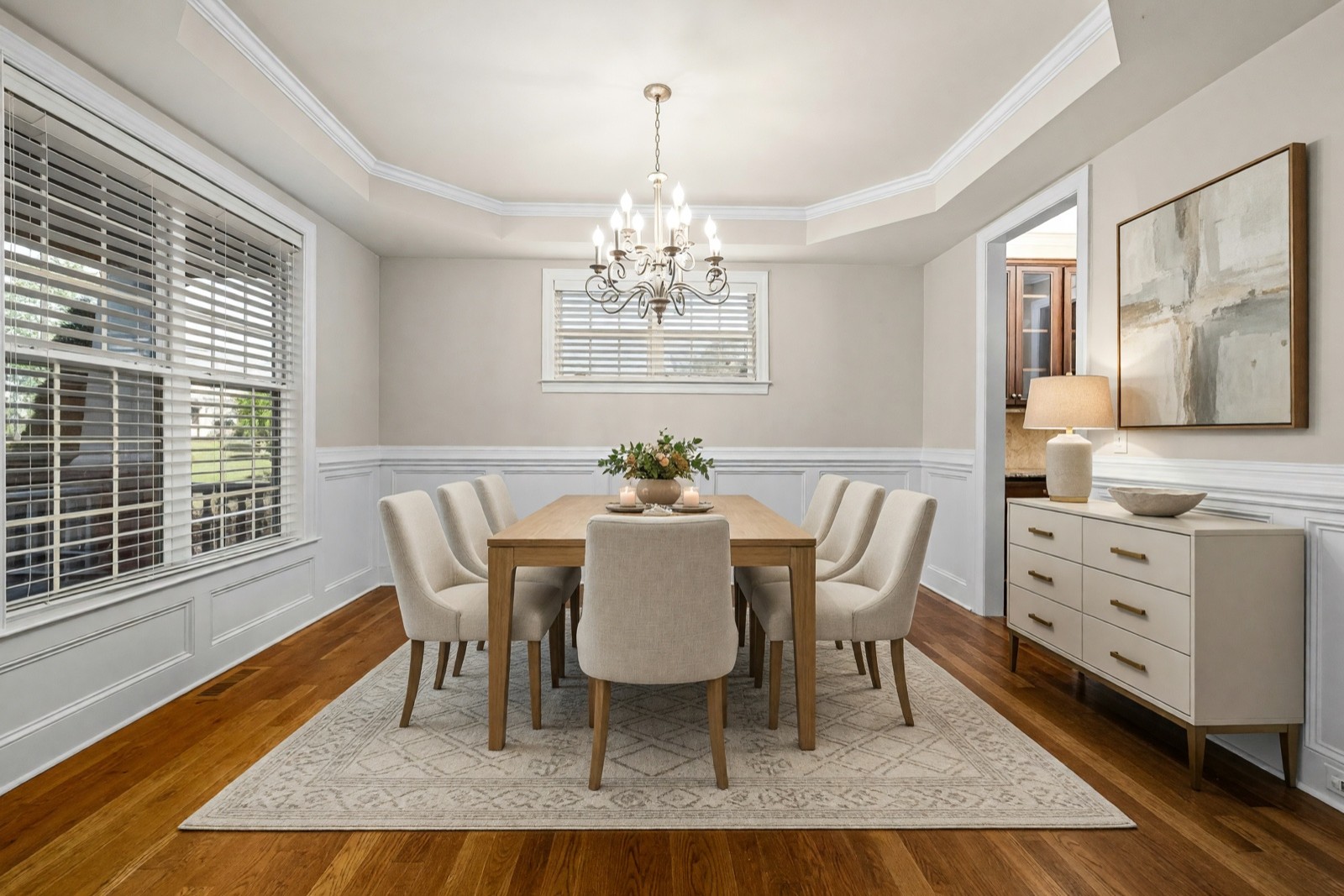
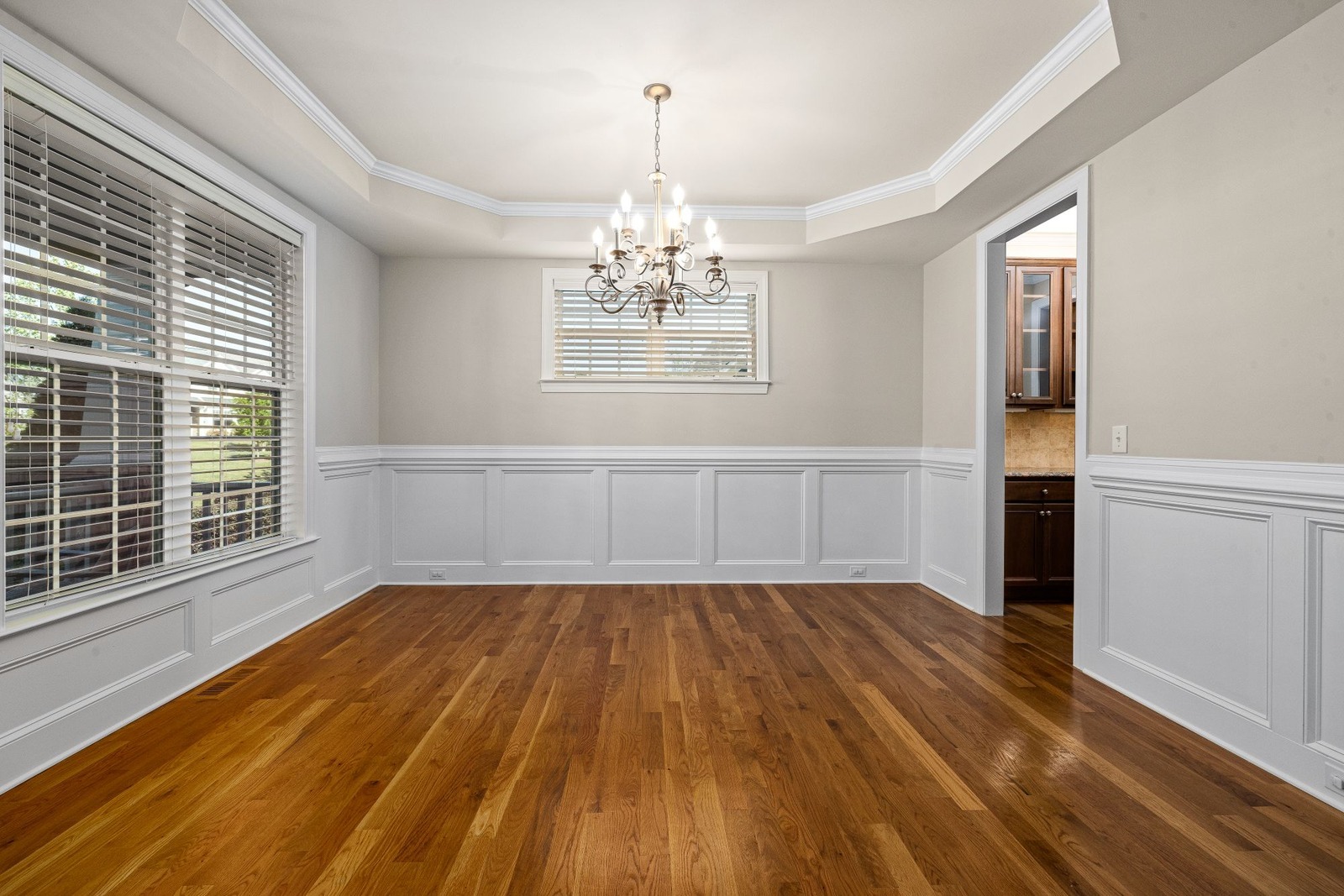
The molding, windows and doorway came through here, but the chandelier was redrawn and the sideboard now covers part of the wainscoting. That is the sort of thing to look for in every result.
5. It copes with a room that is not completely empty
Vacant listings are rarely spotless: a leftover chair, a TV console, a box in the corner. Test with a photo that has one such item and see what happens to it: kept, removed or redrawn. Virtual Staging (Pro plan) is made for empty or nearly empty spaces, and it is told to clear small loose leftovers such as boxes, so check what happened to anything you left in the shot. For a room that still holds furniture, empty it first with Cleanup and its Empty Room level, then stage the result.
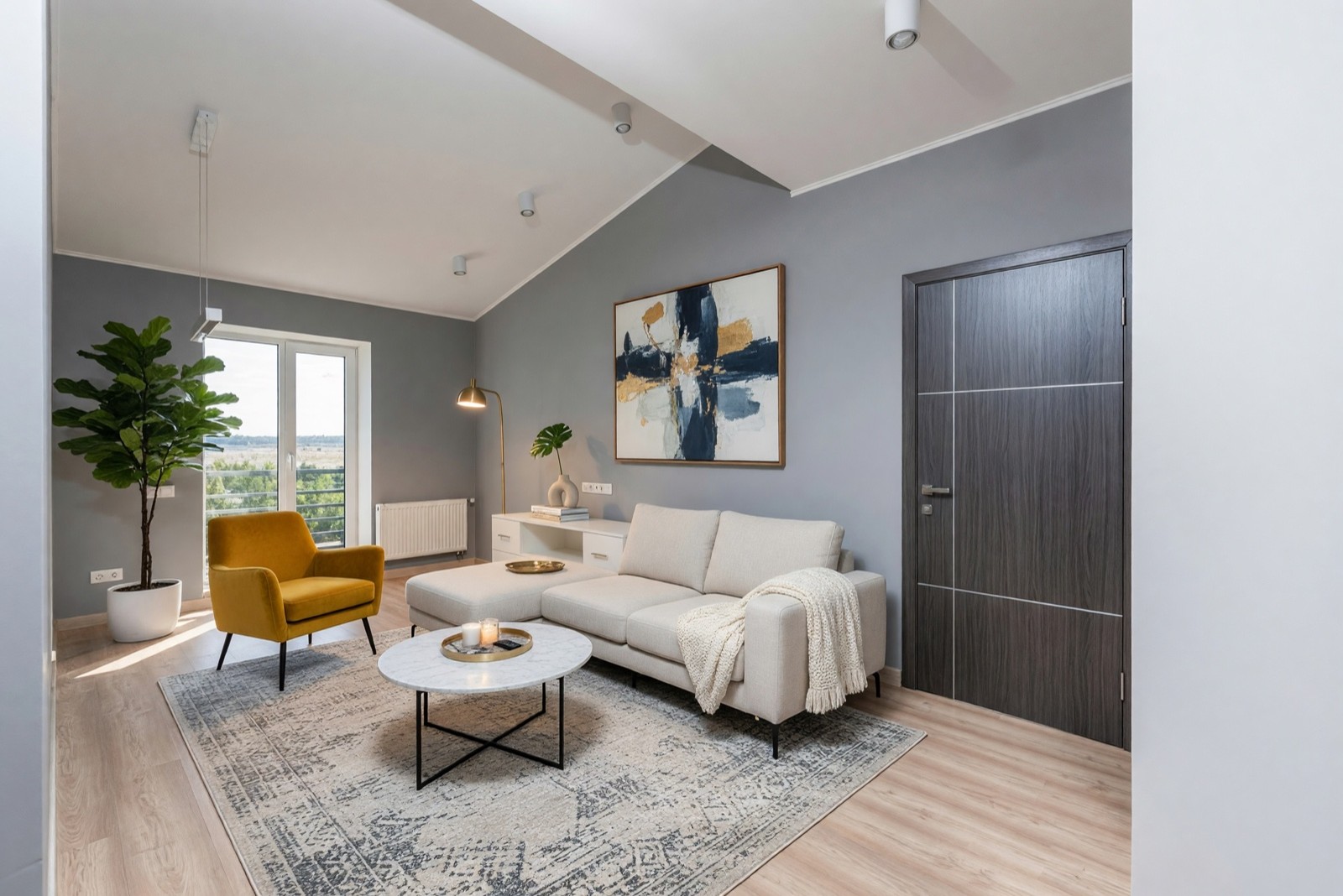
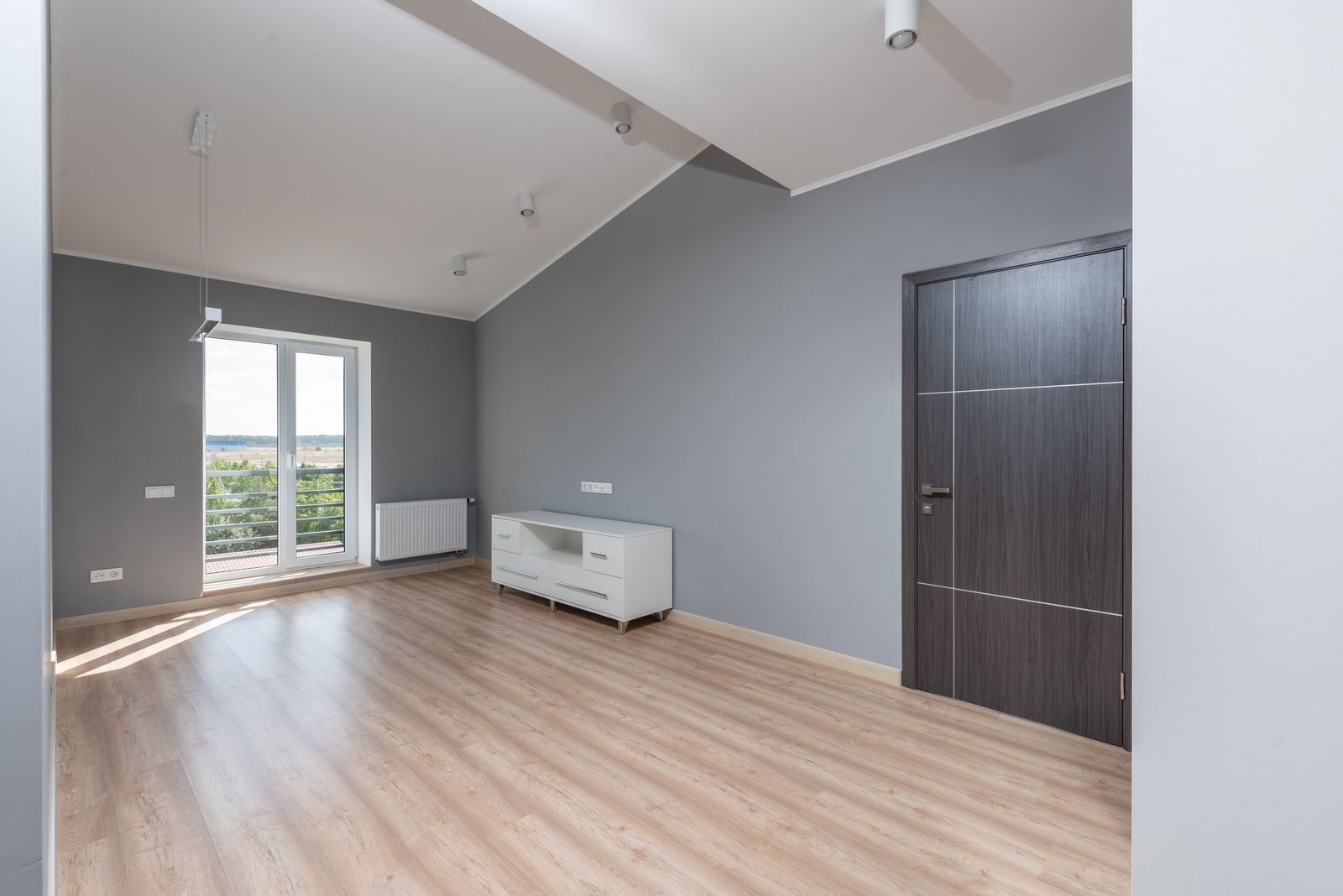
The white console was kept and now stands partly behind the sofa. Decide before you stage whether an item like this should stay, and check afterwards that it did.
6. Download quality, watermarks and the redo
Listing sites want sharp images, so download the result at the size the tool offers and zoom in to 100 percent. Look for a watermark and for soft or smeared areas. Then time one full run, including a redo. You will redo some results, so how easy it is to try another style or room type matters as much as the first result.
7. Clear terms for listing use, and what happens to your photos
Read the terms of any tool before you pay or upload. Can the images be used in listings and advertising? Does a free tier forbid commercial use? Are results watermarked? Read the privacy policy as well. Your photos may show a client's home, so find out how long files are kept, whether you can delete them and whether they are used for anything else. A tool that answers none of this clearly is not ready for your listings.
8. How you pay, and what a usable photo costs
Virtual staging software is billed per image, per bundle of images or through a monthly plan. Compare them with one number: what you spend divided by the photos you actually publish, not the ones you generate. An option that fails half the time costs more per usable photo than a pricier one that rarely does. Count your own time too, because minutes spent checking and redoing are part of the cost.
9. Support
Sooner or later something goes wrong: a result that changed a window, a file that will not download, a question about the terms. Find out how to reach a person and what help your plan includes before you need it.
Virtual staging software checklist at a glance
| What to check | Why it matters | How to test it with one photo |
|---|---|---|
| The real room is kept | Buyers visit the real room, so a changed window or wall misleads them | Put the original and the result side by side and compare windows, doors, outlets, molding, floor and camera angle |
| Room type, style and amount | The same space can be a bedroom or an office, and a lighter result is easier to check | Stage the same photo twice with a different room type, or with a full and a light setting |
| Scale, placement and light | Oversized or floating furniture makes the picture look wrong | Compare pieces with a door, look at shadows and rug edges, and check you could walk around |
| Small fixtures and what is hidden | Switches, vents and cabinets are part of the property | Zoom to full size and list what the furniture now covers |
| A room that is not fully empty | Real photos have leftovers | Use a photo with one leftover item and see whether it is kept, removed or redrawn |
| Download quality and watermark | Listing sites need sharp, clean images | Download once, view at 100 percent and check for a watermark |
| Speed and redo | You will redo some results | Time one full run and one redo |
| Terms and privacy | Not every tool allows listing use or explains how it keeps your photos | Read the terms and the privacy policy before uploading a client's photo |
| Cost per usable photo | Per attempt and per published photo are different numbers | Stage a few different rooms and count how many you would publish |
| Support | You need an answer when a result goes wrong | Find the contact route and what your plan includes |
Can I do virtual staging myself?
Yes. You can place furniture images into a photo with a photo editor, or use virtual staging software and do the preparation and the checking yourself. The three routes compare like this.
| Route | Good for | Watch out for |
|---|---|---|
| Edit it yourself in a photo editor | Full control over every piece, if you have the skill and the time | Matching perspective, shadows and light by hand is slow, and the furniture images need a license |
| Virtual staging software | Fast first versions of many rooms and styles, such as one room shown as a bedroom and as an office | Quality varies by photo, every result needs checking against the original, and furniture sizes are approximate |
| A human staging service | Custom styling, one person answerable for the result and room to discuss changes | Slower, and usually quoted per room or per project, so ask what is included, how many revisions you get and how long it takes |
Whichever route you choose, four jobs stay with you: photograph the room well, check the result against the original, label the photo and keep the original.
Can an AI chat assistant do virtual staging?
A chat assistant can help you decide what a room needs: a furniture list, a style brief, a layout idea. It can also draw a new picture from your description, but a newly drawn picture is not your room. Its windows, proportions and details can differ from your photo, which makes it a risky listing photo. Use a chat assistant for the plan and software that edits your own photo for the picture. ChatGPT interior design: what it can and can't do goes through the difference.
Is there a free virtual staging tool?
Free virtual staging apps and websites exist, and they are limited in different ways. Before you rely on one, check how many tries you get, whether results carry a watermark, what size you can download and whether the terms allow listing use.
For HomeCompose, here is the exact position. Virtual Staging is a Pro plan tool, so the free plan sees it locked. The free plan does include other tools, such as Interior Design and Cleanup, with a limited number of designs, and free designs carry a watermark. Designs made on a paid plan have no watermark and can be used commercially. The pricing page lists what each plan includes.
How much does virtual staging cost?
It depends on the route, and price lists change, so this page gives no figures. Software is billed per image, per bundle or by a plan, and a human service is usually quoted per room or per project. HomeCompose's plans are on its pricing page.
To compare fairly, work through the cost of one listing step by step. Take the number of rooms you will stage, add the redos you expect for each, and divide what you would pay by the photos you would publish. Then add the time you spend checking. A tool that needs fewer redos can cost less per usable photo even when each attempt costs more.
Virtual staging software for real estate: a workflow for agents
For a real estate agent or a listing agent, the software is one step in a routine. This order keeps the result honest:
- Before the shoot: empty and clean the room, and fix what is broken. Staging does not repair anything.
- At the shoot: hold the camera level, use daylight with the lights on and show the whole room, corners included.
- Stage one photo first. Try a single room before you commit a whole listing to a tool.
- Check against the original: windows, doors, outlets, floor, ceiling and scale. If the room itself changed, discard the result.
- Label every staged photo as virtually staged, and show or offer the original.
- Keep a record: the original, the staged version, the date and the settings you used.
Virtual staging should be disclosed in the listing, and MLS, portal and local rules differ, so check yours before you publish. The virtual staging guide covers disclosure, and AI real estate photo editing covers the wider workflow with declutter and sky edits.
What Virtual Staging (Pro plan) in HomeCompose does and does not do
- It is a Pro plan tool. The free plan sees it locked.
- One photo, one picture. Each design is a single picture made from one photo of the space. You choose the room, the style and Fully furnished or Essentials only.
- Pictures, not plans. Furniture is chosen to suit the room, but its size is a visual suggestion, not a measurement. It is not a 3D or CAD tool.
- Nearby details can change. The AI can redraw small things around the new furniture, as the captions above show: a wall tone, an outlet, a stripe in the carpet.
- It does not fix the room. It is told not to repair damage or change finishes, though small shifts in tone can still happen, and it must not be used to hide defects. For clutter, use Cleanup first.
Common mistakes when choosing virtual staging software
- Choosing from a gallery of the tool's showcase samples instead of testing your own photo.
- Judging a tool on one easy, plain room only.
- Comparing the price of an attempt, not the cost of a usable photo.
- Skipping the terms and the privacy policy.
- Accepting a result without comparing windows, doors and fixtures with the original.
- Staging a room with damage and using the furniture to cover it.
- Using a different style in every room, so the listing does not look like one home.
- Posting staged photos without a label or without the original.
Frequently asked questions
Is it free to try?
HomeCompose has a free plan with a limited number of designs and tools such as Interior Design and Cleanup. Virtual Staging itself is a Pro plan tool, so the free plan sees it locked.
How many photos should I test before choosing software?
Test one plain empty room and one harder one, such as a room with a leftover item or strong sunlight, and use the same two photos in every tool. Judge the results by the checklist above, not by which sample looks nicest.
Can virtual staging software hide damage or clutter?
It should not. Staging adds furniture and decor to a room that is otherwise shown as it is. Fix damage or show it honestly. To clear clutter from a photo before you stage, use Cleanup, and tell buyers the photo is edited.
Do I have to say a photo is virtually staged?
Some places and listing services require it, and labeling every staged photo and showing or offering the original is good practice everywhere. Rules differ, so check your MLS, portal and local rules. The virtual staging guide covers the disclosure section.
Can I use staged photos in a listing?
That depends on the tool's terms, so read them before you pay. In HomeCompose, designs made on a paid plan have no watermark and can be used commercially, for example in property listings. Add the labels your listing site and local rules require.