3D Floor PlanPro
Floor plan to 3D: turn a 2D plan into a render
Upload a 2D floor plan, choose a style and a view, and 3D Floor Plan draws the whole home as a furnished 3D model with the roof removed. It aims to keep your plan's walls, rooms, doors and windows in place, and the furniture and finishes come from the style. The result is a picture to show and compare, not a measured drawing, and it can get small details wrong, so check each room against your plan.
Available on the Pro plan.
How it works in 3 steps
Upload the plan
A 2D floor plan, as a drawing or an image.
Choose a style and a view
Pick the style that furnishes the rooms, and an angled or a top-down view.
Compare
See the 3D render next to your plan, check every room, then try another style.
What to upload
A 2D floor plan (drawing or image)
Who it's for
Homeowners
See what an architect's or a developer's plan could feel like furnished, and compare a few styles before you decide. Keep the plan beside the render and check each room.
Real-estate agents
Show a buyer a plan from a brochure as a furnished home. Say that it is an illustration, and check doors, windows and fixtures against the real plan before you share it.
Designers and architects
Turn a layout into a quick furnished picture for a first client conversation, in a few styles. Treat it as a mood and layout sketch, not a drawing, and expect to correct small details.
What a 3D floor plan from a drawing shows
A 2D floor plan shows walls, doors and furniture symbols from above, which is hard to read for anyone who does not work with plans. 3D Floor Plan turns the drawing into a furnished 3D picture of the same home, so you can see how the rooms connect, where light comes from and what the layout feels like. The layout is based on your plan, and the furniture, finishes and materials come from the style you choose.
Choose a view: angled or top-down
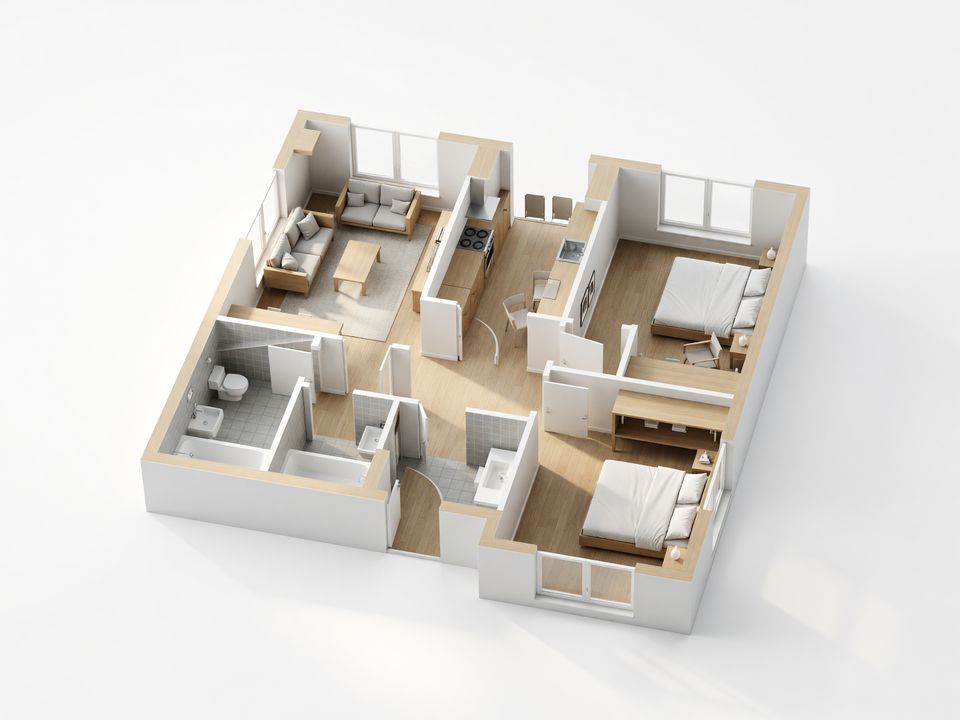
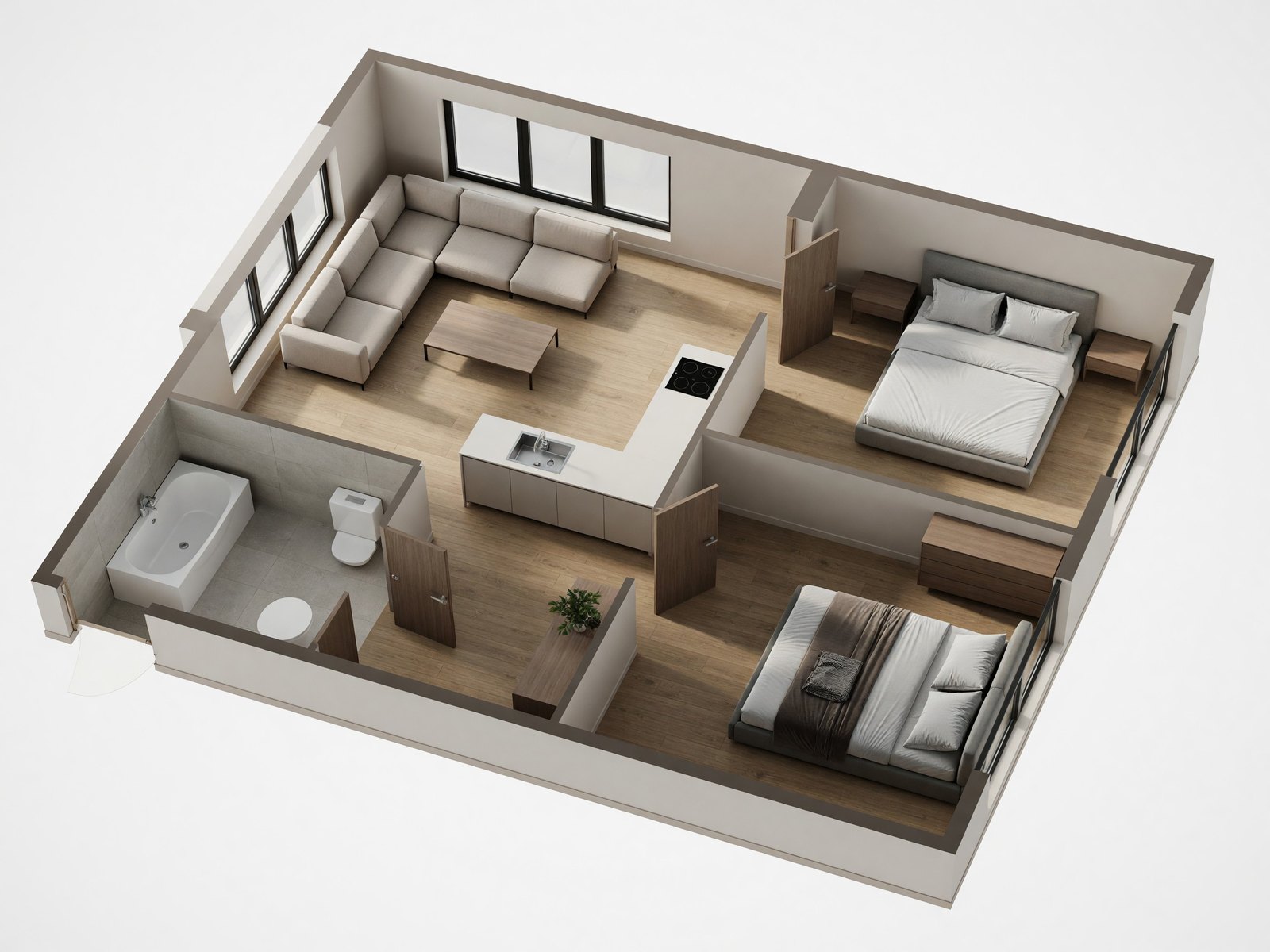
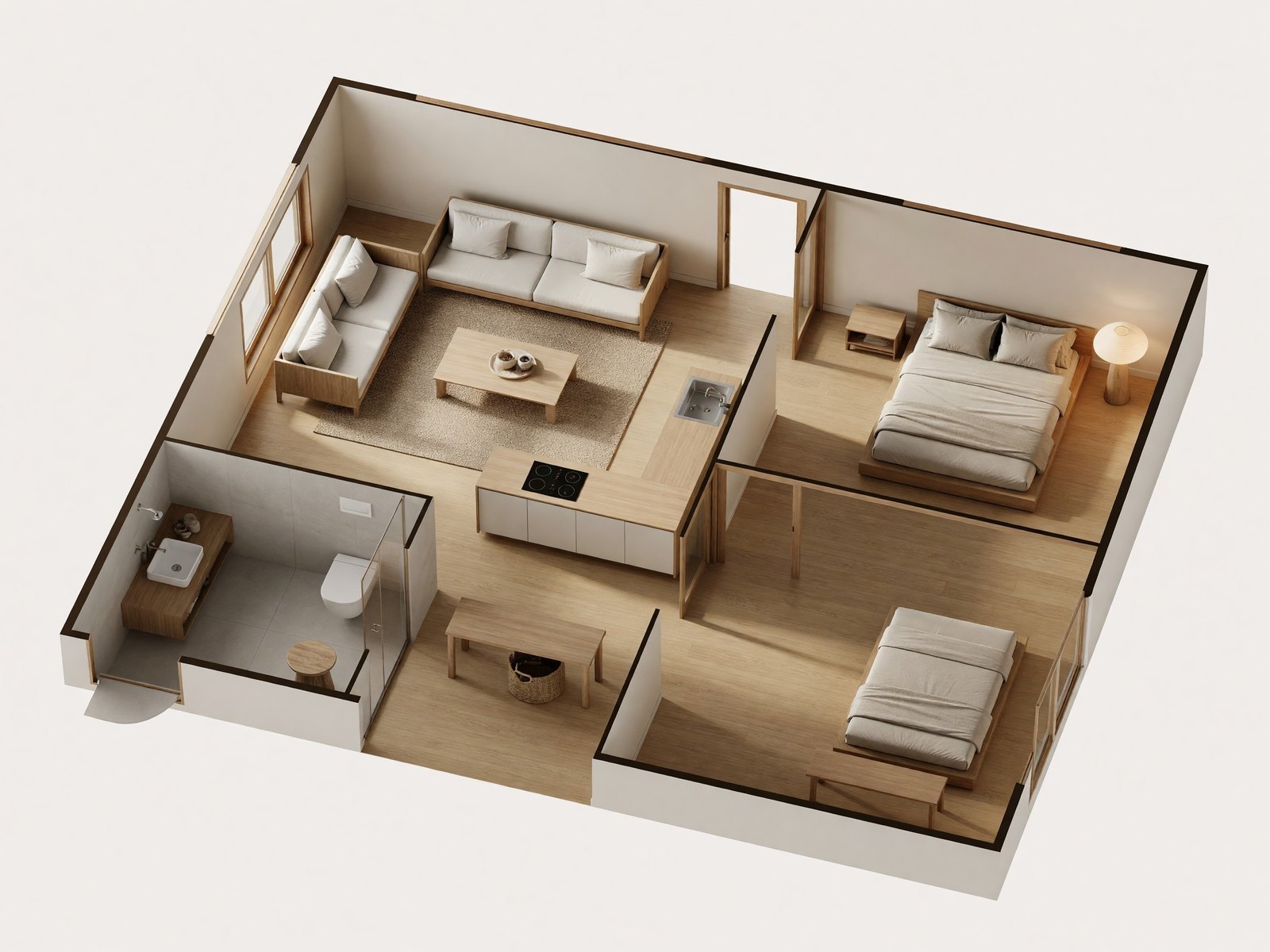
- Angled 3D is a cutaway model seen from above at an angle, like a dollhouse. It shows furniture and wall height well and gives the best sense of the whole home.
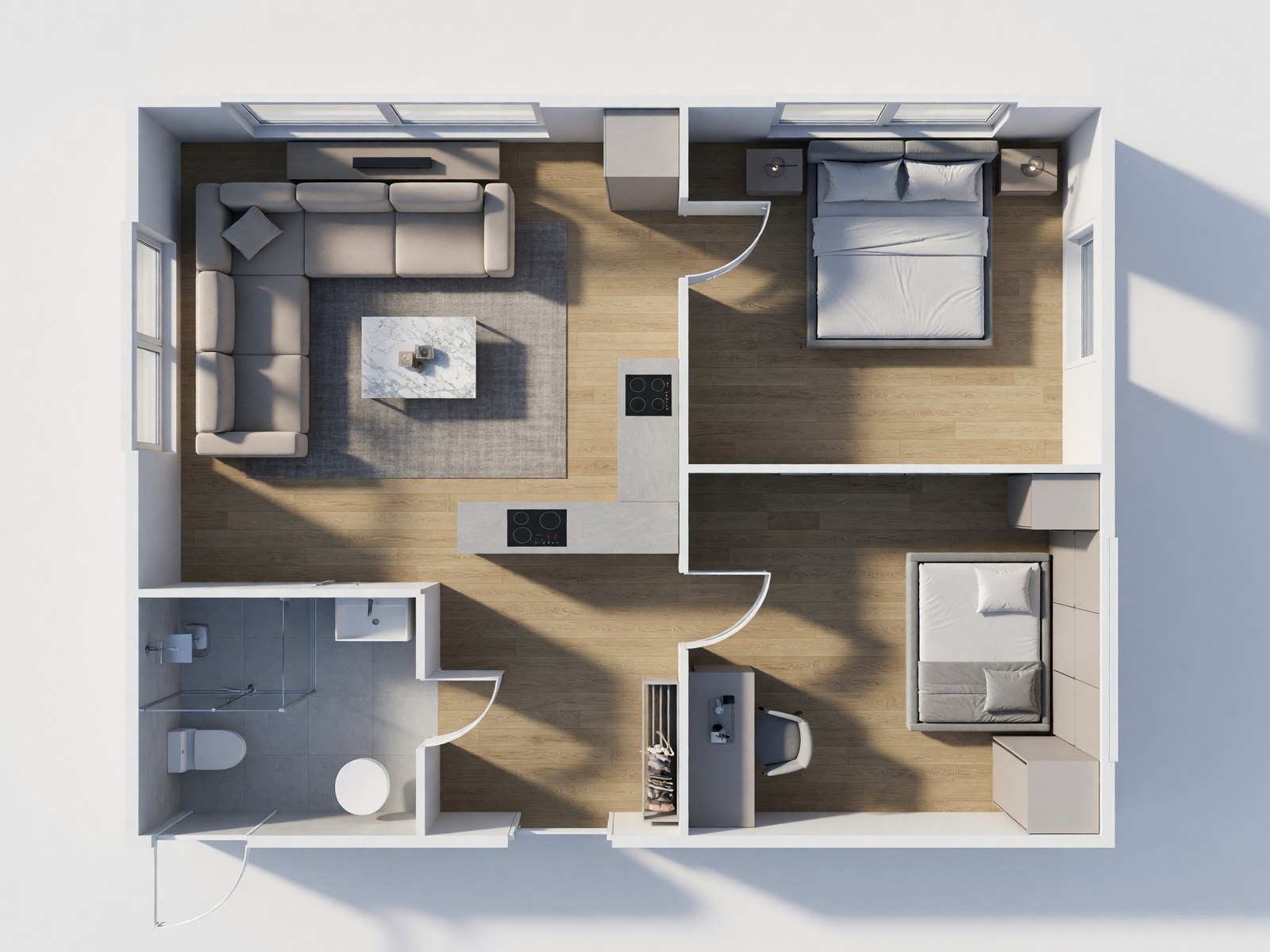
- Top-down 3D looks straight down like the plan itself, with depth and shadows. It is easy to compare with your drawing, because the rooms sit in the same positions as on the plan.
Choose a style
Pick the style that should furnish the plan, such as Modern, Scandinavian, Japandi or Quiet luxury, from the studio's interior styles (the same ones Interior Design uses). The same plan looks very different in each one, because the style sets the furniture, floors, wall colors and materials.
What it reads from your plan, and what to check
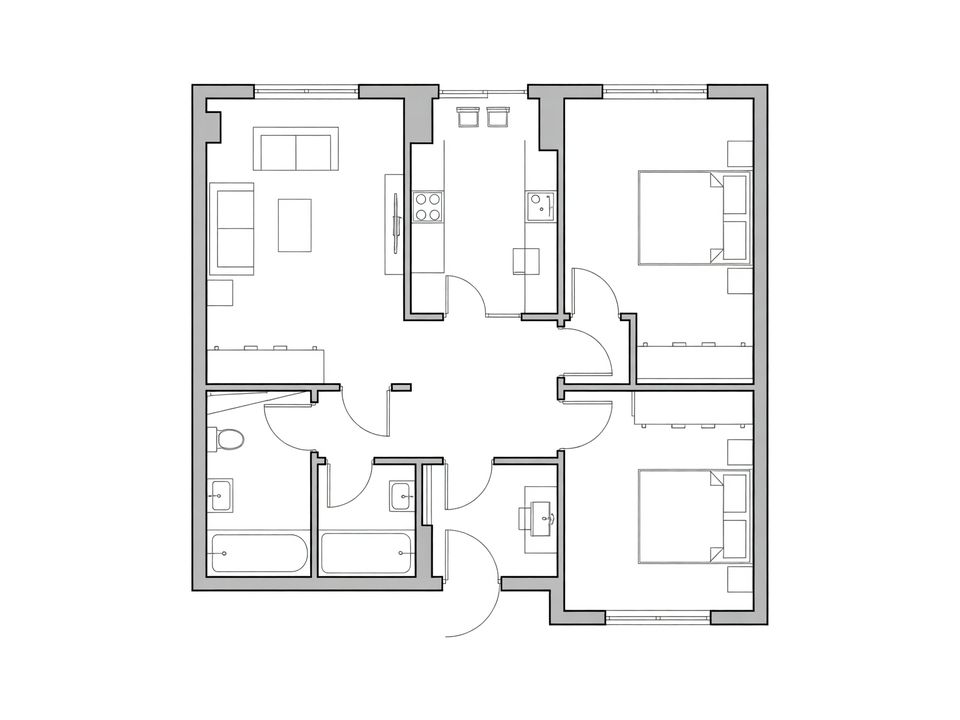
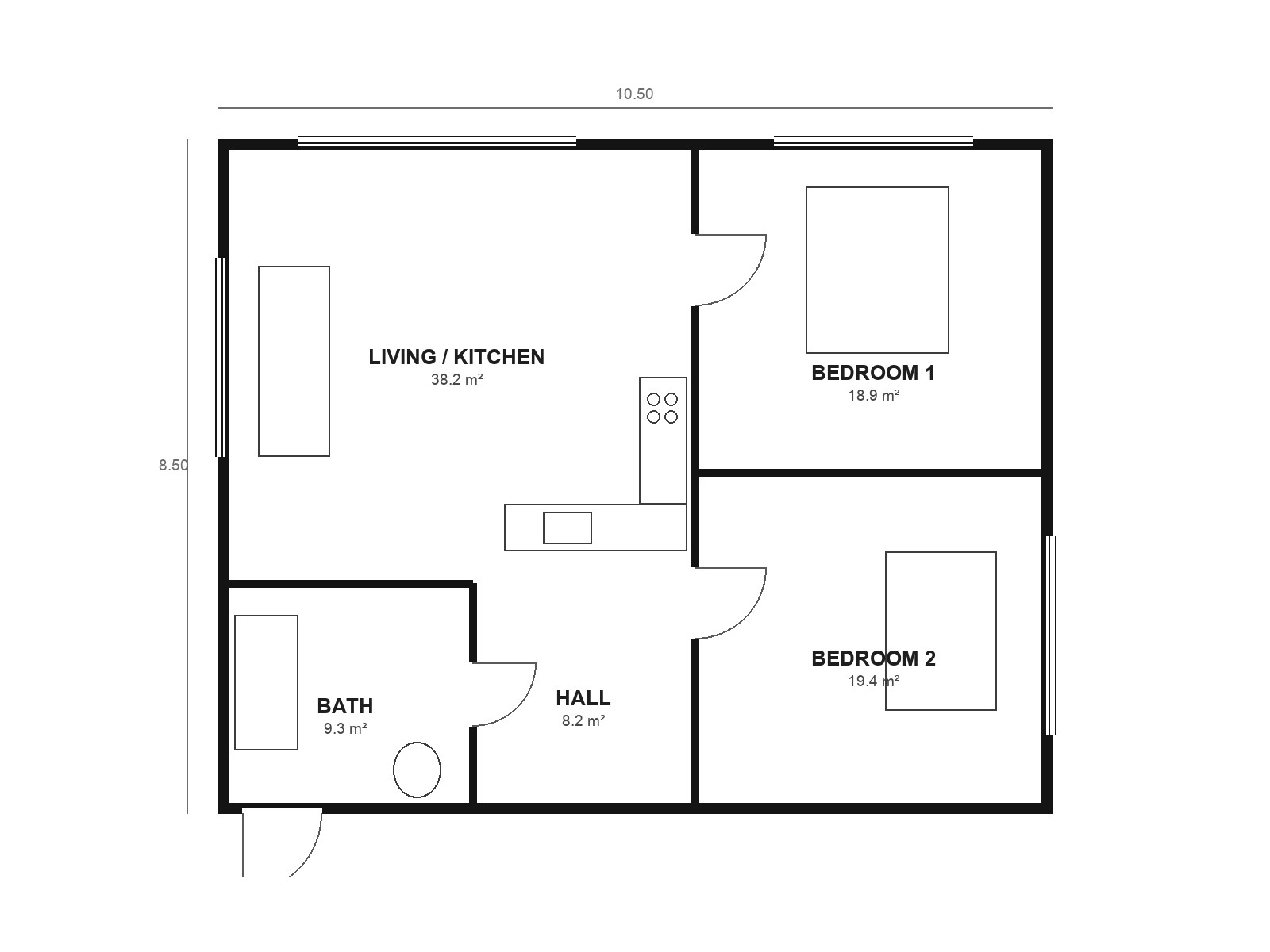
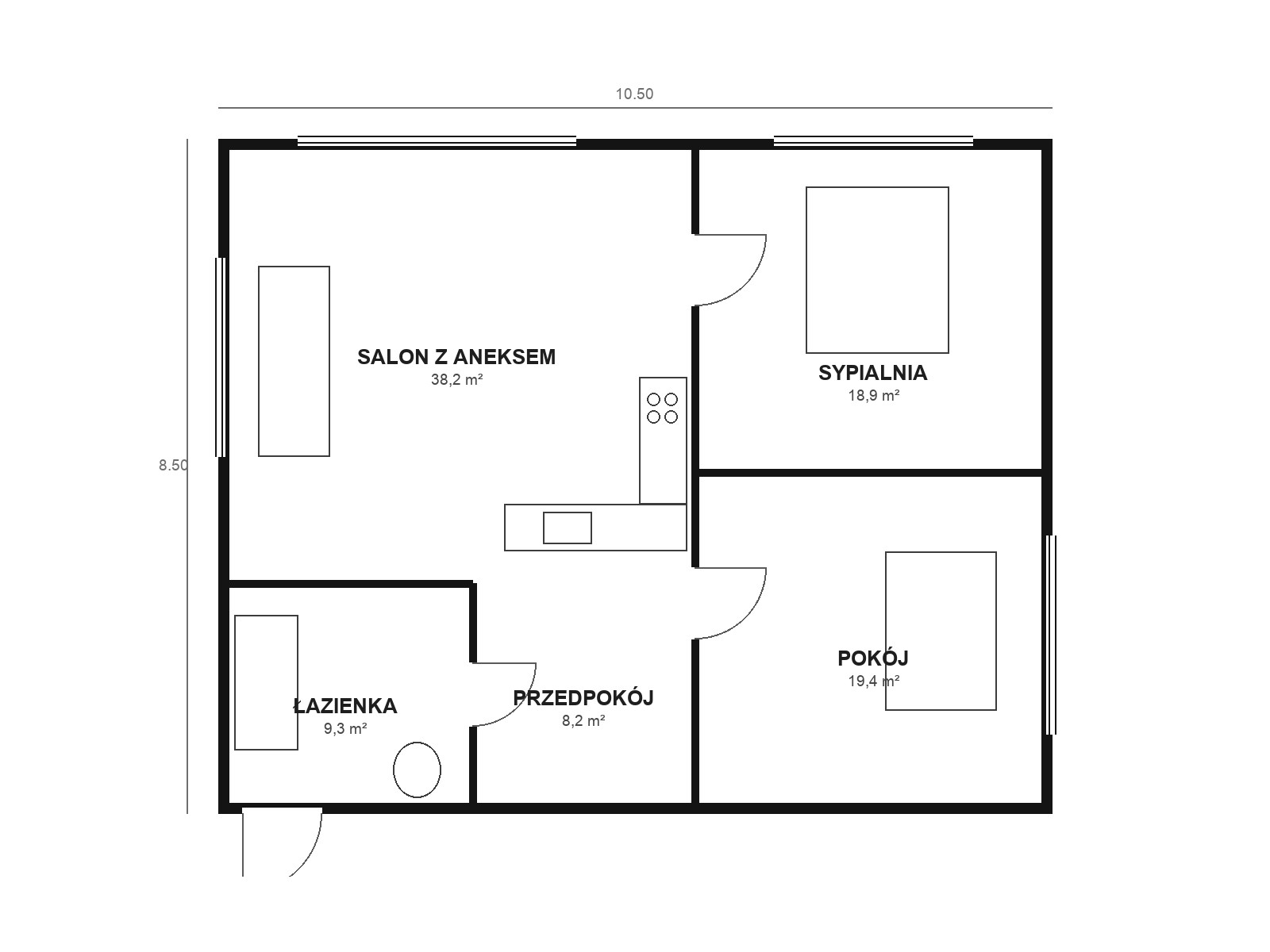
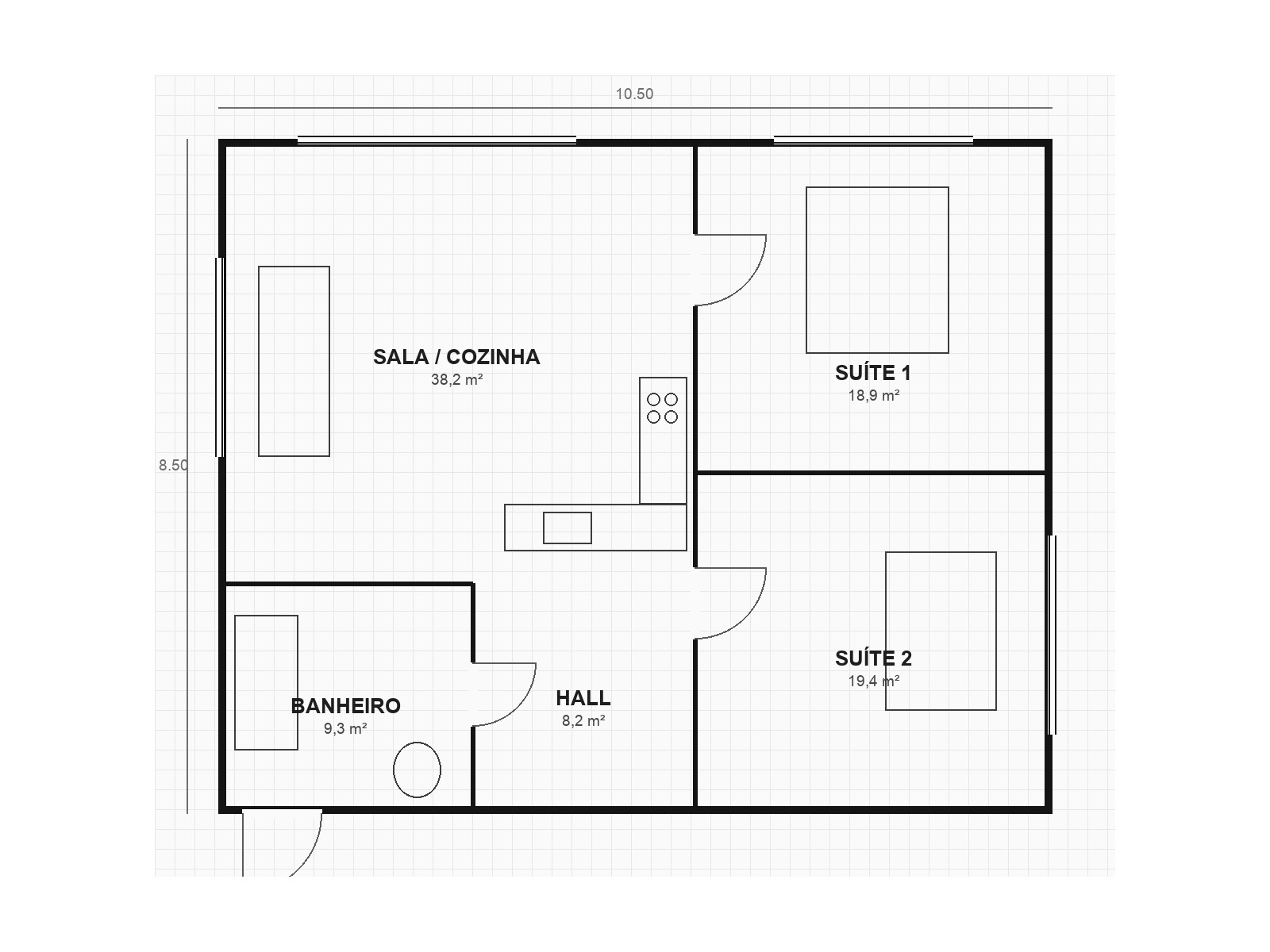
In all three examples the room layout, the outer walls and most windows and doors ended up where the plan has them, and the rooms were furnished to match their purpose, with labels in English, Polish or Portuguese. The render is still a new picture, not a trace of your drawing. Sizes and proportions can shift, so it is not a measured drawing, and it is not a construction or permit drawing. Put the plan next to the render and go room by room.
- Fixtures can change. In our examples a bathtub became a shower, and a plan with a single oval became a toilet plus a mat. Check the bathrooms first.
- Kitchen counters can get doubled or mixed up. One result had two cooktops and no sink, and another swapped the sink and the cooktop.
- Doors and windows can move or vanish. We saw a window shift to another wall, windows missing on one wall, an extra doorway, a door drawn as a curved wall and one doorway with no visible door.
- Furniture is invented. Symbols on the plan guide what goes where, but sofas, nightstands, desks and plants come from the style, so a large rectangle can turn into a sofa and a coffee table.
- Labels and measurements are removed. The render has no room names, dimensions or area numbers, so keep the plan next to it.
Tips for a good result
- Upload a clear image of the plan, such as a JPG, PNG, WebP or HEIC file up to 10 MB. Export or screenshot it if it is in a CAD file or a PDF.
- Use a clean plan with thick walls, drawn doors and windows, and furniture symbols where you want furniture. A plan on a light grid, like the third example, worked too.
- Label the rooms. In our examples a plain "room" label with a bed symbol still became a bedroom, with a desk added, so say what each room is wherever you can.
- Start with the angled view to see the whole home, then try top-down to compare it with the drawing.
- Try a second style on the same plan. Some mistakes, such as a swapped sink and cooktop, may not come back.
- Do not read sizes from the render. Take measurements from your plan, and check details with a professional before you build or order anything.
How to make a 3D floor plan from a 2D drawing
Prepare the image before you upload it, because the AI can only work from what the drawing shows. Crop away the border, the legend and the title block, keep the plan flat and upright rather than photographed at an angle, and make sure every wall, door and window is drawn clearly. Then choose a style and a view and let the tool draw the furnished home. If a room comes out wrong, fix the drawing, for example by thickening a wall or adding a furniture symbol, and run it again.
How to convert a PDF floor plan to 3D
3D Floor Plan does not take a PDF directly. It takes image files, which are JPG, PNG, WebP or HEIC up to 10 MB. Open the PDF, export the plan page as a JPG or PNG, or take a screenshot of it, and upload that image. Zoom in before you export so the thin lines of doors and windows stay sharp. If the PDF holds several floors, export each floor as its own image.
Can I turn a floor plan into 3D for free?
Free converters exist, but they often come with limits such as a small number of renders, low resolution or a watermark. Read the terms before you rely on one, especially if the picture is for a listing or a client. Whichever tool you try, run it on your own plan first, because the result depends mostly on how clear your drawing is. A test on your own plan tells you more than a sample image on a website.
Is there an app or AI that turns a floor plan into 3D?
Yes. 3D Floor Plan is an AI tool that runs in your browser, so there is nothing to install, and it also works in a phone browser. You sign in with an account, upload an image of your plan from your device, and the render appears in your workspace. On a phone, a screenshot or a saved image of the plan works well, and HEIC files from an iPhone are accepted.
Can I describe the 3D floor plan with a prompt?
There is no text box for it. You steer the result with options: a style such as Modern or Japandi, and a view, angled or top-down. The plan's own walls, rooms and furniture symbols decide the rest. To change the result, try another style, switch the view, or edit the drawing, for example by labelling a room or adding a furniture symbol where you want a piece.
2D plan to 3D model: what is the difference?
The result here is a rendered picture of the home, not a 3D model. You get an image to look at, show and compare, but not a model file you can rotate, open in modeling software or measure. A true 3D model is built from your plan's dimensions in CAD or 3D software, which is what you need for exact sizes, a walkthrough or construction. Use the picture to judge layout and style, and the model when accuracy matters.
When to use another tool
| You have | Use | Why |
|---|---|---|
| A photo of a real room you want to restyle | Interior Design | It edits your own photo and keeps the walls, windows and camera angle, so it fits a room that already exists. |
| A hand-drawn sketch of a room or a building | Sketch to Render (Pro plan) | It turns a perspective sketch into a realistic picture, which a top-view plan is not. |
| A photo of an empty room | Virtual Staging (Pro plan) | It furnishes the photo you have, and our virtual staging guide explains how to present it. |
| A drawing for a permit or a builder | A CAD program or an architect | A 3D Floor Plan render is a picture, not a measured or construction drawing. |
Frequently asked questions
Does the 3D render keep my layout?
In our three examples the rooms, the outer walls and the position of most doors and windows matched the plan. Details still changed, such as bath fixtures, a window on another wall or a missing door, so compare each room with your drawing.
What kind of floor plan can I upload?
An image of a 2D plan, such as a JPG, PNG, WebP or HEIC file up to 10 MB. Our examples are clean digital drawings, one with a grid, with labels in English, Polish and Portuguese. Clear walls, doors and windows give the most reliable result.
Can I use the render to build, renovate or get a permit?
No. The render is a visual idea, not a construction drawing. Its sizes are not guaranteed, and the AI can change small details such as a window or a door. Use your measured plan and a professional for anything you build.
Can I choose the furniture?
You choose the style, and the style sets the furniture, floors and colors. The plan's furniture symbols guide where things go, but the pieces themselves are the AI's. To restyle one room from a photo, use Interior Design.
Why does the render have no room names or dimensions?
The tool draws the home without text, labels or measurements. Your labels can help it decide what each room is, but they do not appear in the render, so keep the original plan beside it.