AI kitchen design from a photo
To try an AI kitchen design on your own kitchen, upload one photo, set the room to Kitchen, choose a style and how much should change, and compare the result with the real room. HomeCompose keeps the walls, windows and camera angle and restyles the cabinets, counters, backsplash, floor and lighting, so you can test looks before you commit to anything. This guide gives six steps, five real before and after kitchens, what the AI cannot do, and what to check before you plan.
AI kitchen design: what it can show and what it cannot
HomeCompose edits your own kitchen photo. It does not draw a floor plan, size cabinets or check that anything fits. In Interior Design the walls, windows and camera angle stay in place by design, and the AI restyles what is inside them: cabinet color and door style, countertop and backsplash look, flooring, lighting, hardware, open shelving and decor.
It cannot move a sink, a range or a fridge, and it knows nothing about plumbing, gas, ventilation or structural walls. It also shows no real measurements or appliance sizes, and the AI may redraw an appliance or a handle without being asked. So the picture is good for choosing a look, such as white or wood, brass or black, and poor for proving that a plan works.
| Kitchen decision | What the AI can show | What to check |
|---|---|---|
| Cabinet color and door style | A new color or wood look, flat or paneled doors, on the same cabinet runs | Door profile, finish and sample in your own light |
| Countertop | A different stone, wood or solid look, a lighter or darker top | Edge detail, thickness, seams and the real material |
| Backsplash | Tile type, color and layout, or a plain wall | Height, outlets, the tile size and the grout |
| Floor | Another wood tone or a pale or dark floor | Where it meets the cabinets, and how it handles water |
| Lighting | A new pendant or chandelier and a warmer or cooler feel | Real fixture size, wiring, and light over the work areas |
| Hardware | Black, brass or no handles at all | Handle length, how many, and whether doors open freely |
| Open shelving and decor | Shelves, plants, dishes and small accents | What you would really put on them, and the wall behind |
| Sink, range, fridge, plumbing | Nothing reliable: they stay put, or get redrawn | Real positions, sizes, vents, gas and water lines |
Step 1: photograph the whole kitchen
The photo fixes the camera angle, the walls and the light, and the result stays close to all three. Take the picture you would want to see redesigned.
- Show the whole room. Stand in a doorway or a corner and hold the phone level at chest height, so the cabinet runs, the floor and the ceiling line are all in the frame. A tight crop of one island or one fridge wall tells you nothing about the layout.
- Use daylight and switch the lights on. A dim photo gives a gloomy kitchen.
- Clear the counters. Loose items can be redrawn or turned into decor. Cleanup can remove clutter from the photo first.
- Shoot a long or L-shaped kitchen twice, once from each end, and redesign each view on its own.
Step 2: choose a style and how much changes
Upload the photo to Interior Design and set the room to Kitchen. Pick one of more than a hundred styles, from Scandinavian and Japandi to Modern farmhouse, Mid-century modern and Modern. Then choose a color palette and one of four modes. The mode decides how much changes.
| Mode | What changes | Try it when |
|---|---|---|
| Light Touch | Nothing structural: only a few small accents are added, such as plants, a vase, books and art | You like the kitchen and want to see what accents would add |
| Structural Preservation | Furniture, textiles, lighting, decor and surface finishes, with the layout kept familiar; in a kitchen that can include cabinet color, counters and floor | A safe first try, and the default |
| Bold Interior | Everything inside the room, including flooring, wall finishes and built-in cabinetry | The kitchen needs a new scheme but keeps its shape |
| Full Makeover | All of that, plus the ceiling, the doors and the wall colors | You would change the room from floor to ceiling |
In all four modes the walls, windows and doorways stay where they are. Start with Structural Preservation. If the result stays too close to your kitchen, move up a mode; if it changes more than you wanted, move down.
The five examples in this guide are real kitchens from licensed stock photos, redesigned in Interior Design with the room set to Kitchen. In every photo, small readable items such as bottle and packaging labels, a cookbook cover and appliance brand marks and control panels were softly blurred for privacy before the redesign, and some of those spots still show as soft patches. The examples use Light Touch, Structural Preservation and Bold Interior; Full Makeover would change more.
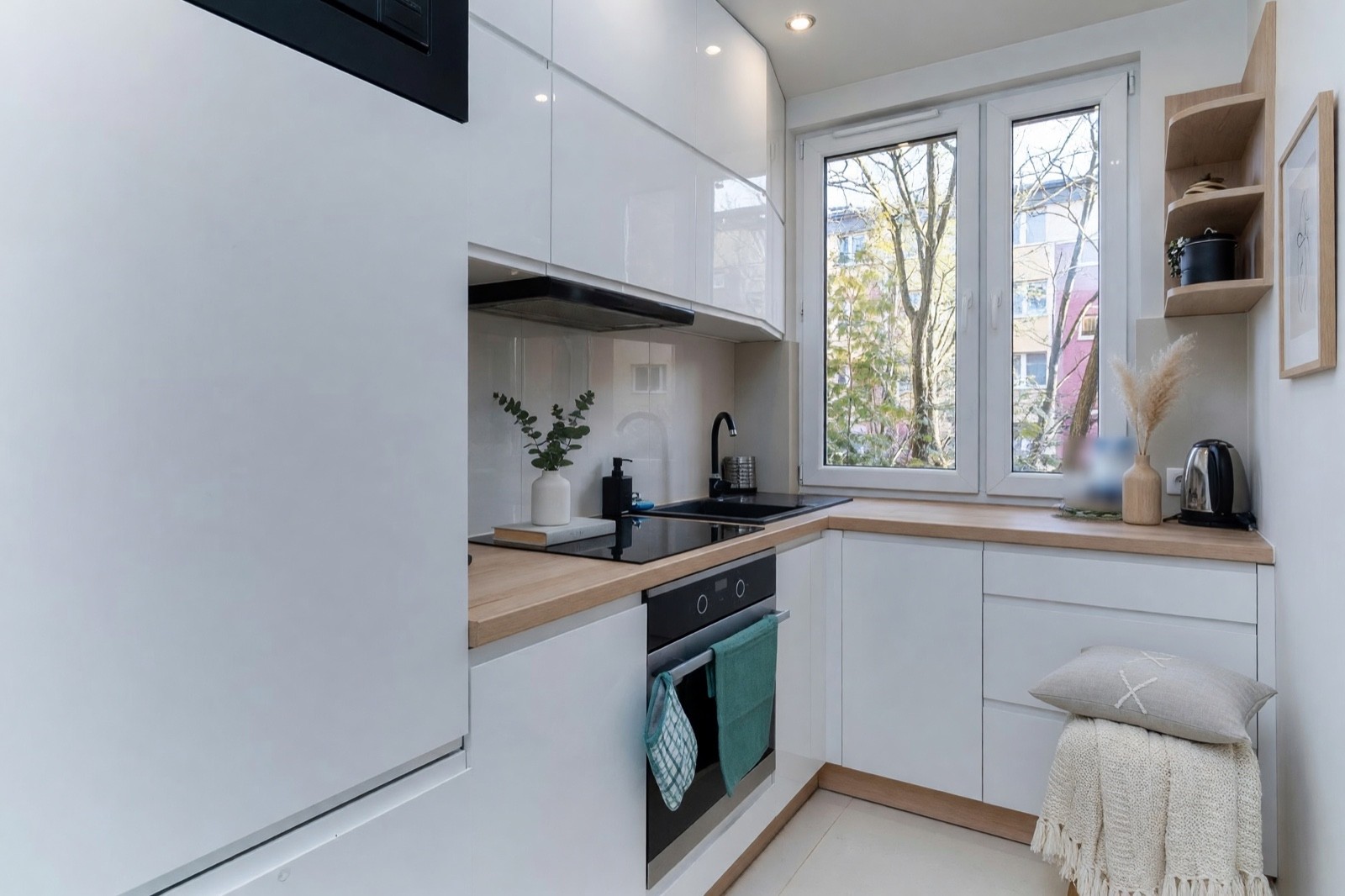
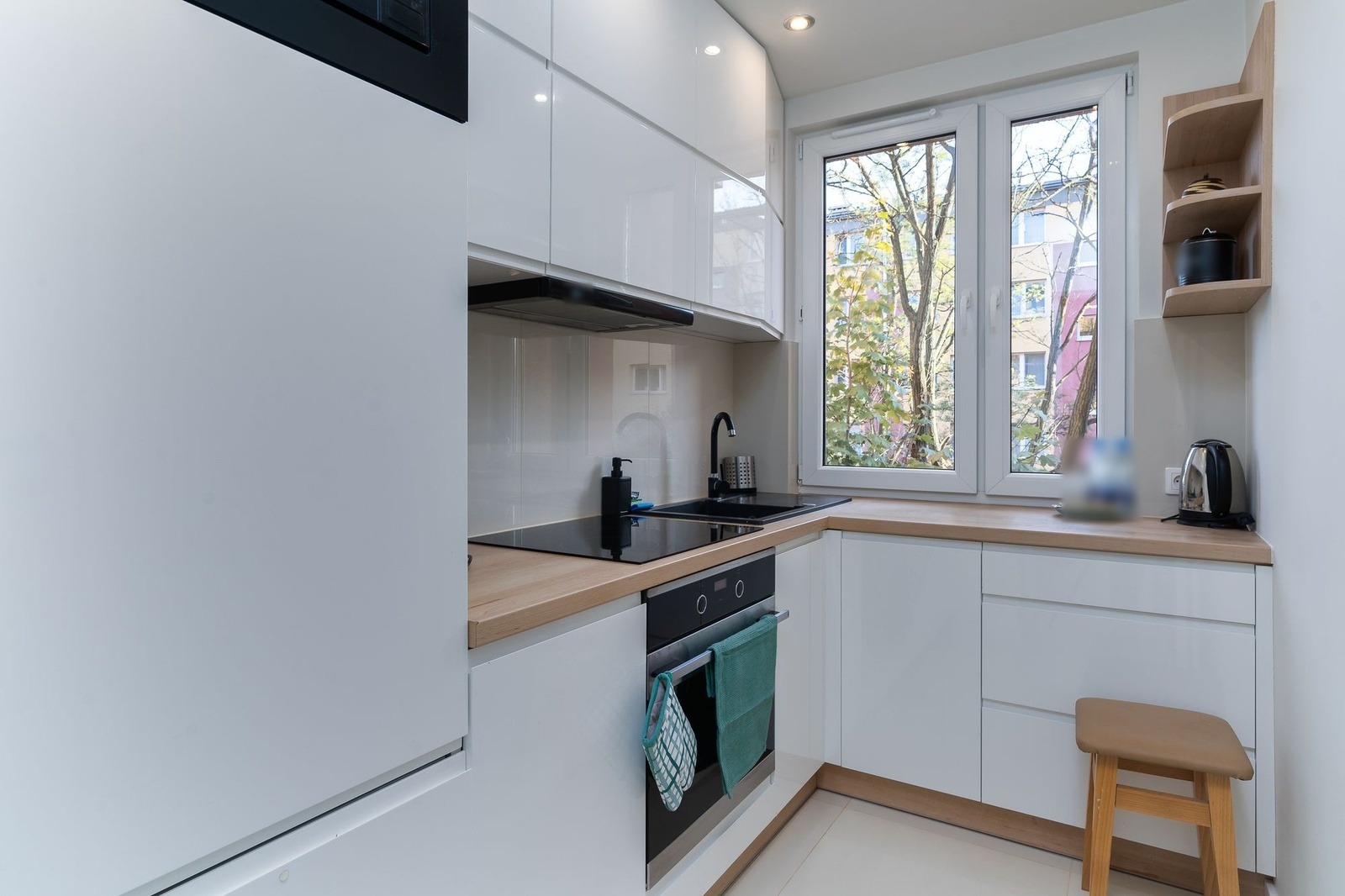
Light Touch is the quickest way to learn what small additions do. Nothing large moves, and the cabinets stay white. One thing to notice: the stool is now hidden under the cushion and throw, and the vase and books are placed right at the cooktop.
Step 3: read the result closely
Put the result next to your original photo and check these points slowly.
- Cabinet runs. Count the upper and lower doors and drawers. Are there as many as before, in the same places?
- Handles. Are they the same on every door and drawer? In the examples below the hardware changed unevenly, stayed in part or vanished.
- Countertop edges and seams. Does the top still end where the real one ends?
- Sink and range. Are they where they really are, at the same size? If one moved, the picture is wrong, not the kitchen.
- The extras. Look at the ceiling, the shelves and the objects. Look for things that appeared, vanished or changed.
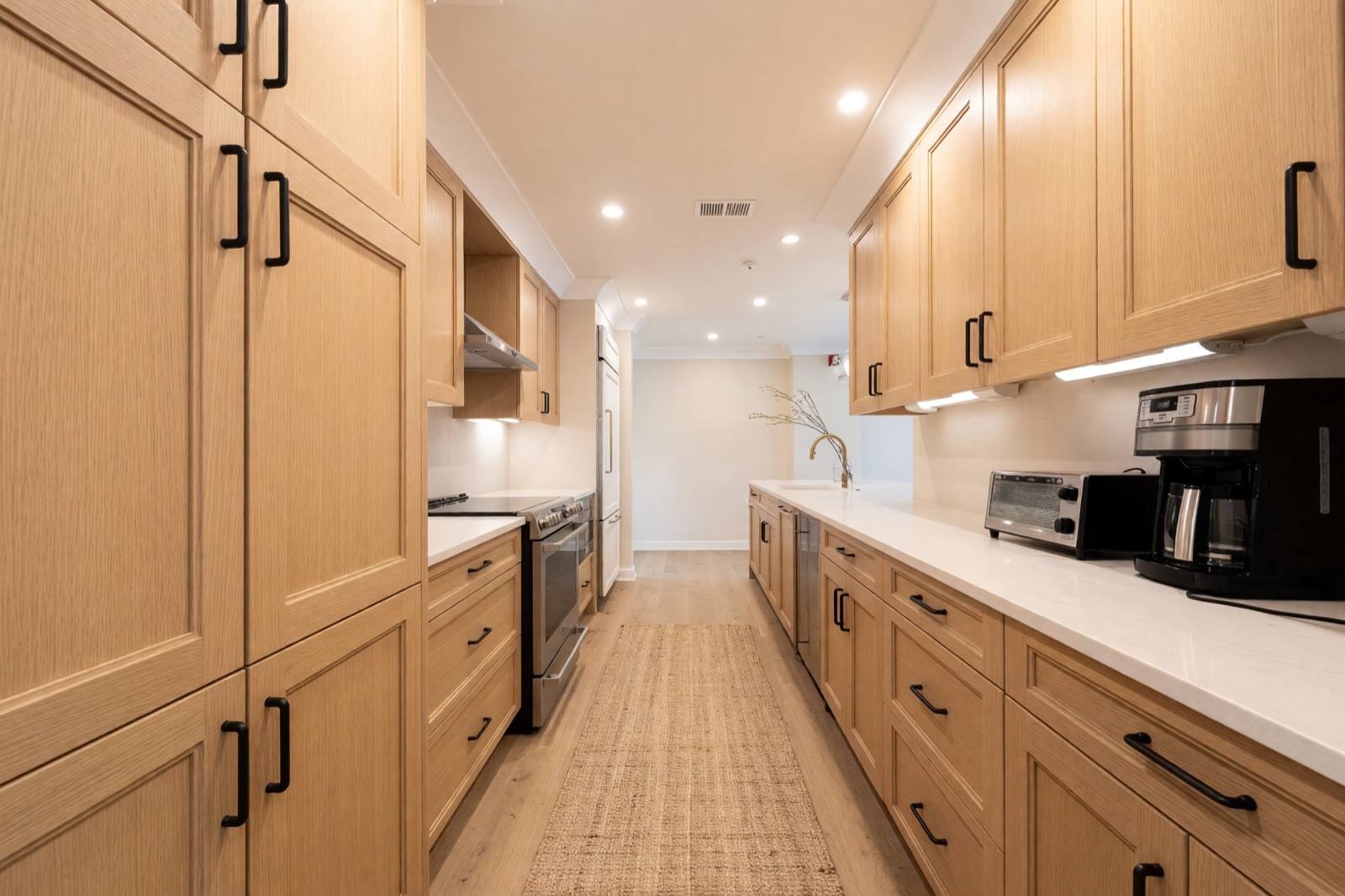
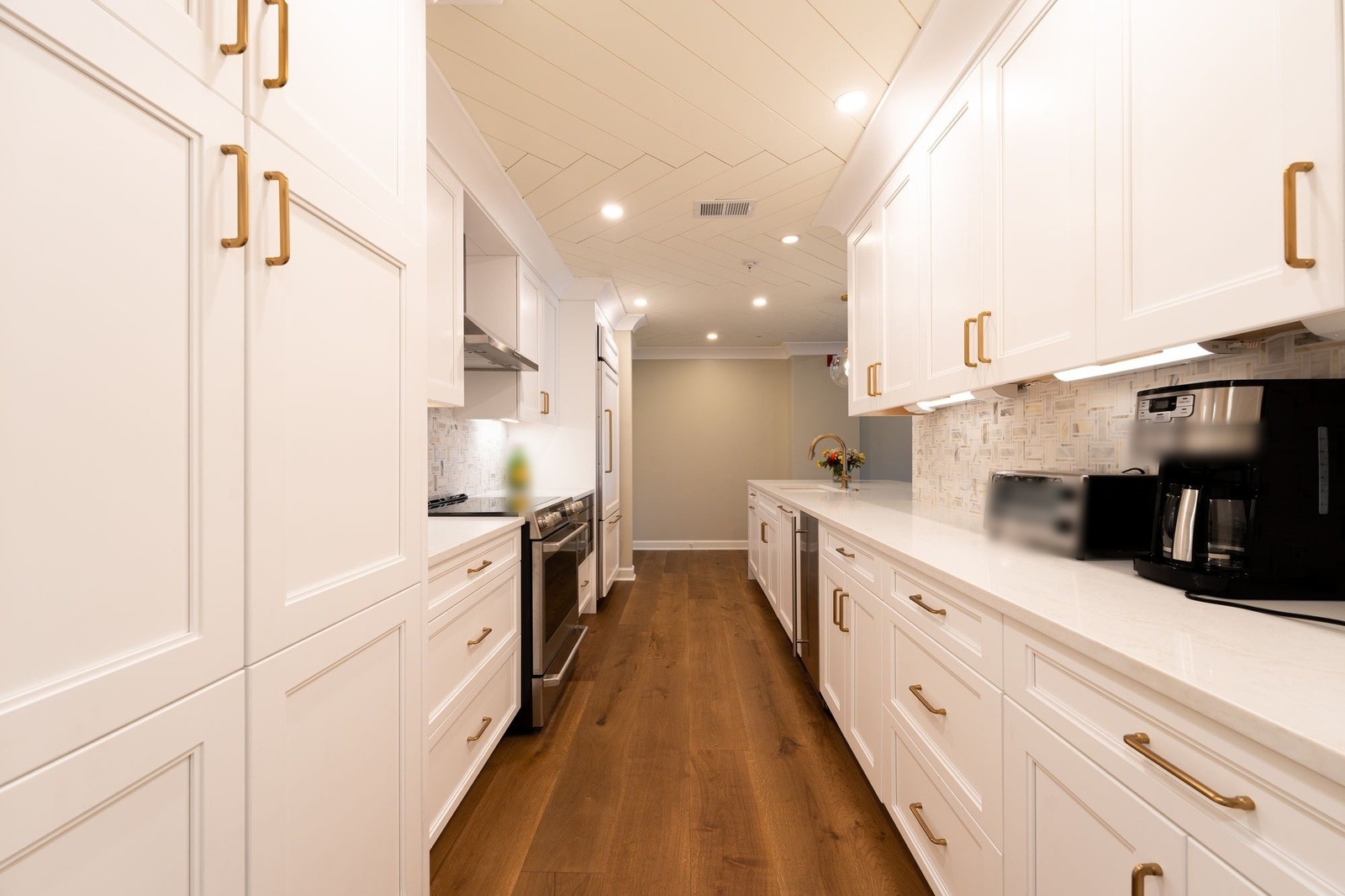
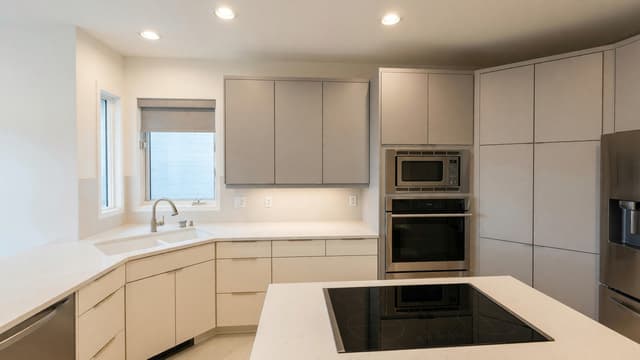
This is a strong result for cabinet color, handles and floor, and the cabinet runs are in the same places. It is also a good example of the small extras: the ceiling pattern vanished and a closed cabinet became an open shelf. If either mattered to you, you would only notice by comparing the two photos closely.
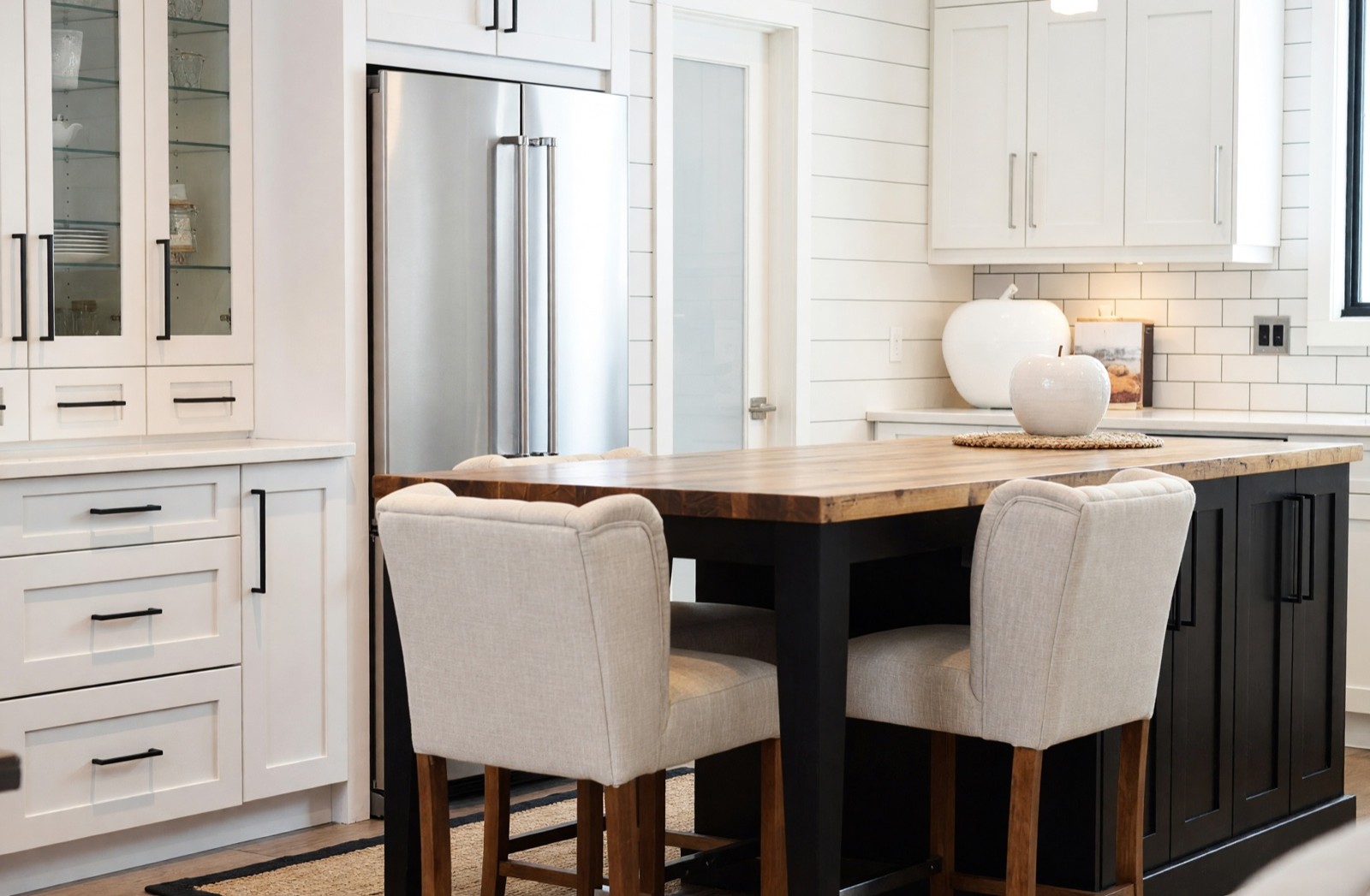
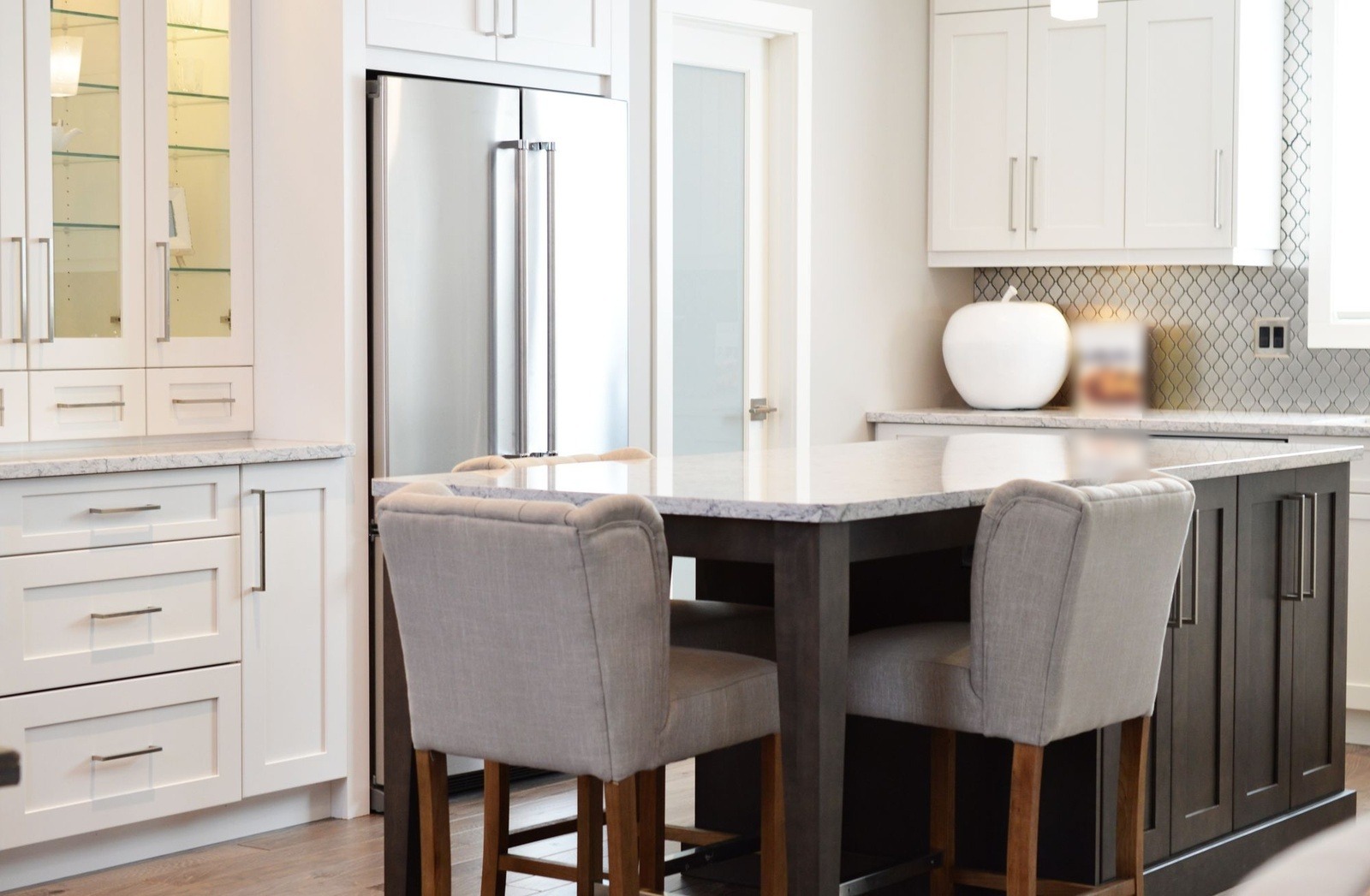
The island and the fridge wall did not move, and the new top and tile are easy to judge. But the handles changed on only some of the cabinets, and a second apple sculpture appeared from nowhere. Treat hardware and decor in the picture as suggestions. This photo is also a tight crop, so it shows an island and a fridge wall, not a whole layout.
Step 4: test one decision at a time
Change one setting at a time, so that you can tell which choice caused what. A sensible order is color first, because the cabinet color sets the mood of the whole kitchen, then hardware, then countertop and backsplash, then floor and lighting. Run the same photo twice and change only the style, or only the mode, and put the two results side by side.
If you only want to test one surface, there are narrower tools. Paint repaints walls and leaves built-in cabinets as they are. Color & Texture (Essential and Pro plans) changes the color or material of one object or surface you select. Magic Edit (Pro plan) changes what you describe in a sentence, for example one new backsplash; kitchen backsplash ideas shows six of those.
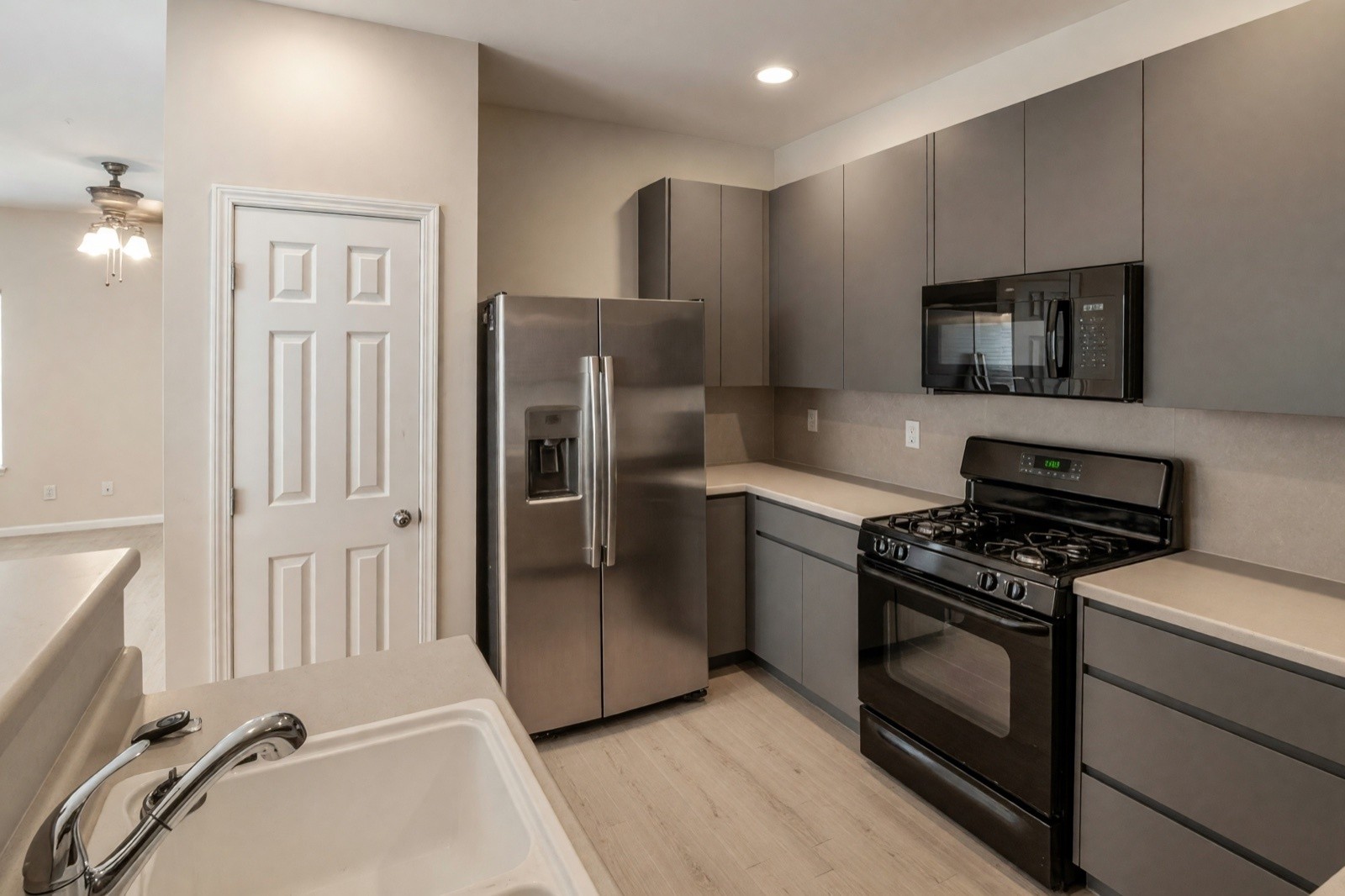
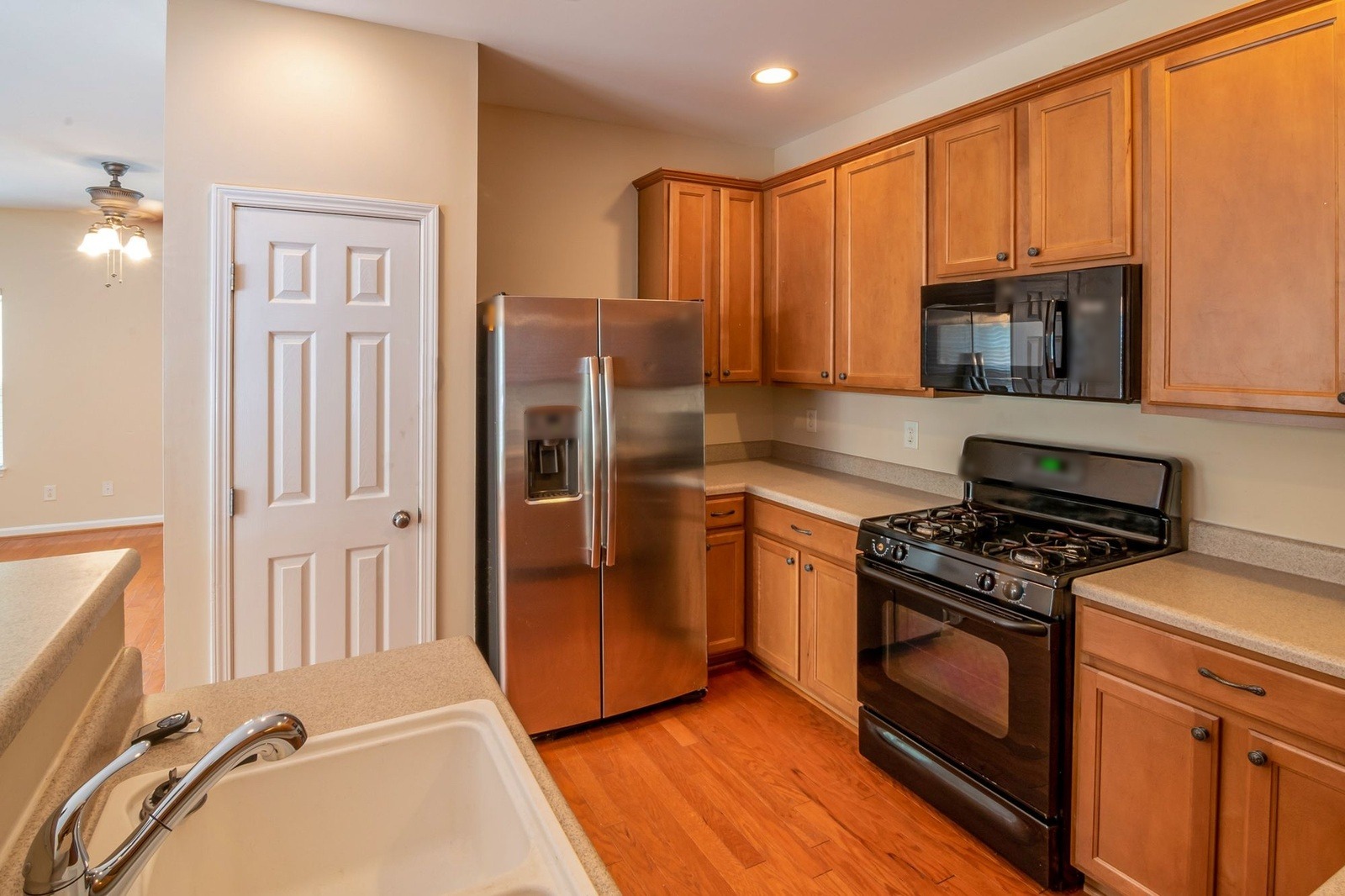
This is a believable cabinet-color and door-style change in the same places, and the counters, wall and floor moved with it. Look at the lower right: a drawer over two doors became three drawers, so the cabinet fronts, not only their color, were redrawn. The appliances were not replaced, which shows the limit: new appliances are a separate decision, and the picture will not tell you how they would look.
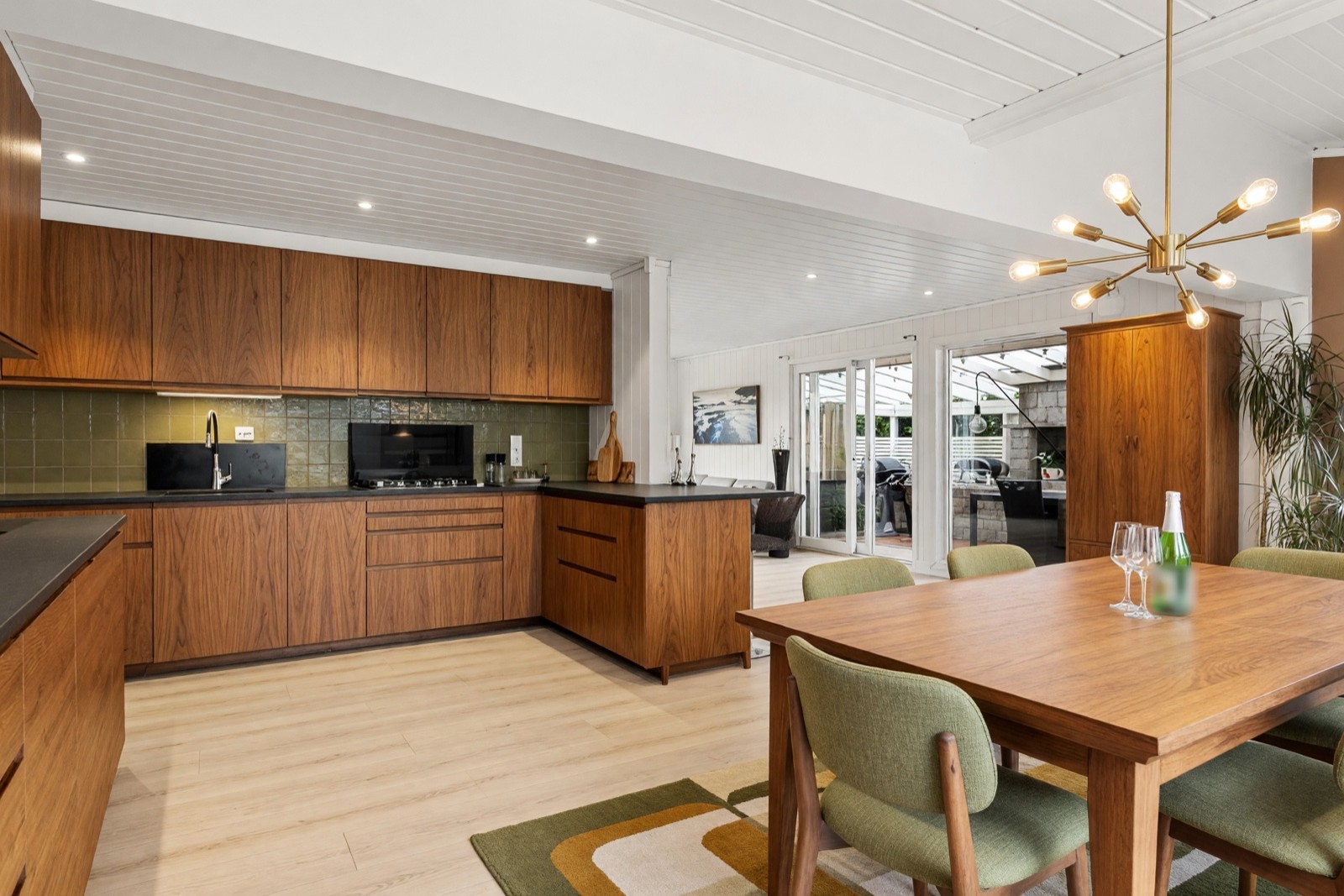
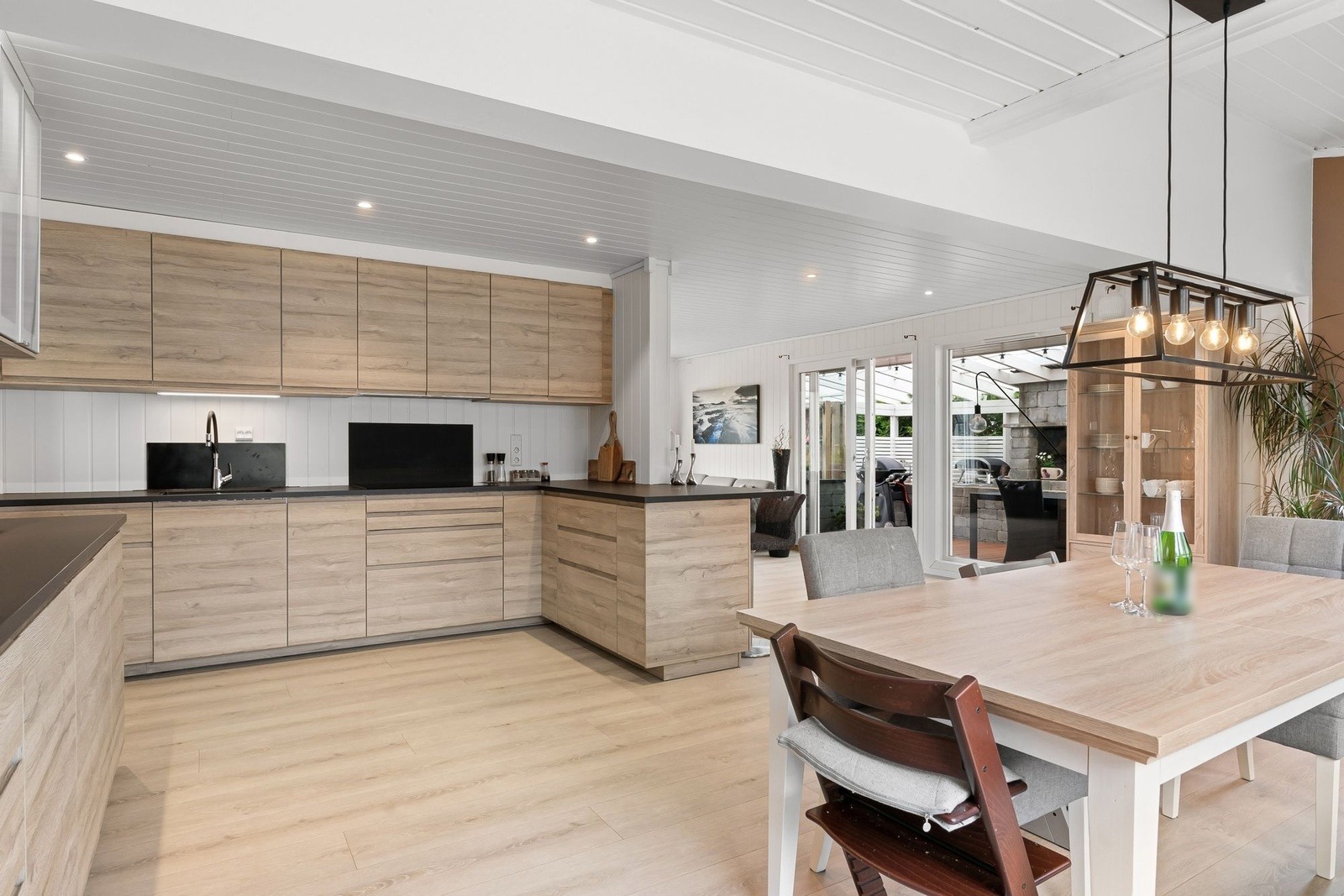
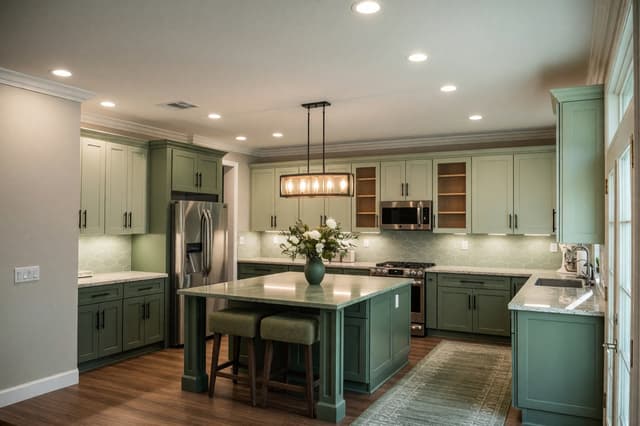
Here the cabinets, backsplash, lighting, dining set and rug all changed at once. It is a convincing mood, but it is hard to say which change does the work. That is why testing one decision at a time is more useful than judging a full makeover as a single piece.
Kitchen layout basics the picture cannot check
These are general starting points that designers use, not something HomeCompose measures or checks. Use them as questions to ask of any result, including your own kitchen.
Think in zones, not just the triangle
A kitchen works in four zones: storing food, washing, cooking and preparing. The classic work triangle joins the sink, the range and the fridge. A common starting point is to keep each side of it roughly 4 to 9 ft (1.2 to 2.7 m), so the cook is neither stretching nor tripping over things. Counter space between the sink and the range is where most preparing happens.
Galley, L-shape or island
A galley has two parallel runs and suits one cook well, as in the Japandi example. An L-shape uses two walls and leaves a corner free for a small table or a stool, as in the Scandinavian example. An island needs room around it: a clear walkway of about 42 to 48 in (105 to 120 cm) is a common starting point. See kitchen island ideas for looks to try, and modern kitchen ideas for a style to compare.
Light the work areas
One ceiling light rarely does it. Aim for general light, task light under the wall cabinets and a little accent light, with warm bulbs of about 2700–3000 K. A new pendant in a picture does not tell you how bright the counter will be.
Interior Design does not change any of this: the sink, range and fridge stay where your photo has them. If a better layout is what you want, that is a conversation with a kitchen designer.
Step 5: turn the picture into a plan with a professional
The picture shows the direction. A plan needs numbers, and those come from the room.
- Measure. Wall lengths, ceiling height, window and door positions, and the width of the walkways you want to keep.
- Check the appliances. Real widths, depths and door swings for the fridge, range and dishwasher, and whether a new one fits the gap.
- Ask about ventilation. Where the hood vents and whether a new one is possible.
- Ask about plumbing, gas, electrical and walls. Moving a sink, a range or an outlet, or taking out a wall, needs a qualified professional and may need a permit.
- Look at real samples. Cabinet door, countertop and tile, in your own daylight and in the evening.
- Bring the picture as a mood reference, not as a drawing, and ask for drawings from your designer or contractor.
Step 6: a decision checklist
- Do I like the cabinet color in daylight, and does it still work with my floor?
- Are the doors paneled or flat, and do I want that look every day?
- Which hardware did I choose, and is it the same on every door?
- Does the countertop edge, thickness and seam suit how I cook?
- Which parts of the picture do I want to keep and which are only the AI's guess?
- What stays in place: the sink, range, fridge and every window?
- Which of my own measurements back this up?
Can AI design my kitchen for free?
Often yes, up to a limit. Free AI kitchen tools usually cap the number of designs, limit the picture quality or add a watermark, so read the terms before you upload a photo. At HomeCompose, Interior Design is on every plan, including the free plan, which includes a limited number of designs, and free designs carry a watermark. Even a limited number of free designs shows whether a style suits your cabinets. To browse looks before you upload anything, start with modern kitchen ideas.
Can ChatGPT design my kitchen?
It can help you plan one, but it cannot show your kitchen. A chat assistant is good at talking through goals, style words and a written brief for a kitchen designer, and some can draw a picture. That picture is a new kitchen, not yours, so it is hard to compare with the real room. Use chat for the brief, then try looks on your own photo with the steps above. ChatGPT interior design covers what to ask and what to check.
Is there an app that gives my kitchen a new layout?
Not one that plans it. A photo tool restyles what is already in the picture, and Interior Design does the same: it changes cabinets, counters, backsplash, floor and lighting, and the sink, range and fridge stay where your photo has them, though the AI may redraw them slightly. It does not move appliances, redraw the plan or check that anything fits. A new layout needs measured drawings from a kitchen designer. Bring your best result as a mood reference, as in Step 5.
Can I use AI kitchen design without logging in?
No. You need an account to create a design. Interior Design also takes no measurements: there is no field for wall lengths or appliance sizes, and the picture cannot tell you whether something fits. Measure the walls, the ceiling height and the appliance gaps yourself, and write them next to the result before you talk to a designer or a supplier.
Common mistakes
- Judging the layout from the picture. Interior Design keeps the layout; it does not improve it.
- Shopping for the appliances you see. They can be redrawn, as the microwave and range controls were in the gray kitchen.
- Changing everything at once. Cabinets, tile, floor and lights together hide what caused the mood.
- Trusting the hardware. Handles can change on some doors and not others, and can disappear.
- Picking a color from the screen. Colors vary by display and light; hold a real sample up in your kitchen.
- Missing the small extras. Ceilings, shelves and decor can change without being asked.
Honest limits of the picture
A result is a picture of an idea. The AI invents the finishes you see, so a cabinet door in the image does not exist in a shop in that exact color and profile. The tool is built to keep the walls, windows and camera angle, but the AI can still redraw an appliance, a handle, a vent or a shelf, and the bolder modes redo more surfaces. It can also make a kitchen look brighter or roomier than it is. It is not a cabinet drawing, a measured plan or a permit document.
Use it to agree on a direction with family or a contractor, then measure. For the same method in any room, see how to redesign a room from a photo with AI, and for the living-room version see design my living room with AI. The HomeCompose guides page has more how-tos.
Frequently asked questions
Can AI design my kitchen from one photo?
Yes, as a visual idea. Interior Design redesigns the cabinet color, counters, backsplash, floor, lighting and decor in your photo and keeps the walls, windows and camera angle. It is a picture to compare with your kitchen, not a measured plan, so check sizes and appliances before you buy.
Can AI move my sink, stove or fridge?
No. Interior Design keeps your layout, so the sink, range and fridge stay where your photo has them, and the AI may redraw them slightly. Moving them is a plumbing, gas and ventilation question for a kitchen designer and a contractor.
Which mode should I start with for a kitchen?
Start with Structural Preservation, the default. It refreshes the finishes and keeps the layout familiar. Move up to Bold Interior if the result stays too close to your kitchen, or down to Light Touch if you only want accents.
Can I change only the cabinet color?
Interior Design restyles the whole look, so other things change too. To test one surface, use Color & Texture (Essential and Pro plans), or describe the change in Magic Edit (Pro plan). Paint repaints walls and leaves built-in cabinets as they are.
Is it free to try?
Yes. You can start on the free plan, and it includes a limited number of designs.