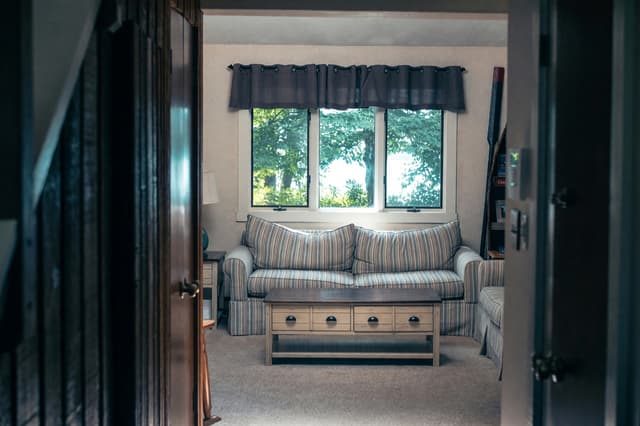
Remove objects and people from a photo
You can remove clutter, a parked car or a person from a home photo with AI, and the AI fills the gap with what would plausibly be behind it. This guide shows how to do it with Cleanup and Magic Edit, with four real before and after results, what the AI changes by mistake, and when it is better not to remove something.
What you can remove from a photo, and what you cannot
You can remove a loose object such as laundry, toys, boxes, cables or a parked car, and a person standing in front of a fairly simple background such as a wall, a bookcase or a driveway. The AI then paints in whatever it guesses belongs behind the gap. So the gap is filled with a guess, not with the real wall or floor, and you get a believable picture, not a record of the scene.
Removing things works best when the object is small or medium, the background behind it is plain or repeating, and the photo is sharp. It works worst when the object covers something with a lot of detail, such as a window with many panes or a patterned floor. Expect the AI to redraw some of what is around the removed thing too, as the examples below show.
How to remove objects from a room photo with Cleanup
Cleanup works on a photo of a room or outdoor area. It is told to keep the walls, windows, floor and main furniture and to remove loose things. The Cleanup tool page lists every level and category; this is the short version.
1. Upload a sharp, well-lit photo
Show the whole area, with daylight and a level camera. A blurry or dark photo gives blurry or odd fills.
2. Pick a cleanup level
Tidy Up is the lightest level and the default; it can also take away small decor, such as a picture frame. Declutter and Listing Ready clear more, and Empty Room takes the furniture out too.
3. Choose what else goes
Tick a category or type a short note for the thing you want gone, and be specific, because the AI works from the words you give it. The note box is for household things; for a person, a car or one exact spot, use Magic Edit.
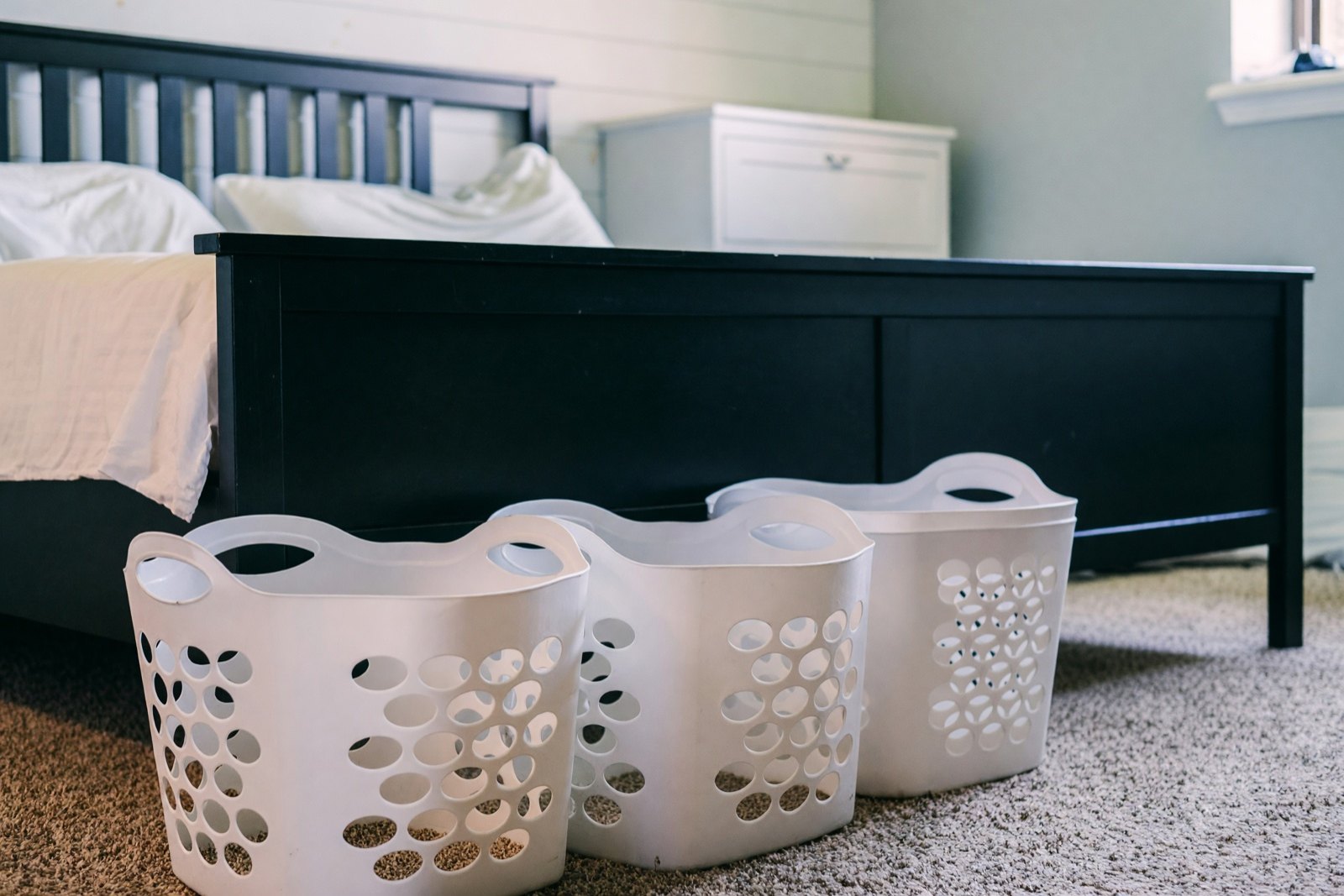
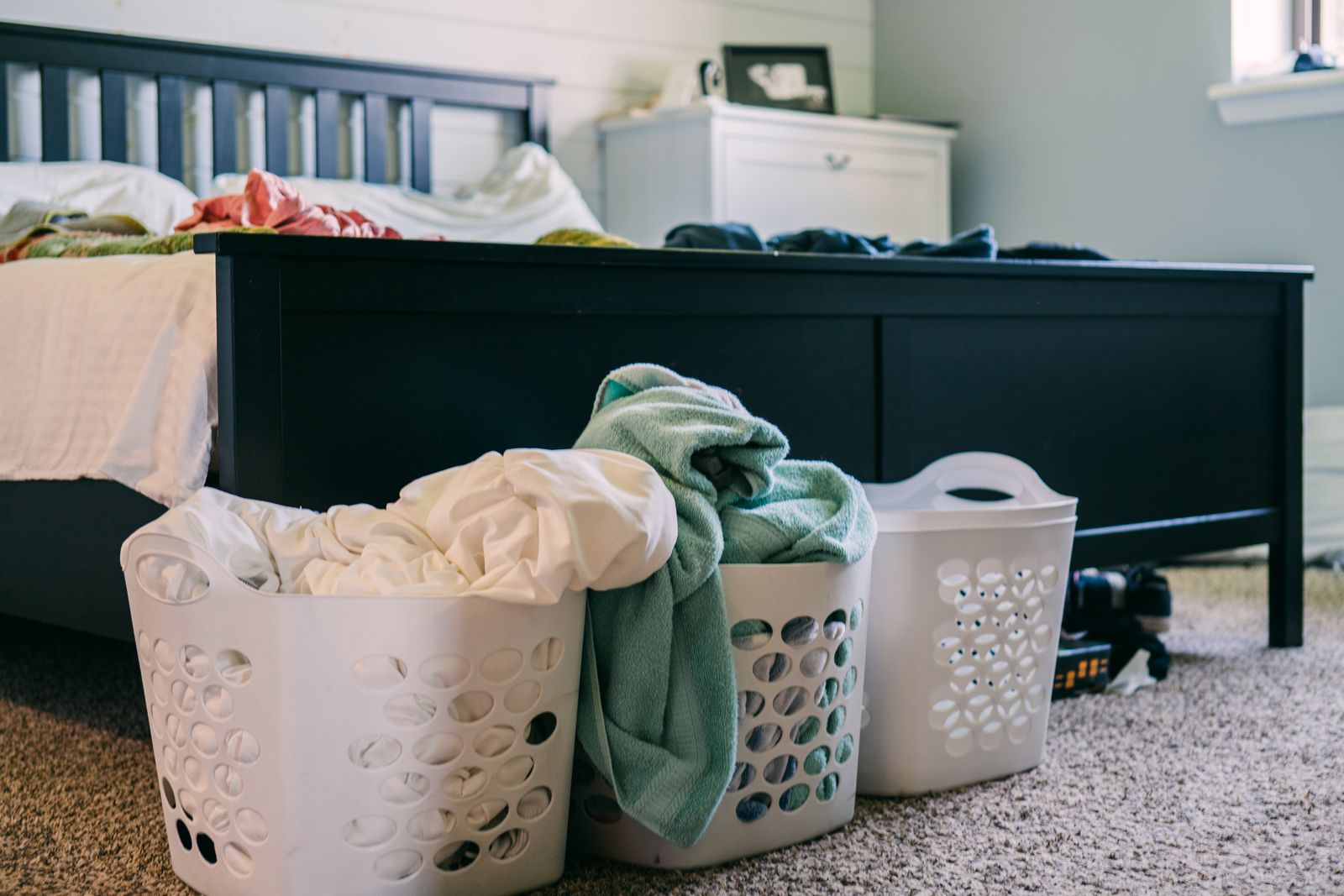
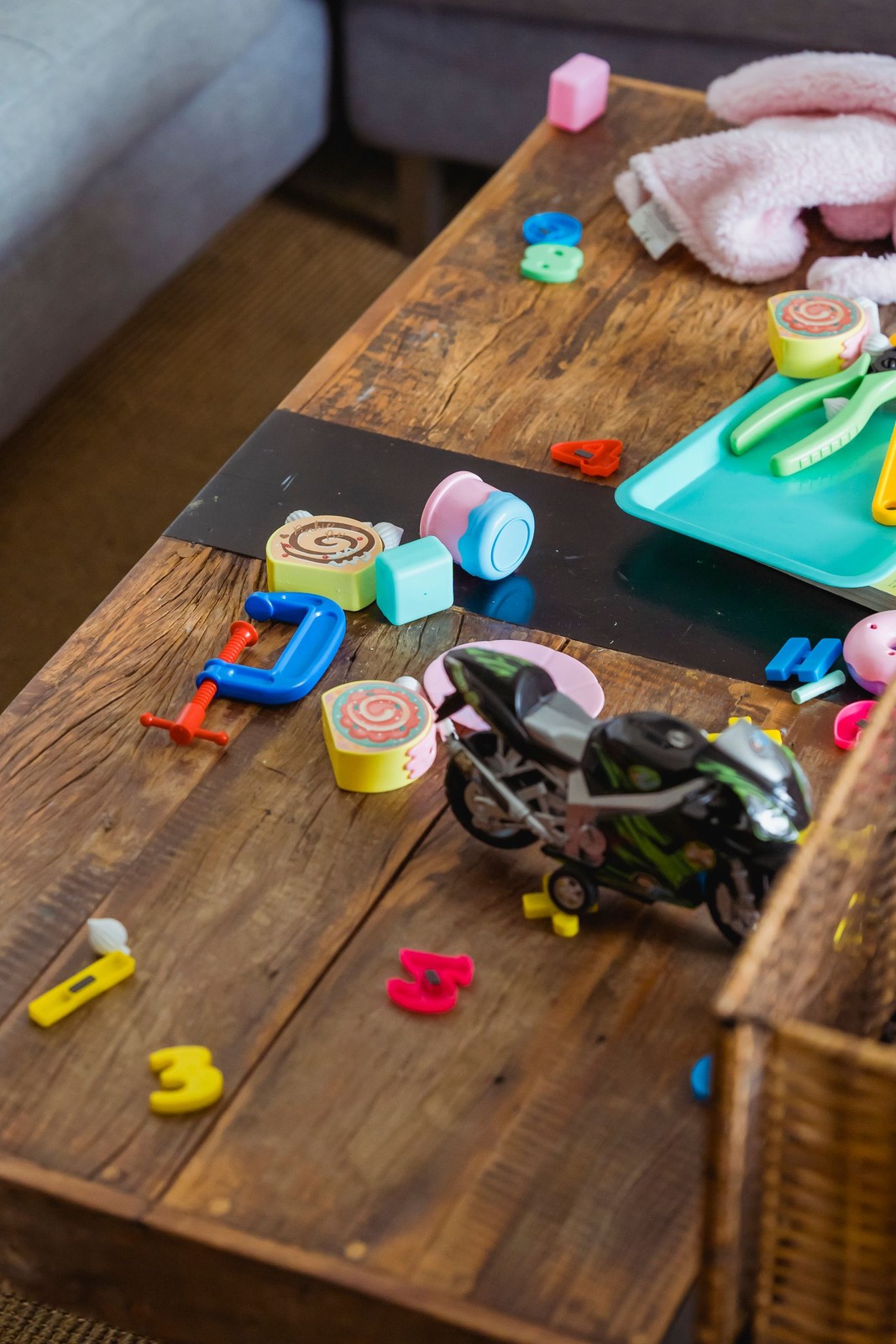
The baskets are the clear change here: what was overflowing is now empty. Look at what else changed. Tidy Up can also remove small decor, so the picture frame on the chest of drawers disappeared although the note only asked for laundry. This is why you check every result.
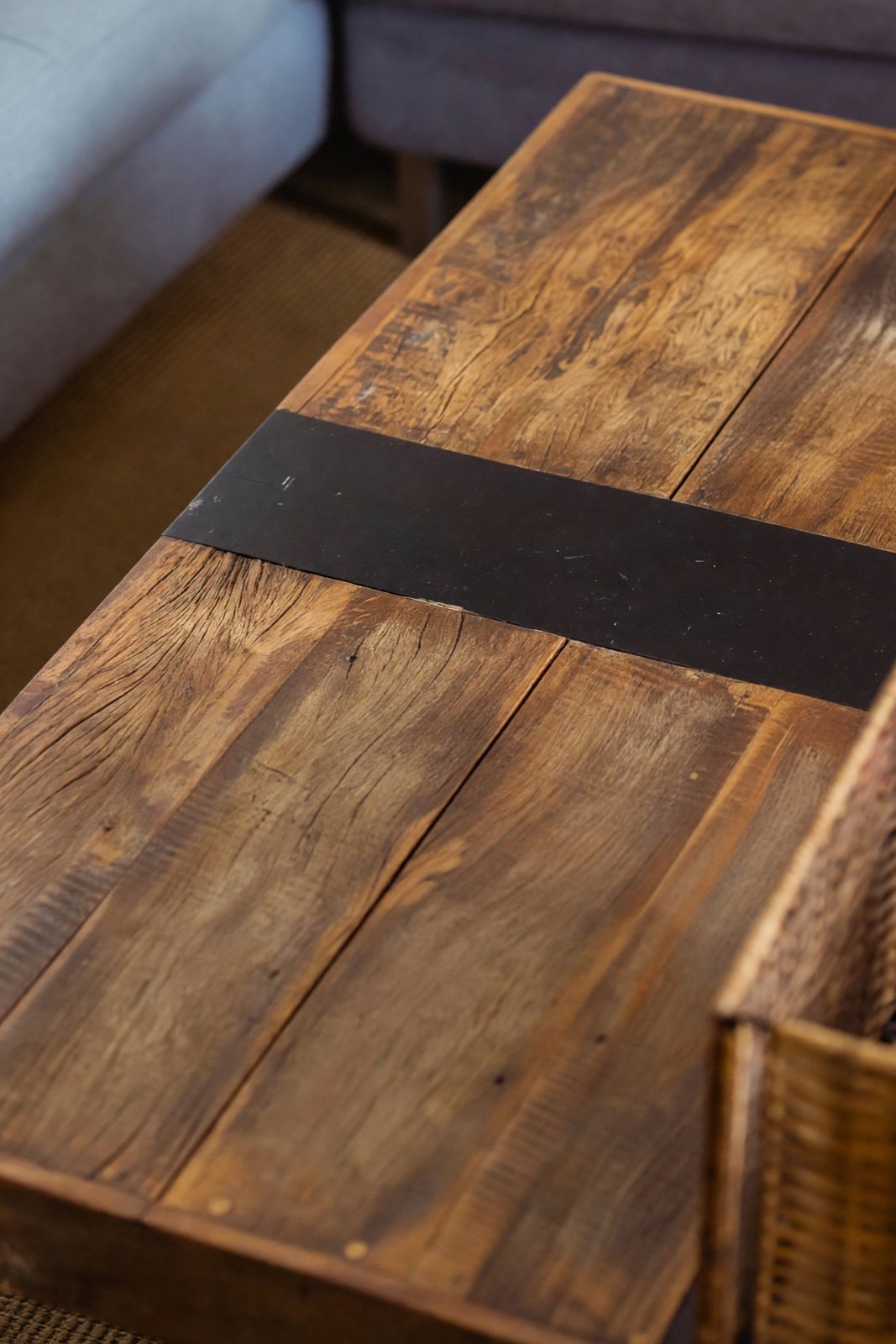
How to remove a person from a photo
For one person or one object that Cleanup's categories do not cover, use Magic Edit, which is part of the Pro plan. You upload the photo and describe the change in your own words. Say what to remove and what should be behind it. For example: "Remove the person completely and fill the area with the white bookcase, the wall and the floor behind them. Do not change anything else."


Two rules apply here. First, only edit photos you have the right to edit, and ask the people in a photo before you change or publish it. Removing a person from someone else's photo, or from a photo that shows a real event, can mislead. Second, a removed person leaves no trace in the picture, which is exactly why a result should not be presented as an unedited photo.
How to remove a car or another large object from an exterior photo
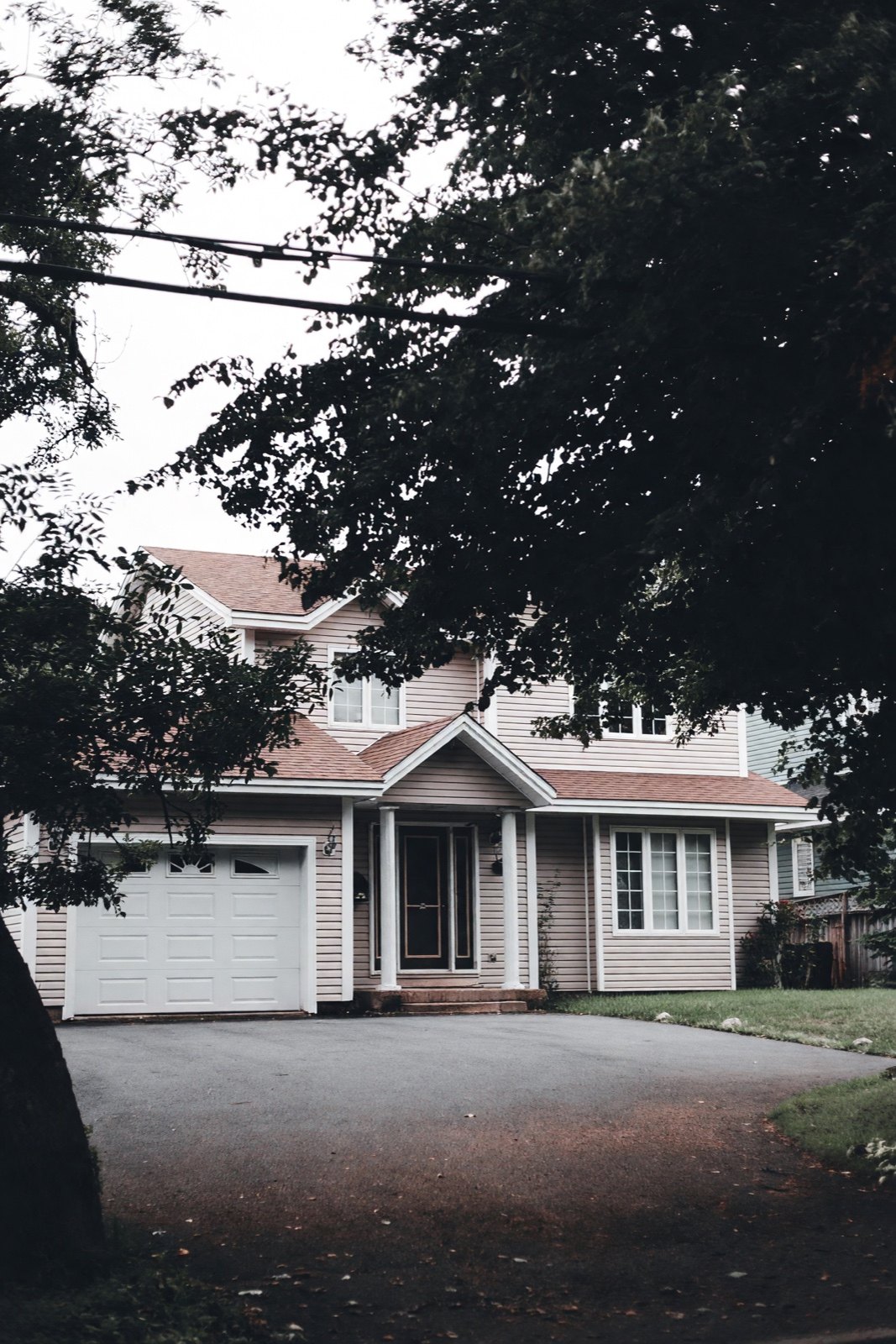
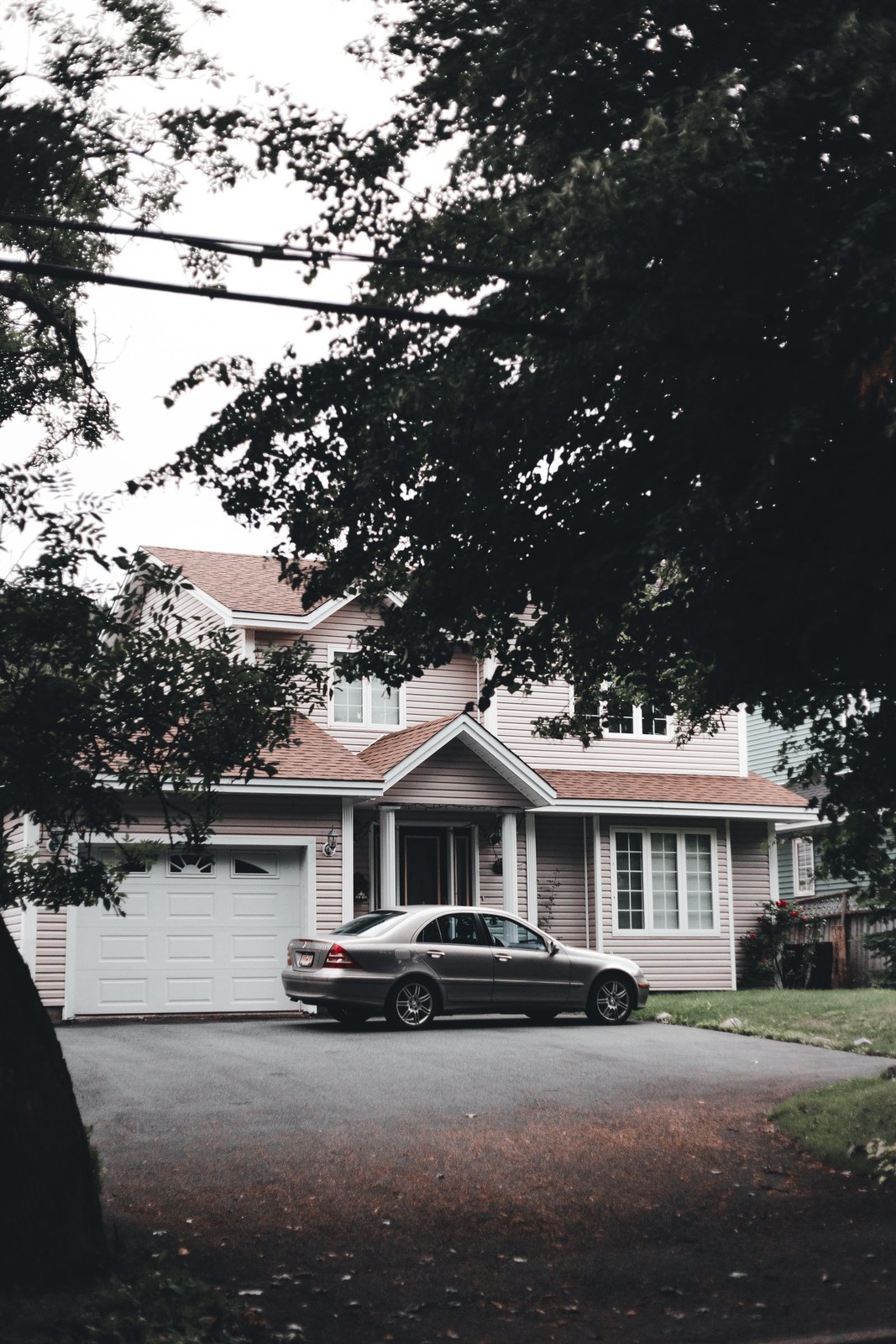
Use Magic Edit and name the object and the surface that should replace it, for example the driveway. If the object hides part of a building, name what should be visible, such as the garage door or the front steps. Anything the object covered is invented, so check it closely.
Tips for a clean result
- Use the largest, sharpest version of the photo. Fine detail gives the AI more to continue from.
- Say what should fill the space. "Fill with the wall behind" gives the AI more to work with than "remove" alone.
- Remove one thing at a time. If a result is wrong, edit the original again with a clearer sentence instead of editing the result.
- Check edges, shadows and reflections. A removed object can leave a faint shadow or a reflection in glass or a mirror.
- Check the details around the removed area. The AI may also redraw nearby things, such as plants, chairs, shelves, steps or a picture frame.
- Keep the original. Compare the two side by side before you share the edited photo.
Does it remove objects automatically?
Partly. In Cleanup you mark nothing: you pick a level, and the AI looks over the whole photo for loose clutter, plus the categories you tick and anything you type in the note. For one exact object or a person there is no brush to paint over it, either. In Magic Edit (Pro plan) you describe it in a sentence. In both, the AI decides which part of the picture matches your words, so "the gray sedan on the driveway" works better than "the car".
Can I remove objects online, and do I need an account?
You do it in the browser, so there is nothing to install, but there is no way to try it without an account. You can create one with an email address or with Google. It includes a limited number of designs, and its results carry a watermark. Cleanup is on every plan, while Magic Edit is only on the Pro plan.
Can I remove an object on an iPhone or another phone?
Yes. The tool runs in the browser on a phone, so there is no app to install. Choose a photo from your phone: JPEG, PNG, WebP and the HEIC format that iPhones use are accepted, and HEIC photos are converted in the browser, so you do not need to convert them first. A photo can be up to 10 MB. Check the result on a larger screen too, because a small screen hides redrawn edges.
Can I get an HD result?
On a paid plan, yes, as a second step. Each image is made at a size meant for screens and listings, about 4 megapixels. On the Essential and Pro plans a finished image in the gallery has an HD button that makes a second copy at about twice the width and height and keeps the original. The free plan cannot use it. HD makes the picture larger and sharper but does not fix a fill that looks wrong, so judge the removal first and make the HD copy last.
AI object remover: what to check before you share the result
An AI object remover paints a guess over the gap, and the guess can reach beyond it. Before you post or send the photo, look at four things:
- Faces. A face left in the background can be redrawn and look a little different. Only share photos of people who agree.
- Text and numbers. Signs, labels, house numbers and book spines can come out with changed or garbled letters, so zoom in on each one.
- License plates and private details. A license plate or an address that stays in the photo can be altered, not hidden. If something private must not show, blur it yourself.
- Straight lines and reflections. Walls, tiles and railings should run straight through the area, and glass should still reflect what is in front of it.
If the edit changes what a buyer or guest would see in person, leave it out (see the next section). For listing photos, say that the image is edited; the virtual staging guide linked below explains how to label edited photos.
When not to remove something
- Damage, stains or defects in a home you are selling or renting. Do not remove what a buyer or guest would see in person. Show the room honestly.
- Property features. Do not remove a power line, a neighbor's building or anything that is really part of the view in a listing photo.
- People in someone else's photo, or in a photo of a real event, unless the owner agrees and the result is not presented as an unedited photograph.
- Things that carry meaning, such as a family photo or a memorial. Keep a copy of the original.
The result is an edited image, not a record of the room. If you are preparing a home for sale, the virtual staging guide explains how to label edited photos. To clear a whole room at once, see declutter a room photo with AI.
Frequently asked questions
Can I remove an object from a photo for free?
Yes, within the designs the free plan includes. Cleanup is on every plan and removes loose clutter and the categories you choose; free designs carry a watermark. For one specific object or a person that you describe in a sentence, use Magic Edit, which is on the Pro plan.
Can AI remove a person from a photo?
Often yes, when the person stands in front of a simple background such as a wall, a bookcase or a driveway. This uses Magic Edit, on the Pro plan. The area behind them is invented, so check the result, and expect nearby details to change a little. It works worse when the person covers a window or a detailed pattern.
Is it okay to remove people from photos?
It is your own photo and your own choice when the people are you or have agreed. Do not edit people out of someone else's photos without asking, and do not present an edited photo as an unedited one.
Why did the AI change things I did not ask it to?
The AI can redraw more than the area you asked about, so nearby objects can change slightly or even appear or disappear. Check the result against the original, and write the sentence again if something changed that should not have.
Will the result look exactly like the photo without the object?
No. The area under the removed object is drawn to look plausible, not recovered. Expect better results on plain backgrounds than on busy ones.